Redesigning Your Form
42 Designing a Form
Changing Tab Order
Tab order is the order in which the cursor moves from field to field on a
form in fill view. You may want to change tab order if you have added,
deleted, or moved fillable objects in design view.
To change tab order:
1 Click the Tab Order button in the standard toolbar or choose
Tab Order...
in the Tools menu.
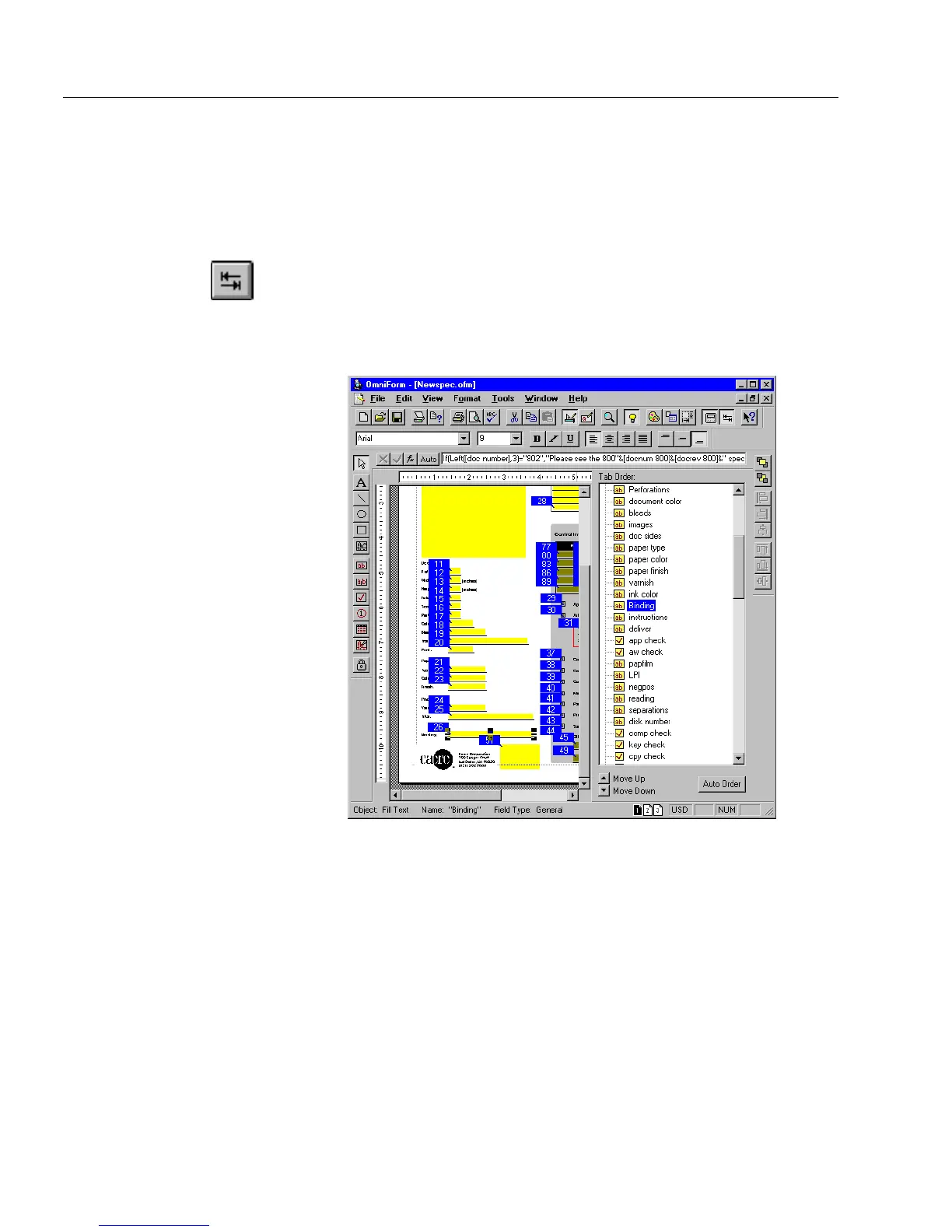
The Tab Order window appears to the right of the form and
numbers appear by each object on the form. Both indicate cur-
rent tab order.
2 Select the field to reorder.
Note that the corresponding object on the form is selected.
3 Reorder the field in one of the following ways:
• Select a field in the window and drag it up or down to change
its tab order.
• Click the
Move Up
button to move the selected field up. Click
as many times as needed to move it into place.
• Click the
Move Down
button to move the selected field down.
Click as many times as needed to move it into place.



 To Next Page