Your Omnipod® Insulin Management System 1
4
1 Your Omnipod® Insulin Management System
Screen Navigation
e PDM communicates with you by displaying images on its screen. You
communicate with the PDM by pressing buttons and so keys.
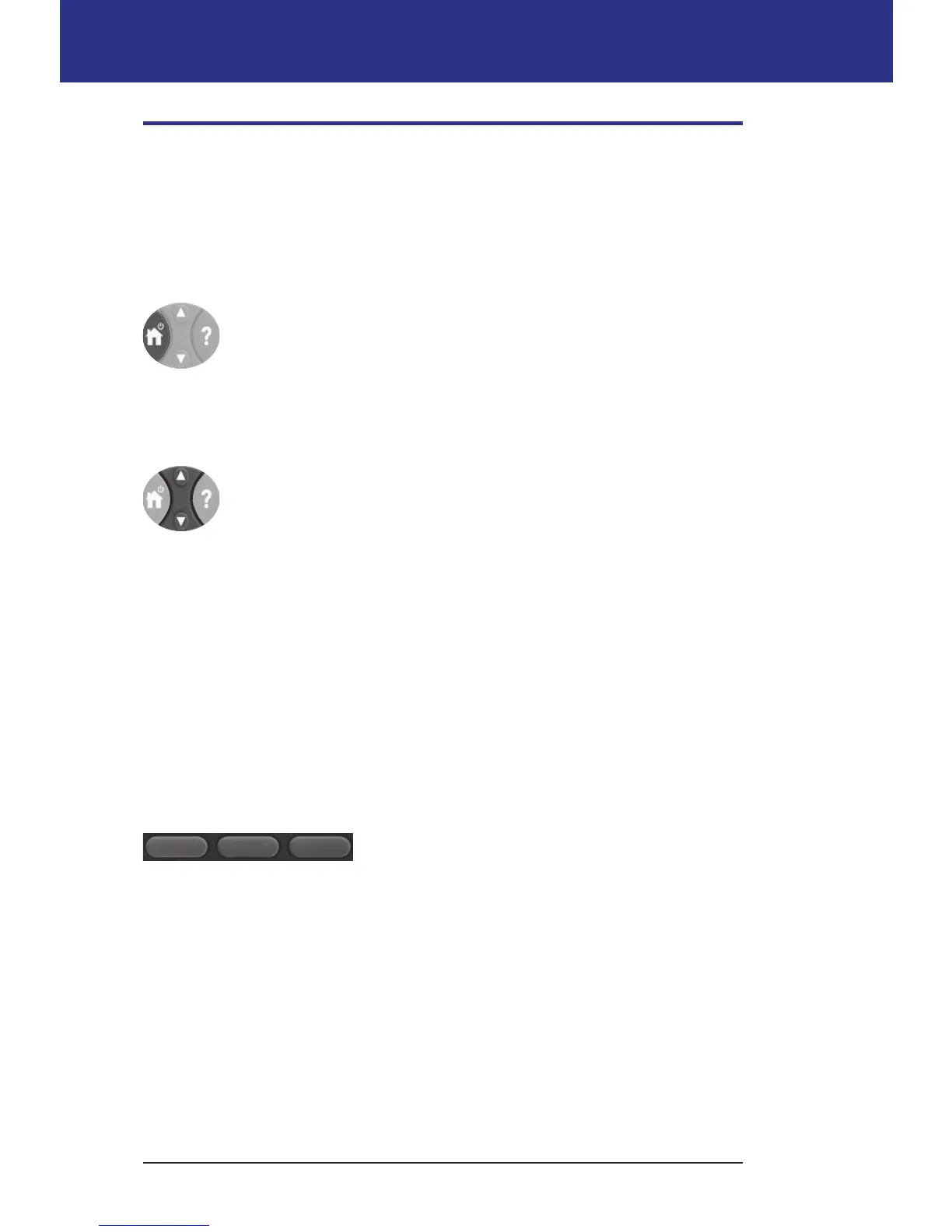
The Home/Power button
Press and hold the Home/Power button to turn the PDM on or o.
When the PDM is on, briey press this button to return to the Home
screen from any other screen.
The Up/Down button
e Up/Down button is used in the following ways:
• Press and release to increase or decrease a number. Holding the
button down changes the number more rapidly.
• Press and release to scroll through a list of available menu options.
Holding the button down scrolls faster.
• Some screens have text that continues below what is visible on
the screen. Use the Up/Down button to scroll down to view any
o-screen text.
Press the Up arrow (the upper part of the Up/Down button) to increase a number
or to move up on a screen. Press the Down arrow (the lower part of the Up/Down
button) to decrease a number or move down on a screen.
Soft keys and soft key labels
So key labels appear on the screen directly above the so key buttons. e so
key labels dier on dierent PDM screens. Press a so key to select an action or
to navigate between screens. For example, on the Home screen shown on the
previous page, the two so key labels are "Status" and "Select."
• Press the right-hand so key, directly below the "Select" so key label, to select
the highlighted "Bolus" menu item. e Bolus screen appears.
• Press the le-hand so key, beneath the word "Status," to bring up the Status
screen.
Tip: Pressing a so key that has no so key label above it prevents the PDM from
going to sleep but has no other action.



 To Next Page