45
Checking Your Blood Glucose 44 Checking Your Blood Glucose
3. Use the Up/Down button to enter your measured blood glucose value.
4. Press Tag to add an informational note to your blood glucose reading (see
"Tagging the Blood Glucose Results" on page 45).
5. Press Save to save the reading in the BG history records.
See "How the PDM reports blood glucose results" on page 44 for a description of
the messages displayed by the PDM for dierent ranges of blood glucose values.
Tagging the Blood Glucose Results
You can add an informational tag to your blood glucose reading for future
reference. For example, you may tag the result as a pre- or post-meal test, or to
indicate a level of exercise. You can add or change tags on your blood glucose
results up to two hours aer you enter the blood glucose value. To access the tags:
1. If necessary, bring up the tag screen by navigating to:
Home > More actions > Assign/Edit BG tags
2. Use the Up/Down button to choose the rst item
you'd like to tag, and press Tag.
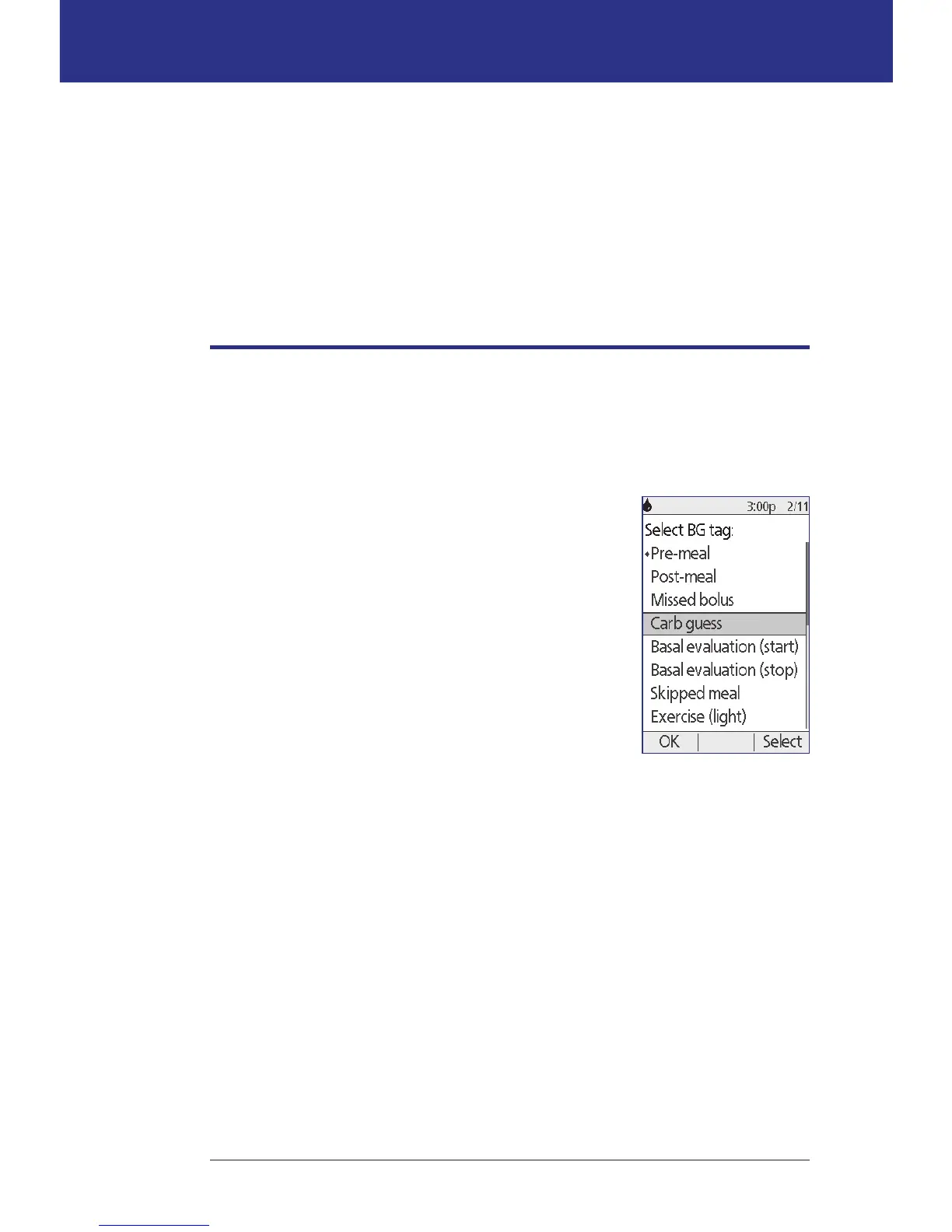
3. Use the Up/Down button to scroll along the list of
potentials tags. Highlight a tag and press Select.
4. You can highlight and select up to two tags. You can
remove a tag by highlighting it and pressing Clear.
5. Press OK when nished.
Note: You can add or edit tags for LOW and HIGH
blood glucose readings just as you would for any other reading.
For information about adding custom tags or managing the tags list, see "BG tags"
on page 82.



 To Next Page