5
Your Omnipod® Insulin Management System 11 Your Omnipod® Insulin Management System
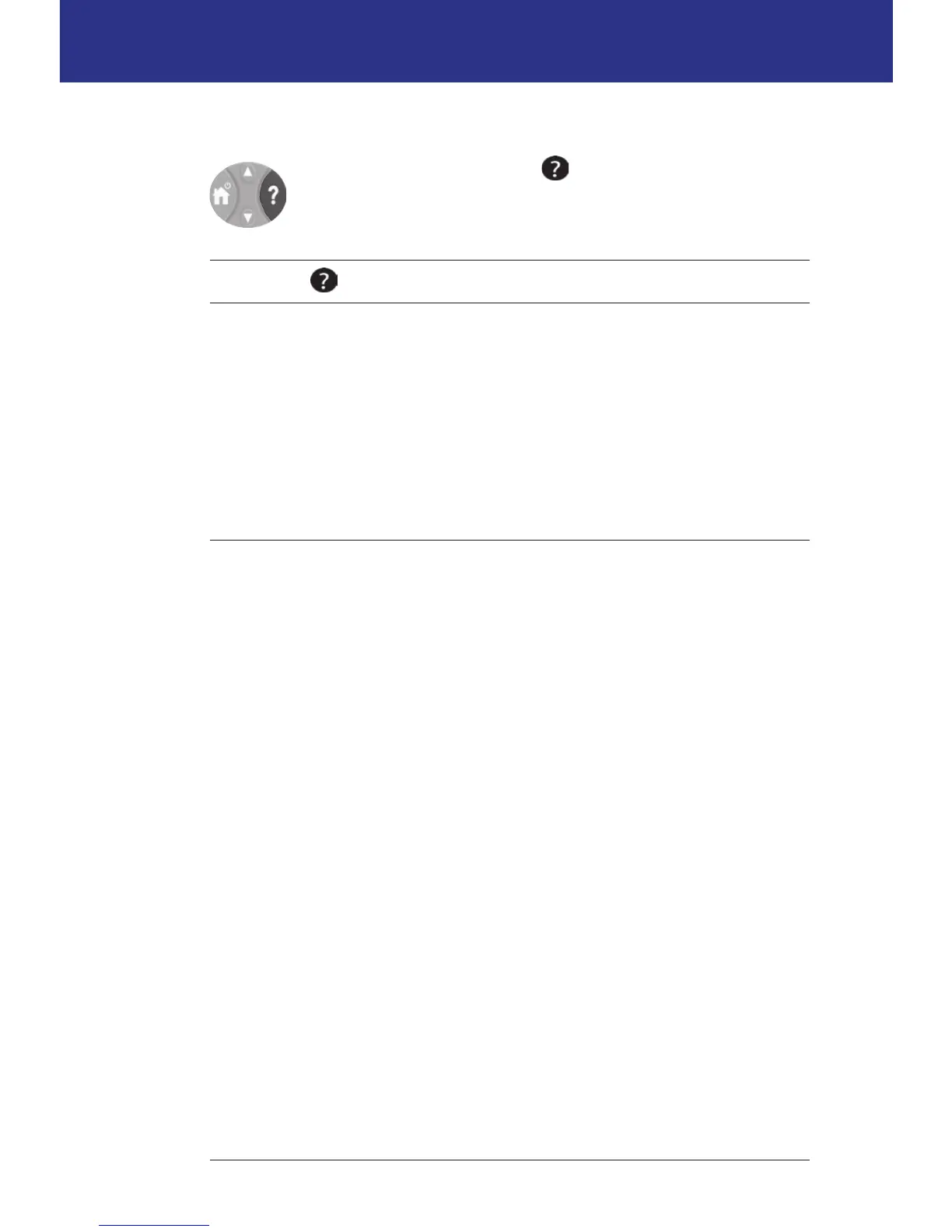
The Info button
Some screens have a "more info" icon in the header bar (see
page 7) or displayed to the right of an item in a list. When the "more
info" icon is present, press the Info button to display a screen with
additional details.
Screen with icon
Pressing the Info button displays
Home screen Username, other personalized entries (if any),
Insulet Corporation contact information, device
serial number
Status screen Insulin on board (IOB) details
Suggested bolus screen Bolus calculation details
History screen Details about a tagged event
Screen brightness
e Info button can also be used to make your PDM screen brighter or less bright.
Press and hold the Info button for two seconds to toggle the “bright mode" on or
o. To control the dimming of the screen, see "Backlight time-out" on page 63.
Navigation shorthand
e User Guide uses the ">" symbol to indicate navigating from one screen to
another. For example, the following notation:
Home > Settings > Presets > Carb presets
tells you to:
1. Turn on the PDM and conrm your ID, if necessary.
2. Press the Home/Power button.
3. Use the Up/Down button to highlight the Settings option, then press the so
key under Select to bring up the Settings menu.
4. Use the Up/Down button to highlight the Presets option, then press the so
key under Select to bring up the Presets menu.
5. Use the Up/Down button to highlight the Carb presets option, then press the
so key under Select to bring up the Carb presets menu.



 To Next Page