Adjusting Settings 7
82
7 Adjusting Settings
BG Readings Settings
Upper limit and lower limit of the BG Goal Range
e upper and lower limit of your BG Goal Range are
used in the history graphs and statistics to determine
which blood glucose readings are within goal and which
are above or below your goal.
Caution: Check with your healthcare provider before
adjusting these settings.
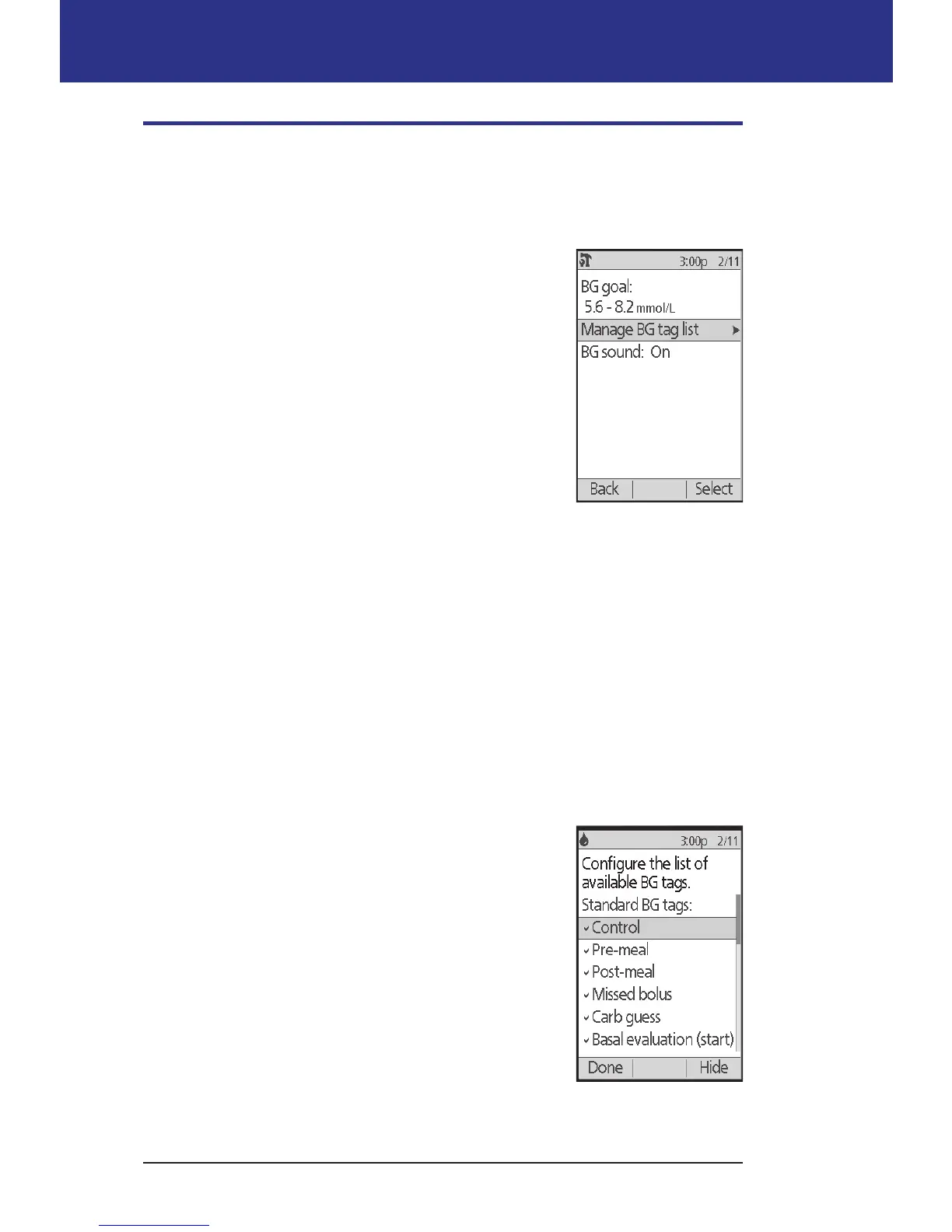
1. Home > Settings > System setup > BG meter
2. Highlight BG goal, press Select, then press Edit.
3. Enter the desired lower limit for the BG Goal Range,
and press Next.
4. Enter the desired upper limit for the BG Goal
Range, and press Next.
5. Press Save.
BG tags
BG tags are used to convey useful information about blood glucose readings. You
can create up to 15 custom tags (which appear at the bottom of the tags list) and
hide any of the standard tags you do not plan to use.
1. Home > Settings > System setup > BG meter
2. Highlight Manage BG tag list, and press Select.
3. To show or hide a standard tag on the Standard BG
tags list, highlight the tag of interest and press Show
or Hide. You may need to scroll down to nd the tag
or interest. Press Done when nished.
A checkmark indicates the tags that will appear in
the tags list used for tagging BG readings.
4. To add a custom BG tag, use the Up/Down button
to scroll down to the Custom BG tags section,
highlight [add new] and press New. Enter a name
(see "Entering text" on page 6), and press Save. en
press Done.
5. To delete a custom BG tag, scroll down to highlight the tag of interest, and
press Delete. en press Delete again, then press Done.



 To Next Page