Your Omnipod® Insulin Management System 1
10
1 Your Omnipod® Insulin Management System
Status screen
e Status screen is an important screen. Navigating to the Status screen causes
the PDM to ask the Pod about its (the Pod's) current state. For details, see "Status
checks: How the PDM checks Pod function" on page 134.
You can navigate to the Status screen in two ways:
• Turn on your PDM by pressing-and-holding the Home/Power button. e
Status screen appears aer you conrm your ID.
• If the PDM is on, briey press the Home/Power button and then press
Status.
Tip: Visit your Status screen oen to make sure the Pod is working properly. If the
Status screen says it is unable to communicate with the Pod, see "Failure to receive a
Pod status" on page 102.
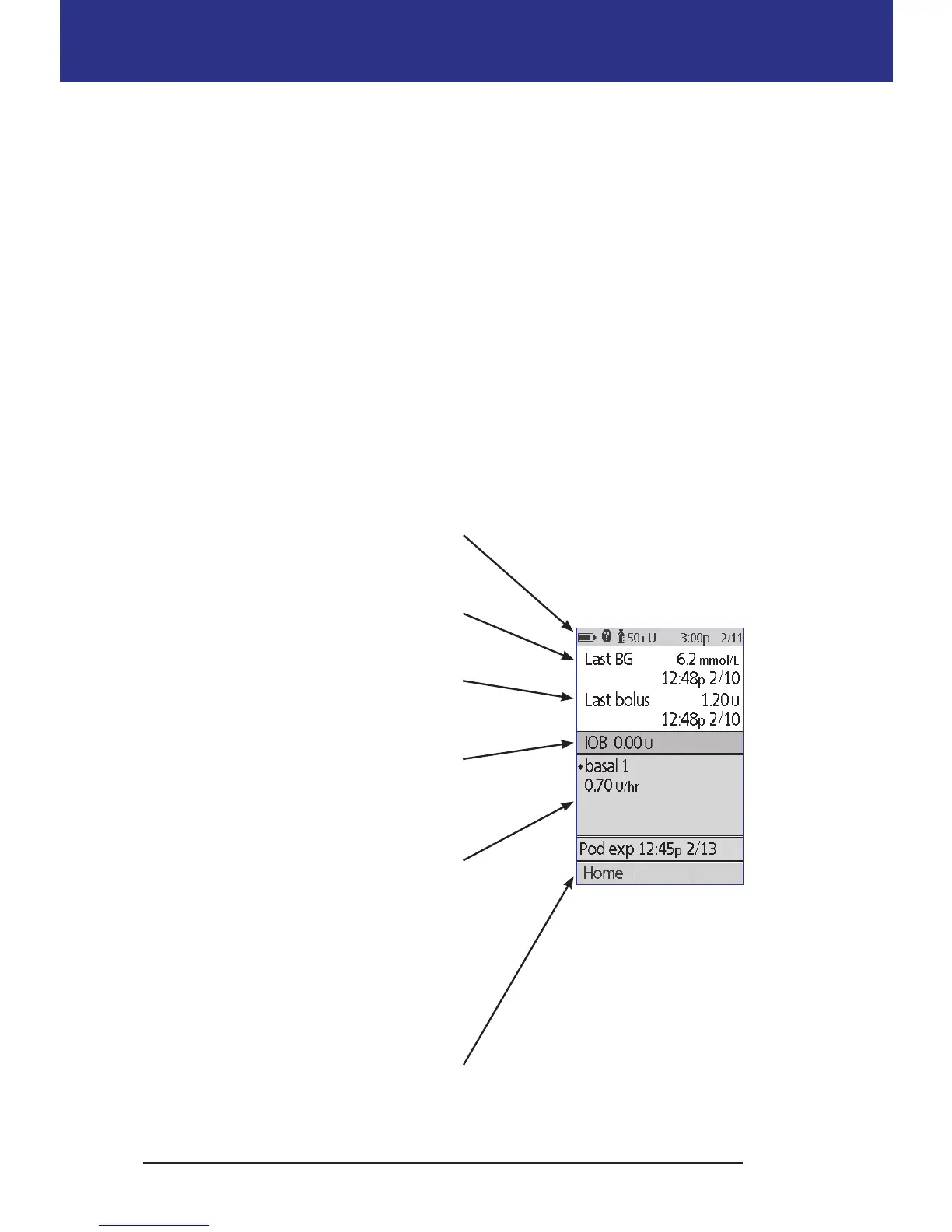
e Status screen shows:
e header bar (see "e Header Bar" on
page 7).
Your most recent BG reading and the time
and date it was recorded.
Your most recent bolus and the time and
date delivery began.
Your insulin on board, or IOB (insulin
from boluses still active in your body), if
the Bolus Calculator is on (see "Turn the
Bolus Calculator on or o" on page 70).
Message about the Pod's current activity.
is area usually shows the active Basal
Program and the current basal rate.
However, a dierent message appears
if insulin delivery is suspended, a temp
basal or extended bolus is running, you
have no active Pod, or if the PDM cannot
communicate with the Pod.
e time and date that your Pod will
expire. If the Pod has already expired, "Pod
exp: change Pod" appears instead.


 To Next Page