Initial PDM Setup 2
14
2 Initial PDM Setup
Avoid taking a long break during the setup process. If the PDM is idle for 60
minutes during the setup process, you must begin the setup process from the
beginning.
Tip: Use the pages at the end of this User Guide to write down all of your settings.
is list will be helpful if you ever need to reset or replace your PDM.
Insert the batteries
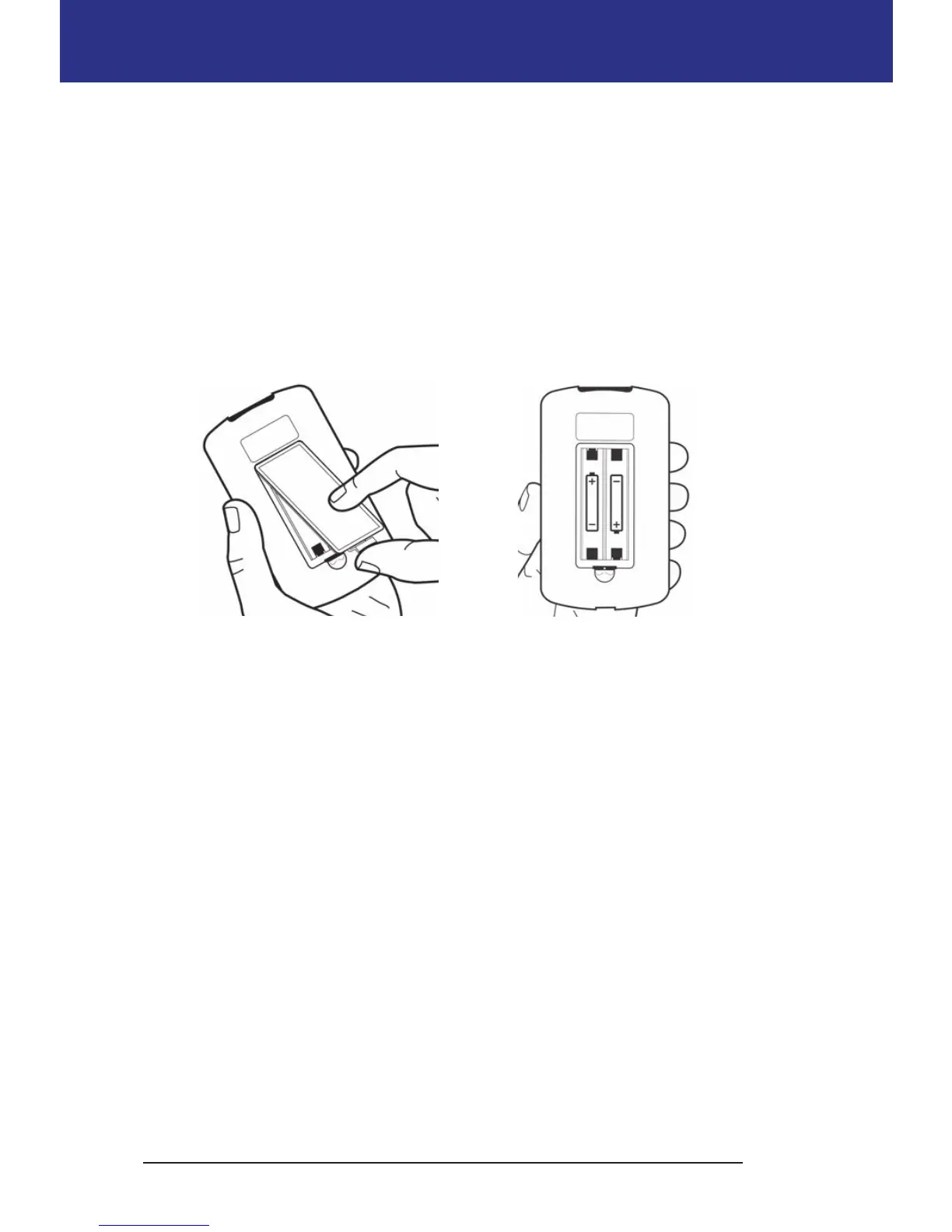
1. Open the battery compartment on the back of the PDM by pushing the
compartment latch and liing upward. No special tools are necessary.
2. Insert two new AAA alkaline batteries into the compartment. e diagram
inside the compartment shows you which direction to insert the batteries.
Caution: Only use AAA alkaline batteries to power the PDM. Never use old,
used, or non-alkaline batteries; the PDM may not work properly. Do not use
rechargeable batteries.
3. Replace the battery door.
4. Turn the PDM face up. e PDM powers on automatically.
Personalize your PDM
Username and screen color
1. Aer inserting the batteries, a Welcome message appears on the screen. Press
Next.
2. Use the Up/Down button and the middle so key to enter your user name
(see "Entering text" on page 6).
Note: You must enter at least one letter or number.
3. When nished entering your username, press Next.
4. Use the Up/Down button to choose a background color for your ID screen.


 To Next Page