93
7.16 Restore to Default
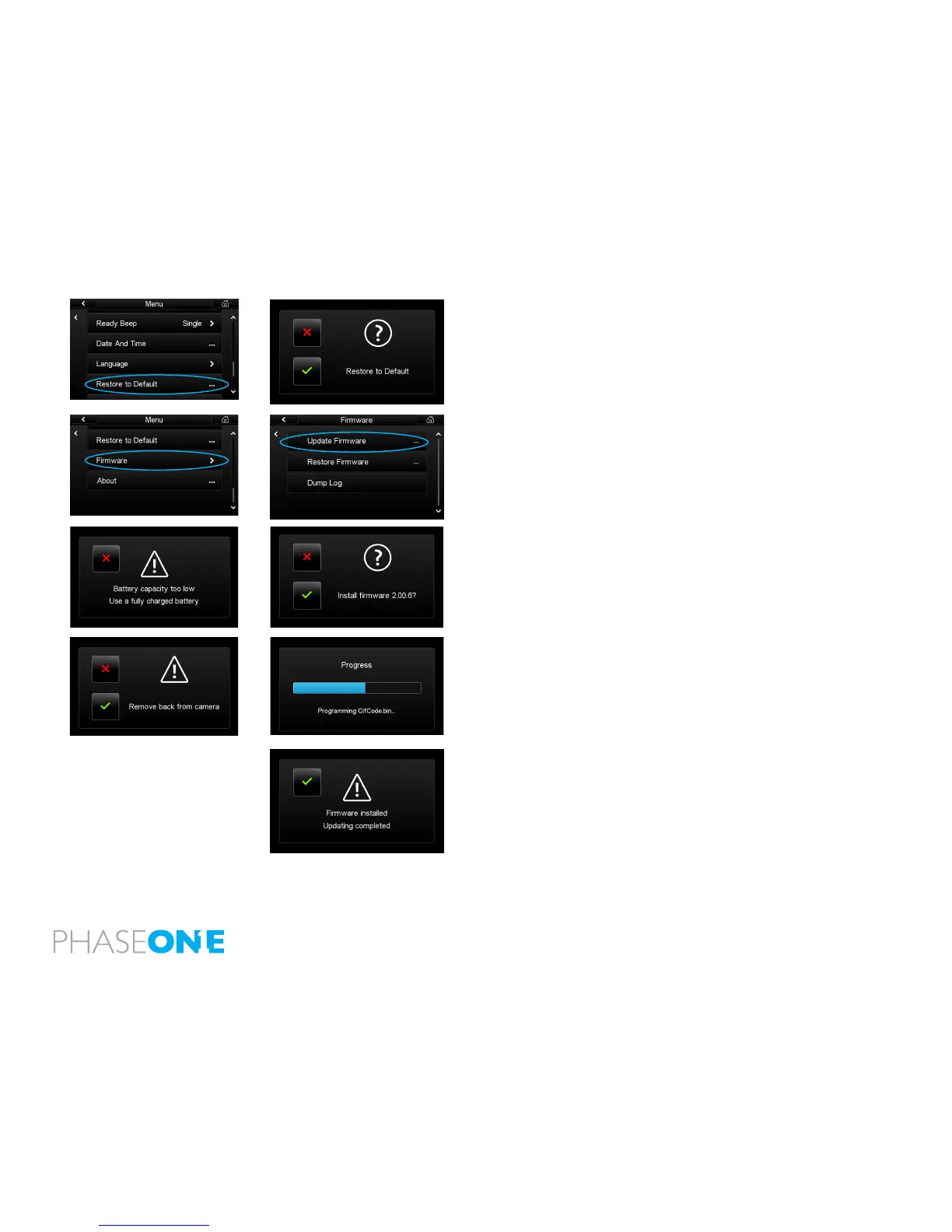
Select Restore to Default to restore the IQ unit back to its default factory
settings. Caution! All previous settings will be lost.
7.17 Firmware
It is important to keep the IQ’s rmware up-to-date to ensure you get new
features and remove any bugs or errors from previous rmware versions.
1. Download the latest rmware update from
www.phaseone.com/ Downloads
2. Transfer the rmware (.fwr) le to a CompactFlash card and insert it into
the IQ’s card slot. Go to Menu > Firmware > Update Firmware. It is not pos-
sible to update the rmware unless the digital back battery is fully charged.
A warning screen will appear if the battery life is too low. (See far left). Tap
the green check mark to install the rmware. (See left).
3. Ensure that the IQ back has been removed from the camera. A progress
bar will appear on screen during installation.
4. A conrmation screen will appear once installation is complete. The IQ
back will automatically restart itself.
N.B. It is best practice to perform a hard reboot of the digital back after the
update is complete by unplugging and reinserting the battery.



 To Next Page