2. Scroll down to Shipping Settings.
3. Tap Automated Emails.
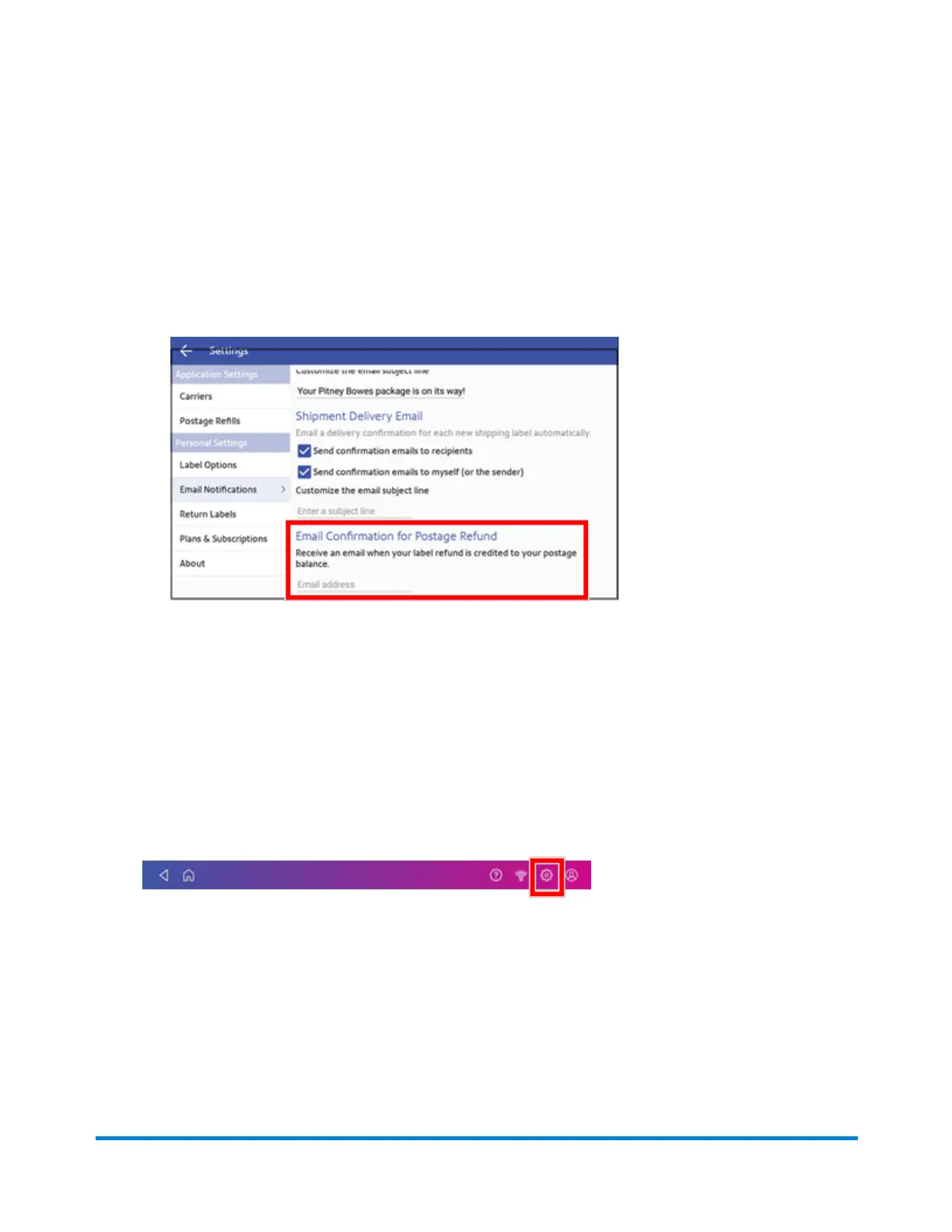
4. Tap the required check boxes in the Tracking Number Email and Shipment Delivery Email
sections to enable tracking number and delivery confirmation emails to senders or recipients.
5. To receive an email when your postage balance receives a credit through a label refund:
l
Scroll down and enter the email address in the Email Confirmation for Postage Refund
section.
6. (Optional) To customize the subject for each email type, enter the subject in the Customize the
email subject line field.
Setting the default address for USPS return labels
You can set the recipient's address as a default address for all of your USPS return labels.
1. Tap Settings.
2. Scroll down to Shipping Settings.
3. Tap Return Labels.
4. Tap the check box for I wish to use the same recipient address for all of my return labels.
5. Enter the address in the fields provided using the keypad on the screen. Tap the green check
mark when done.
Managing Shipping Labels
Pitney Bowes Operator Guide April 2022 135












 To Next Page