7. Tap to select a report.
8. Tap Next.
9. Choose what to do with the report:
l
To view the report on the screen, tap View Report.
l
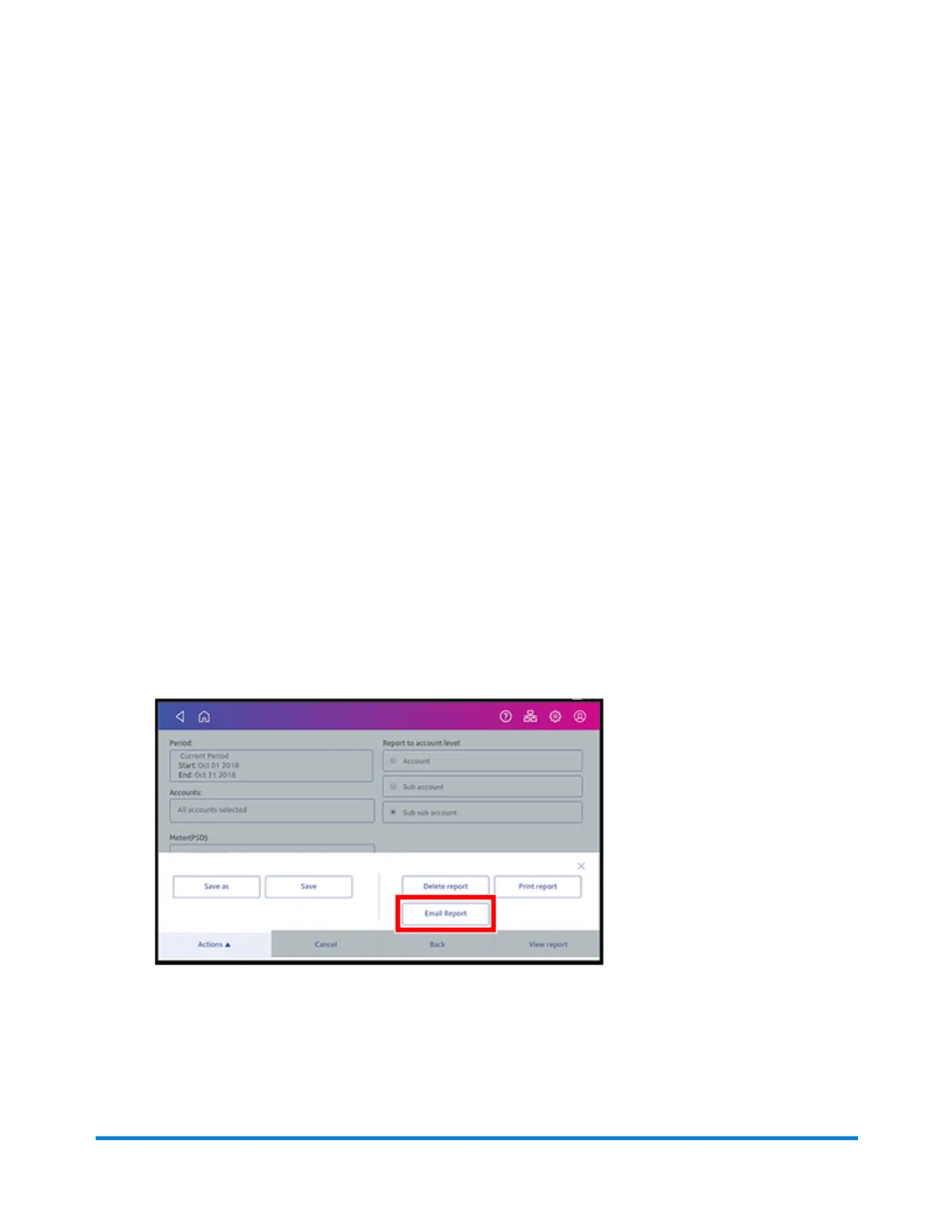
Tap Actions to save the report under a new name, delete, print, or email the report. In order
to print a report, you need an optional report printer.
Emailing an account report
Email an account report to keep a record of how much departments or clients have spent on their
postage over specific time periods.
1. Tap SendPro Apps on the Home screen.
2. Tap Manage Accounts.
3. Tap Reports.
4. Tap View & print reports.
5. Tap the report to select it.
6. Tap Next.
7. Tap Actions or View Reports at the bottom of the screen.
8. Tap Email Report.
View and Print Reports
Pitney Bowes Operator Guide April 2022 176












 To Next Page