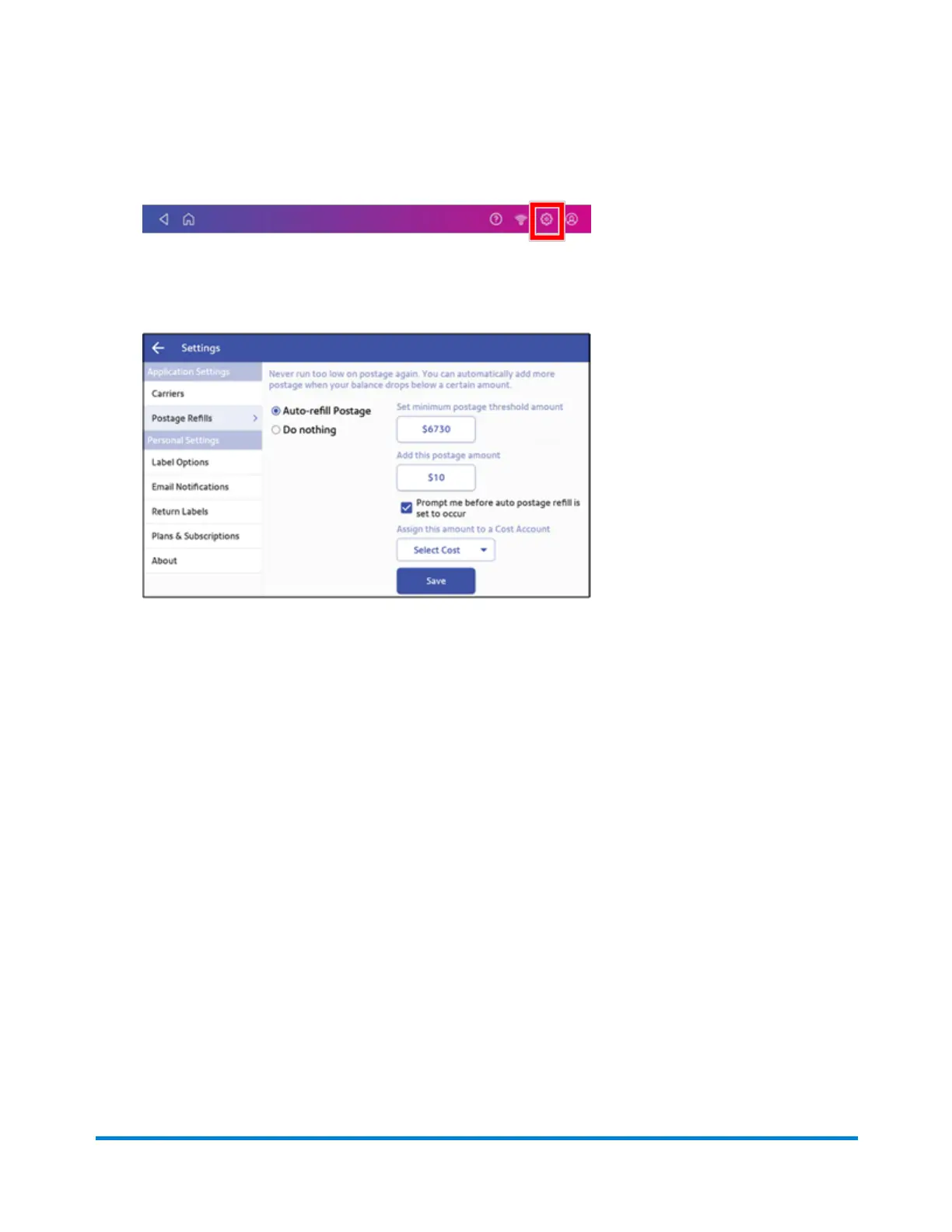
1. Tap Settings.
2. Scroll down to Shipping Refills.
3. Tap Shipping Refills. The shipping label postage refill screen appears.
4. Scroll down on the screen until the Save button is visible.
5. Check that the minimum postage threshold amount is correct. If not, tap on the amount and
enter the correct value.
6. If you have enabled cost accounts for Create Shipping Labels, you must select a cost account.
Tap Select Cost and choose an account from the drop-down list.
7. Tap the Prompt me before auto postage refill is set to occur box.
8. Tap Save.
9. Tap the back arrow to return to the Home screen.
Setting up your FedEx account
Use SendPro Online or PitneyShip to set up your FedEx account. You must do this before you use
FedEx for shipping labels.
You cannot set up a FedEx account on your SendPro C, SendPro+. In your web browser, go to
https://login.pitneybowes.com/sendpro and sign in with your SendPro C, SendPro+ user ID and
password.
Managing Shipping Labels
Pitney Bowes Operator Guide April 2022 131












 To Next Page