Start Here PLX32-EIP-MBTCP-UA ♦ Multi-Protocol Gateway
User Manual
Page 10 of 156 ProSoft Technology, Inc.
March 8, 2018
Note: To use PCB under the Windows 7 OS, you must be sure to install PCB using the "Run as
Administrator" option. To find this option, right-click on the Setup.exe installer program icon. In the
context menu, you will see the "Run as Administrator" option. Left-click to use this install option. Be
aware, you must install using this option even if you are already logged in as an Administrator on
your network or personal computer (PC). Using the "Run as Administrator" option will allow the
PCB installer to create folders and files on your PC with proper permissions and security. If you do
not use the "Run as Administrator" option, PCB may appear to install correctly; but you will receive
numerous, repeating file access errors whenever PCB is running, especially when changing
configuration screens. If this happens, to eliminate the errors, you will have to completely uninstall
PCB and then re-install using the "Run as Administrator" option.
1.3 Package Contents
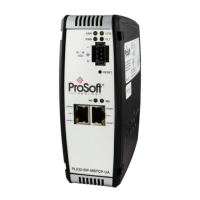
The following components are included with the PLX32-EIP-MBTCP-UA, and are
all required for installation and configuration.
Important: Before beginning the installation, please verify that all of the following items are
present.
Tool for wiring and securing the power connector
PLX32-EIP-MBTCP-UA power connector
Spare jumper for resetting OPC UA configuration
1.4 Mounting the Gateway on a DIN-rail
To mount the PLX32-EIP-MBTCP-UA on a DIN-rail, follow these steps.
1 Position the gateway on the DIN-rail B at a slight angle.
2 Hook the lip on the rear of the adapter onto the top of the DIN-rail, and rotate
the adapter onto the rail.
3 Press the adapter down onto the DIN-rail until flush. The locking tab snaps
into position and lock the gateway to the DIN-rail.
4 If the adapter does not lock in place, use a screwdriver or similar device to
move the locking tab down while pressing the adapter flush onto the DIN-rail
and release the locking tab to lock the adapter in place. If necessary, push up
on the locking tab to lock.


 To Next Page