PLX32-EIP-MBTCP-UA ♦ Multi-Protocol Gateway OPC UA Server
User Manual
ProSoft Technology, Inc. Page 107 of 156
March 8, 2018
7 OPC UA Server
This chapter guides you through the configuration of the gateway’s OPC UA
Server and OPC UA Client connectivity. The highly reliable and secure OPC UA
Server supports 10 simultaneous OPC UA sessions that provide access to
EtherNet/IP and Modbus TCP/IP data from the respective networks.
7.1 UA Server Configuration Manager Software
The UA Server is configured using the UA Server Configuration Manager (PSW-
UACM) software. PSW-UACM is launched within the ProSoft Configuration
Builder (PCB) software.
Note: To ensure a successful installation of ProSoft OPC UA Configuration Manager, a reboot may
be required prior to starting the installation. In several test systems, Windows Update Service had
to be stopped prior to installation. Once the installation completes, you can restart the Windows
Update service.
Stop Windows Update service
1. Click the Windows Start button and enter the following: services.msc
2. Scroll down and right-click on Windows Update, and choose STOP.
Perform the ProSoft OPC UA Configuration Manager setup procedures. Once the setup completes,
perform the steps above and choose Start for the last step.
7.1.1 Installation
1 Download the latest version of PSW-UACM from www.prosoft-
technology.com and save it to your local hard drive.
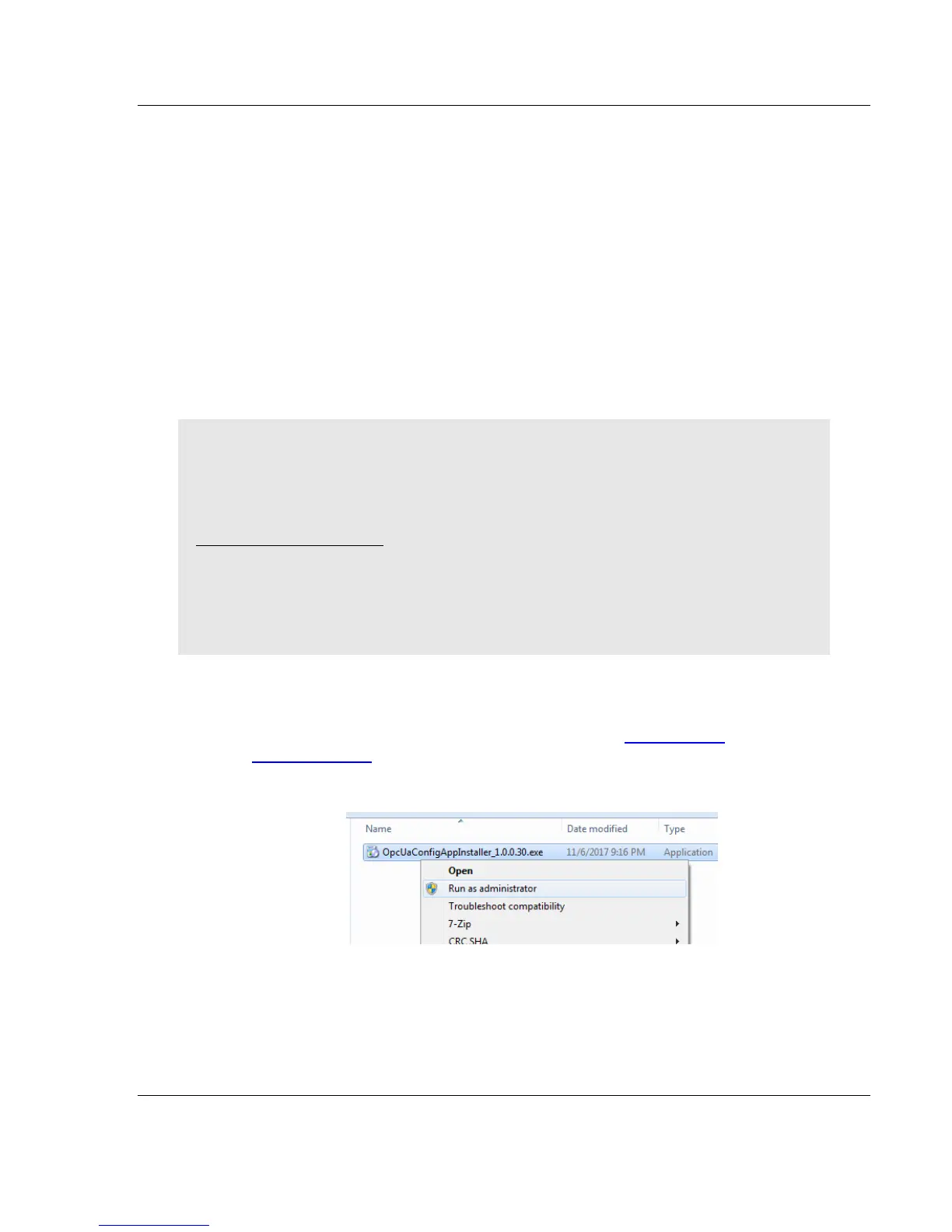
2 Right-click on the file and select RUN AS ADMINISTRATOR.
3 Follow the prompts in the Setup Wizard to complete the installation.
4 When installation is complete, click FINISH.


 To Next Page