Using ProSoft Configuration Builder PLX32-EIP-MBTCP-UA ♦ Multi-Protocol Gateway
User Manual
Page 18 of 156 ProSoft Technology, Inc.
March 8, 2018
2.3 Setting Up the Project
If you have used other Windows configuration tools before, you will find the
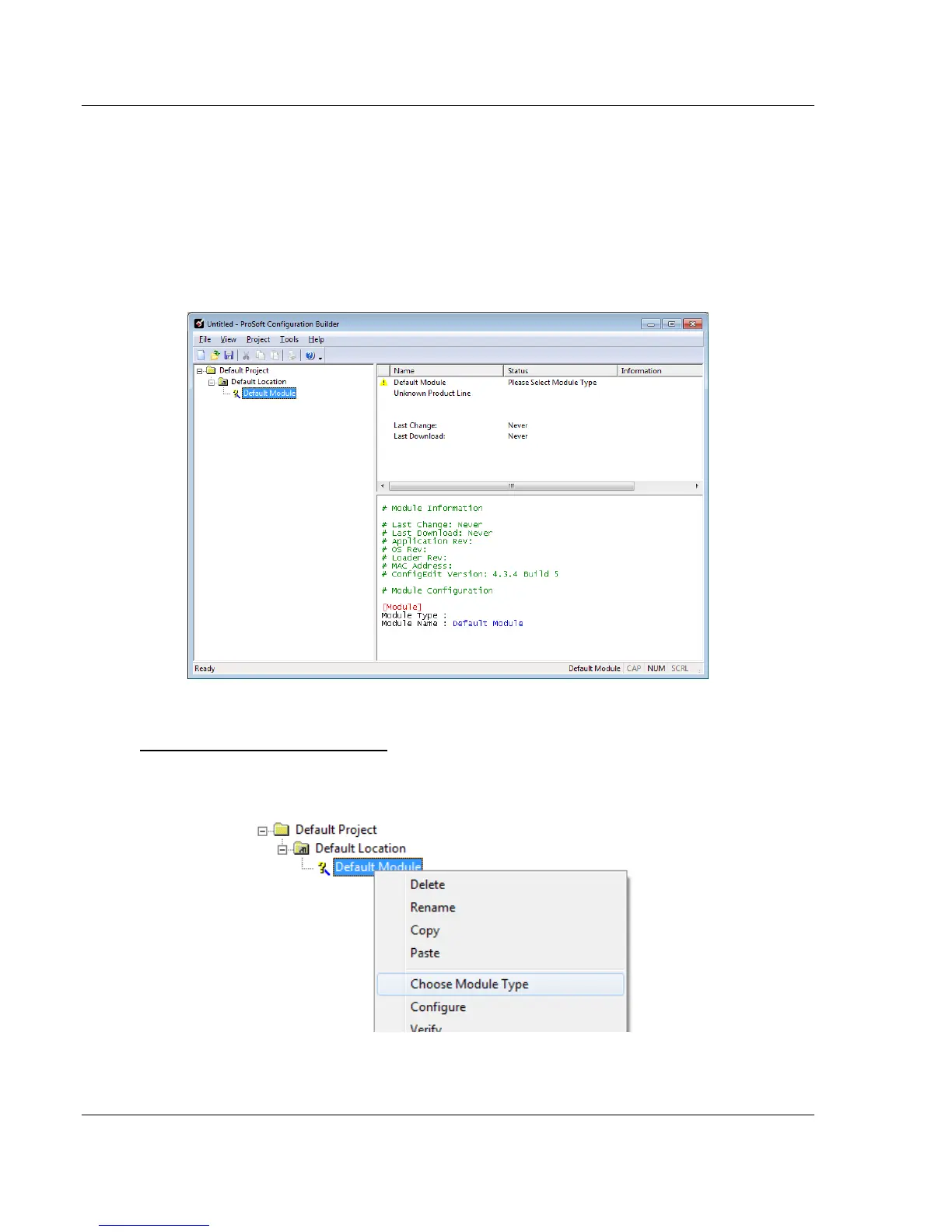
screen layout familiar. The ProSoft Configuration Builder window consists of a
tree view on the left, an information pane, and a configuration pane on the right
side of the window. When you first start PCB, the tree view consists of folders for
Default Project and Default Location, with a Default Module in the Default
Location folder. The following illustration shows the PCB window with a new
project.
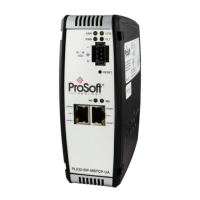
To add the gateway to the project
1 Right-click DEFAULT MODULE in the tree view, and then choose CHOOSE
MODULE TYPE. This opens the Choose Module Type dialog box.


 To Next Page