PLX32-EIP-MBTCP-UA ♦ Multi-Protocol Gateway Using ProSoft Configuration Builder
User Manual
ProSoft Technology, Inc. Page 27 of 156
March 8, 2018
2.8 Downloading the Project to the PLX32-EIP-MBTCP-UA
Note: For instructions on connecting to the module with your PC, see Connecting the PC to the
Gateway (page 15).
In order for the gateway to use the settings you configured, you must download
(copy) the updated Project file from your PC to the gateway.
Note: If jumper 3 of the module is set, this function is not available.
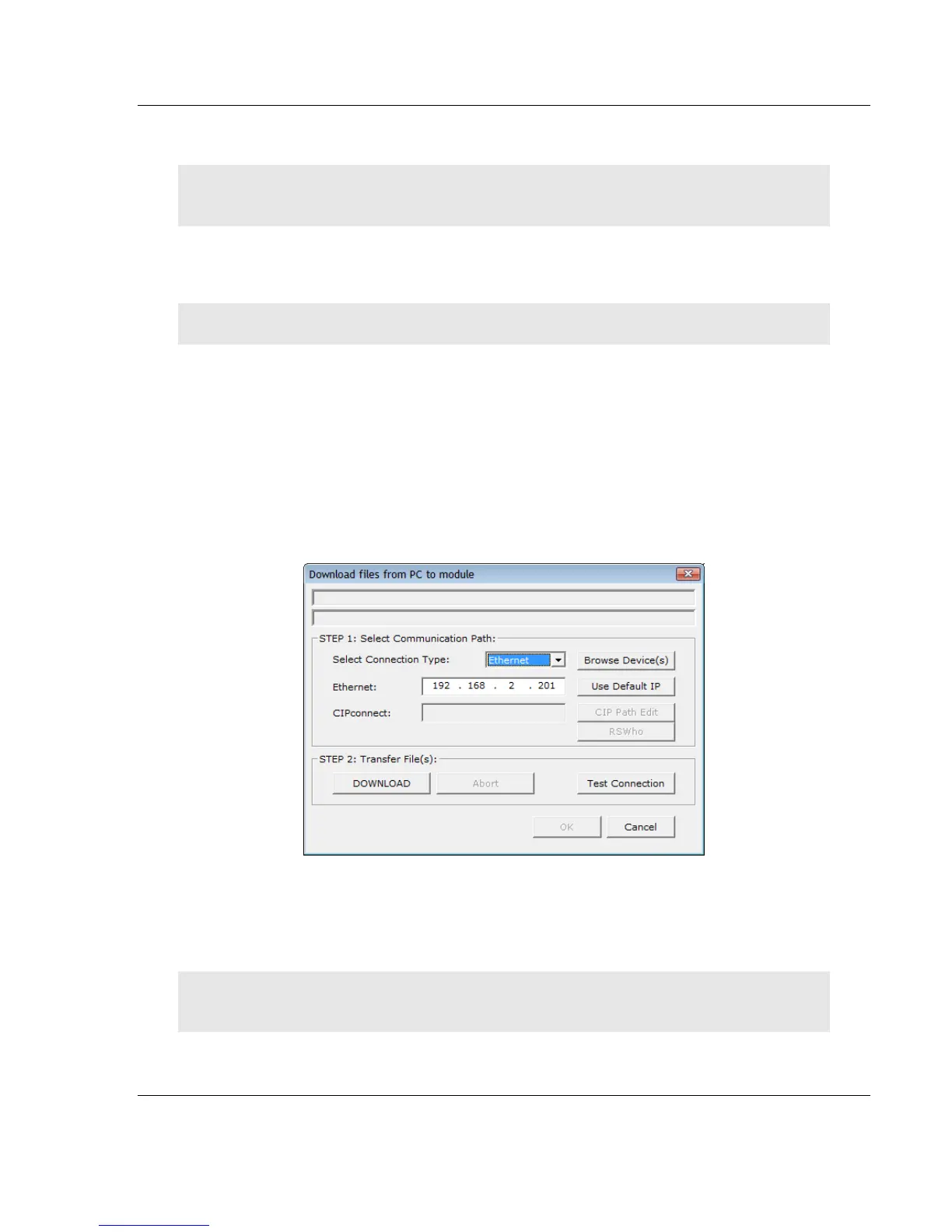
1 In the tree view in ProSoft Configuration Builder, right-click the PLX32-EIP-
MBTCP-UA icon and then choose DOWNLOAD FROM PC TO DEVICE. This
opens the Download dialog box.
2 In the Download dialog box, in the Select Connection Type dropdown box,
use the default ETHERNET option.
Note: If you connected to the module using a temporary IP address, the
Ethernet address field contains that temporary IP address. ProSoft
Configuration Builder uses this temporary IP address to connect to the
module.
3 Click TEST CONNECTION to verify that the IP address allows access to the
module.
4 If the connection succeeds, click DOWNLOAD to transfer the Ethernet
configuration to the module.
Note: The steps above only downloads or modifies the OPC UA server’s IP address and name, it
does not download or modify the OPC UA configuration.


 To Next Page