PLX32-EIP-MBTCP-UA ♦ Multi-Protocol Gateway Diagnostics and Troubleshooting
User Manual
ProSoft Technology, Inc. Page 33 of 156
March 8, 2018
3.1.2 Ethernet Port LEDs
This table describes the gateway Ethernet port LEDs.
No physical network connection is detected. No Ethernet
communication is possible. Check wiring and cables.
Physical network connection detected. This LED must be
ON solid for Ethernet communication to be possible.
The Ethernet port is actively transmitting or receiving data.
3.2 Using Diagnostics in ProSoft Configuration Builder
ProSoft Configuration Builder (PCB) has many useful tools to help you with
diagnostics and troubleshooting. You can use PCB to connect to your gateway
and retrieve current status values, configuration data and other valuable
information.
Tip: You can have a ProSoft Configuration Builder Diagnostics window open for more than one
gateway at a time.
To connect to the gateway’s communication port.
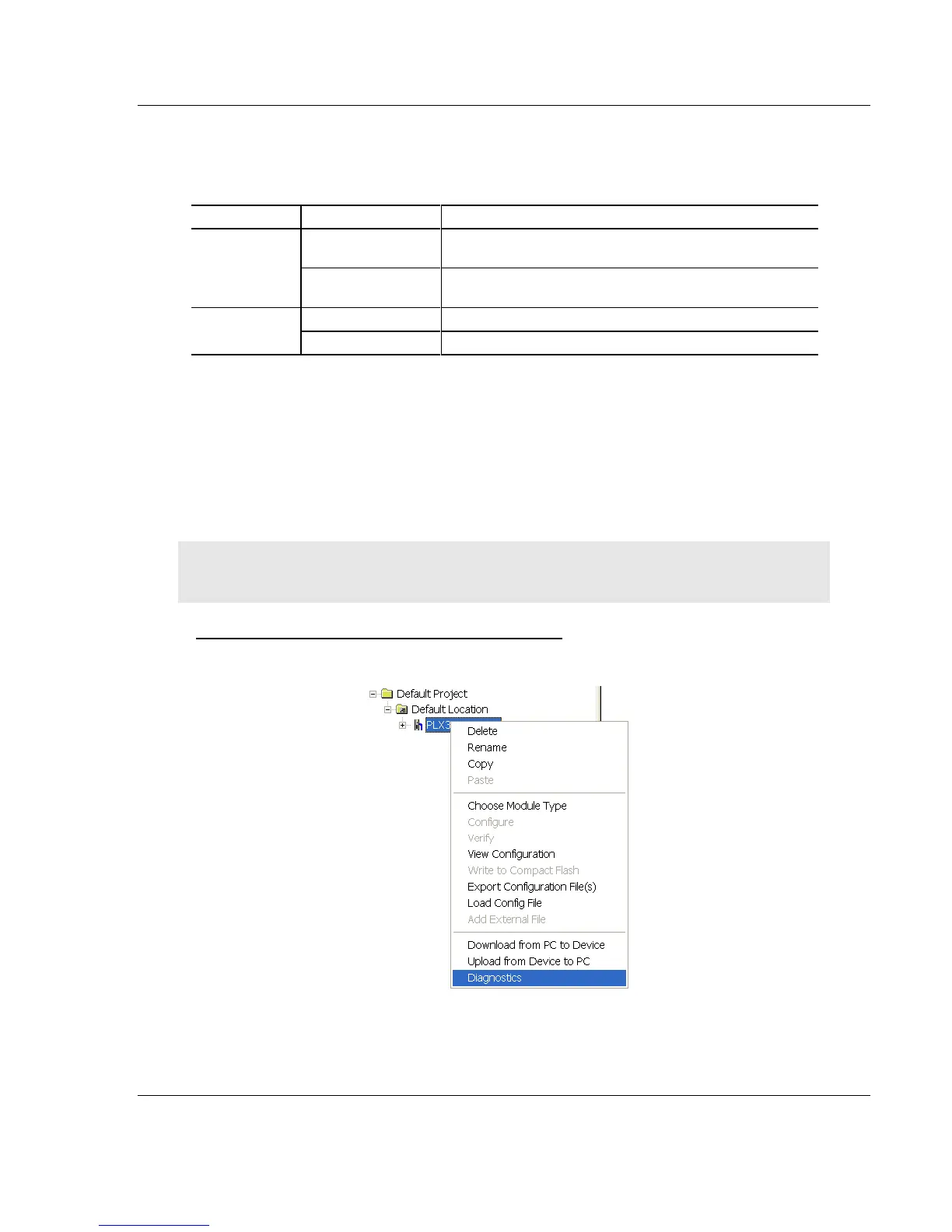
1 In PCB, right-click the gateway name and choose DIAGNOSTICS.


 To Next Page