Diagnostics and Troubleshooting PLX32-EIP-MBTCP-UA ♦ Multi-Protocol Gateway
User Manual
Page 34 of 156 ProSoft Technology, Inc.
March 8, 2018
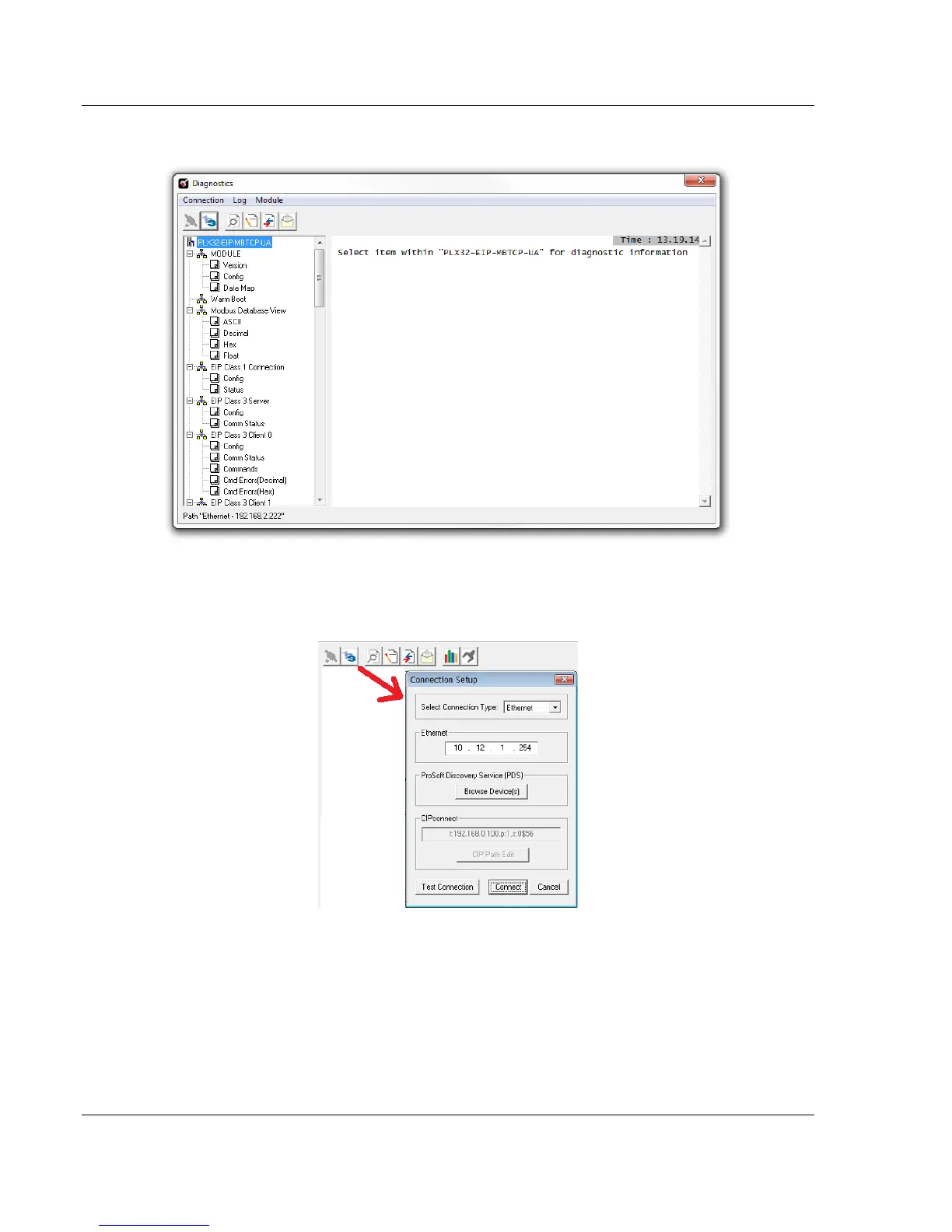
2 This opens the Diagnostics window.
If there is no response from the gateway, as in the example above, follow these
steps:
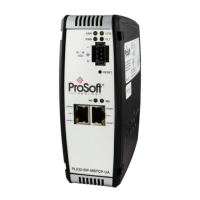
1 From the toolbar, click the SETUP CONNECTION button.
2 In the Connection Setup dialog box, select ETHERNET from the SELECT
CONNECTION TYPE list.
3 Type in the gateway’s IP address in the ETHERNET field.
4 Click CONNECT.
5 Verify that the Ethernet is connected properly between your computer’s
communication port and the gateway.
6 If you are still not able to establish a connection, contact ProSoft Technology
Technical Support for assistance.


 To Next Page