Uninstalling the Printer Driver
153
Appendixes
A.2 Uninstalling the Printer Driver
The procedure of uninstalling the Printer Driver is described here.
(For the procedure of manual uninstallation, see p.156 "Manual Uninstallation")
Use Uninstaller
1
Start uninstaller
For Windows XP/Windows Vista/Windows 7
Click [Start]-[All Programs]-[RISO]-[A2 Series]-[Uninstaller] in this order.
For Windows 8/Windows 8.1
Open the "Apps" screen and click [Uninstaller] in the [RISO A2 Series] group.
2
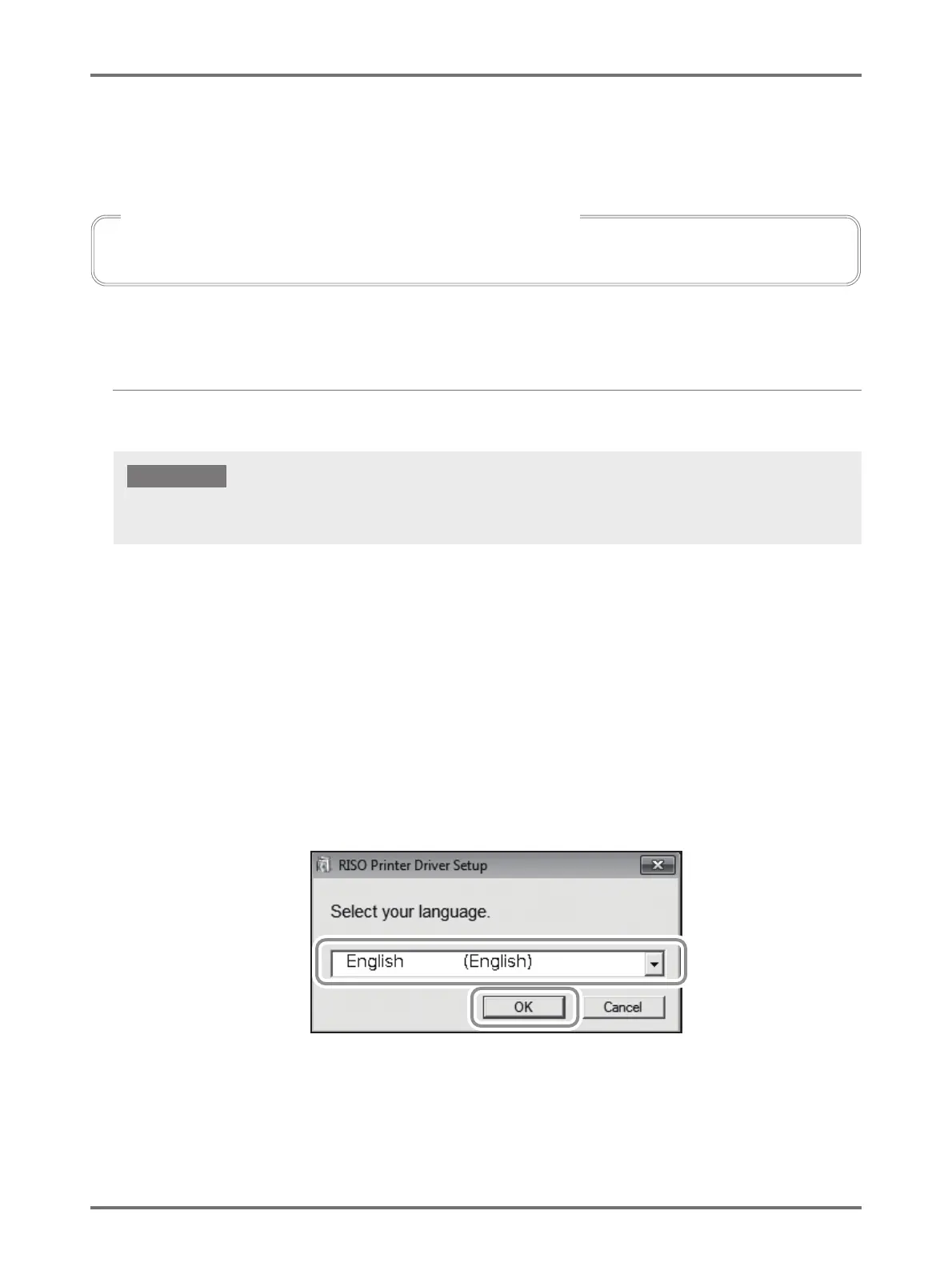
Select your language from the drop-down list, and then click [OK].
In the case of uninstallation using the uninstaller, the driver package cannot be deleted. When the driver package needs to be deleted, in
such cases as for re-installation of the Printer Driver, uninstall the Printer Driver manually.
For Windows Vista/Windows 7/Windows 8/Windows 8.1:
To uninstall the Printer Driver, you are required to log on to Windows by the account with the authority to change the system setting
(such as administrator).
(2)
(1)



 To Next Page