Preparing to Print (Computer Side)
47
Basic Operation
Registering Custom-Sized Paper
The frequently used custom-sized paper can be named and registered.
The custom-sized paper which were registered here can be displayed in the custom paper size list in the p.56 "[Layout]
Tab".
1
Open the printer folder.
For Windows XP:
Click on the [Start] icon-[Printers and Faxes] to open the [Printers and Faxes] folder.
For Windows Vista:
Click on the [Start] icon-[Control Panel]-[Hardware and Sound] and [Printers] to open the [Device and
Printers] folder.
For Windows 7:
Click on the [Start] icon-[Control Panel]-[Hardware and Sound]-[Devices and Printers] to open the [Device
and Printers] folder.
For Windows 8/Windows 8.1:
Open the [Apps] screen and click [Control Panel]-[Hardware and Sound]-[Devices and Printers] and open the
[Device and Printers] folder.
2
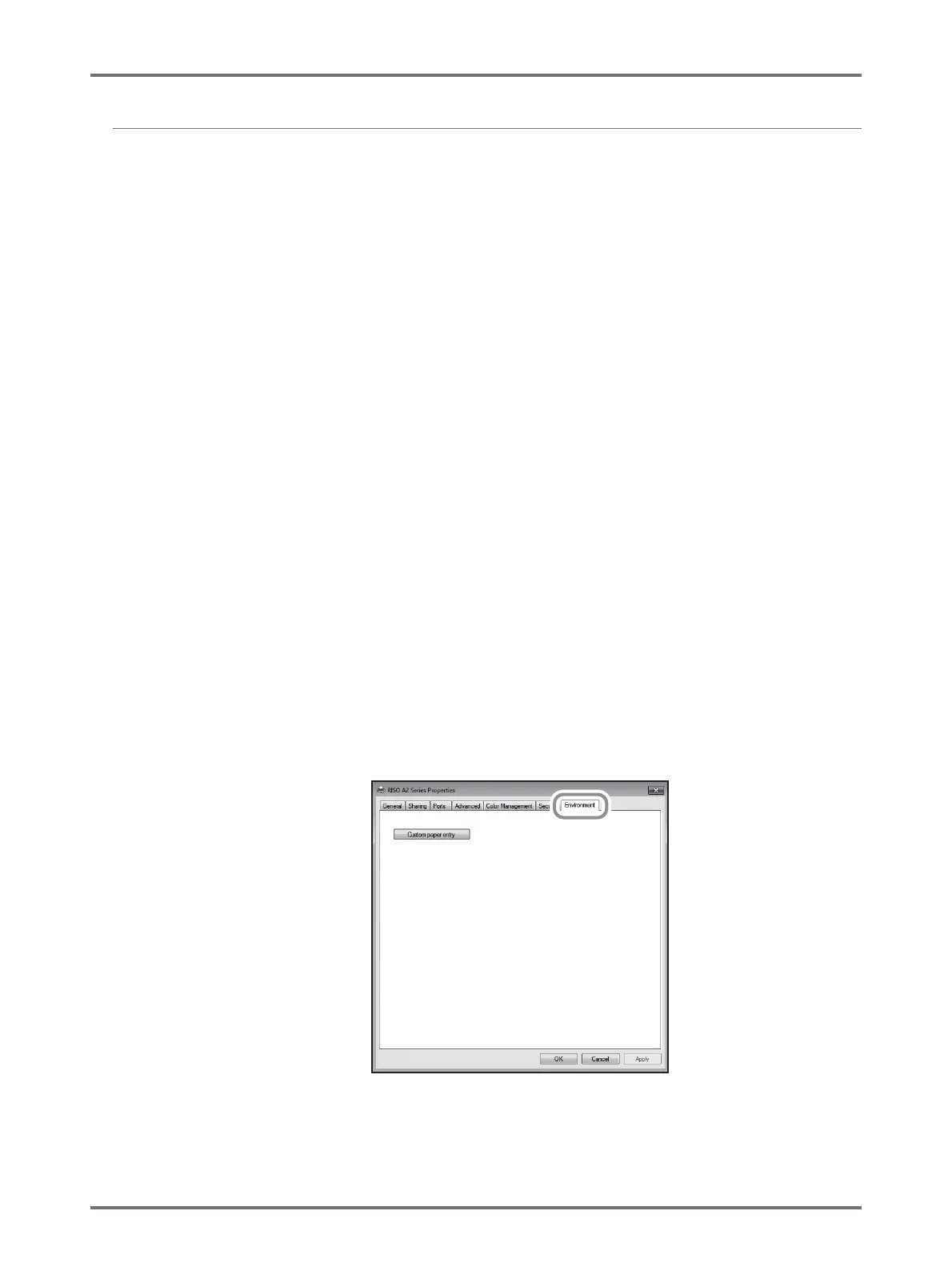
Open the properties of the printer.
Right-click on the [RISO A2 Series] icon in the [Device and Printers] folder and select [Properties] (for Windows
XP/Vista) or [Printer Properties] (for Windows 7/Windows 8/Windows 8.1) in the displayed menu.
Click [Environment] in the [Properties] dialog box.



 To Next Page