Chapter 8 Running Reports
87 Alpha 710ML User’s Guide
6 Follow the instructions on the screen. You can review the report on the
clerk screen and then print it. Use the arrow keys to move through the
report.
The Electronic Journal record prints and the Electronic Journal memory
is not reset.
Print an End-of-Day Electronic Journal Report
You can print the Electronic Journal Z report at the end of the day. This
report prints all transactions and clears the memory at the same time.
To print in the Z Mode
ReportsZ ReportElectr. Journal
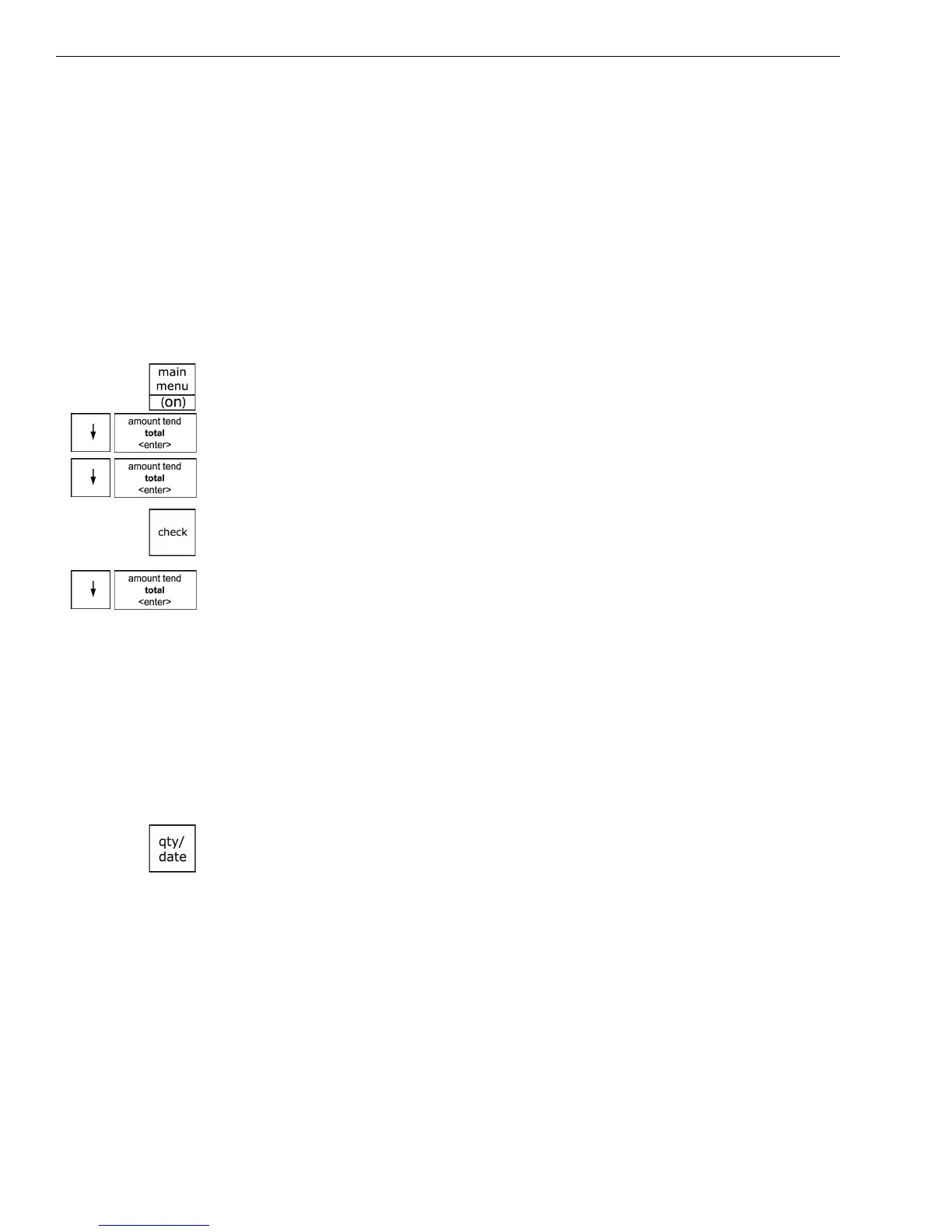
1 Press the Main menu (on) key.
2 Press the Arrow Down key to select Reports. Press the Amount Tend
Total <Enter> key.
3 Press the Arrow Down key to select Z Report. Press the Amount Tend
Total <Enter> key.
4 If you are prompted for a Manager Passcode, type the passcode number
and then press the Check key. If you did not program a Manager
Passcode, go to the next step.
5 Press the Arrow Down key to select Electr. Journal. Press the Amount
Tend Total <Enter> key.
6 Follow the instructions on the screen. The Electronic Journal record
prints and the Electronic Journal memory is cleared.
Check the Electronic Journal Memory
You can check the current status of the Electronic Journal memory for the
number of lines used in memory and how many lines remain free. This
lets you know if you should print the Electronic Journal soon.
To check the Electronic Journal memory
In Sales Registration mode after or between transactions, press the
QTY/DATE key.
The memory status with the number of lines that the memory can still
accept appear on the operator display.
If you do not see the number of lines that the memory can still accept,
the Electronic Journal is turned off. Go to the System Options and turn it
on.



 To Next Page