Configuring the DVR
3–4 700-0042 R004
3.2.1. Software Version
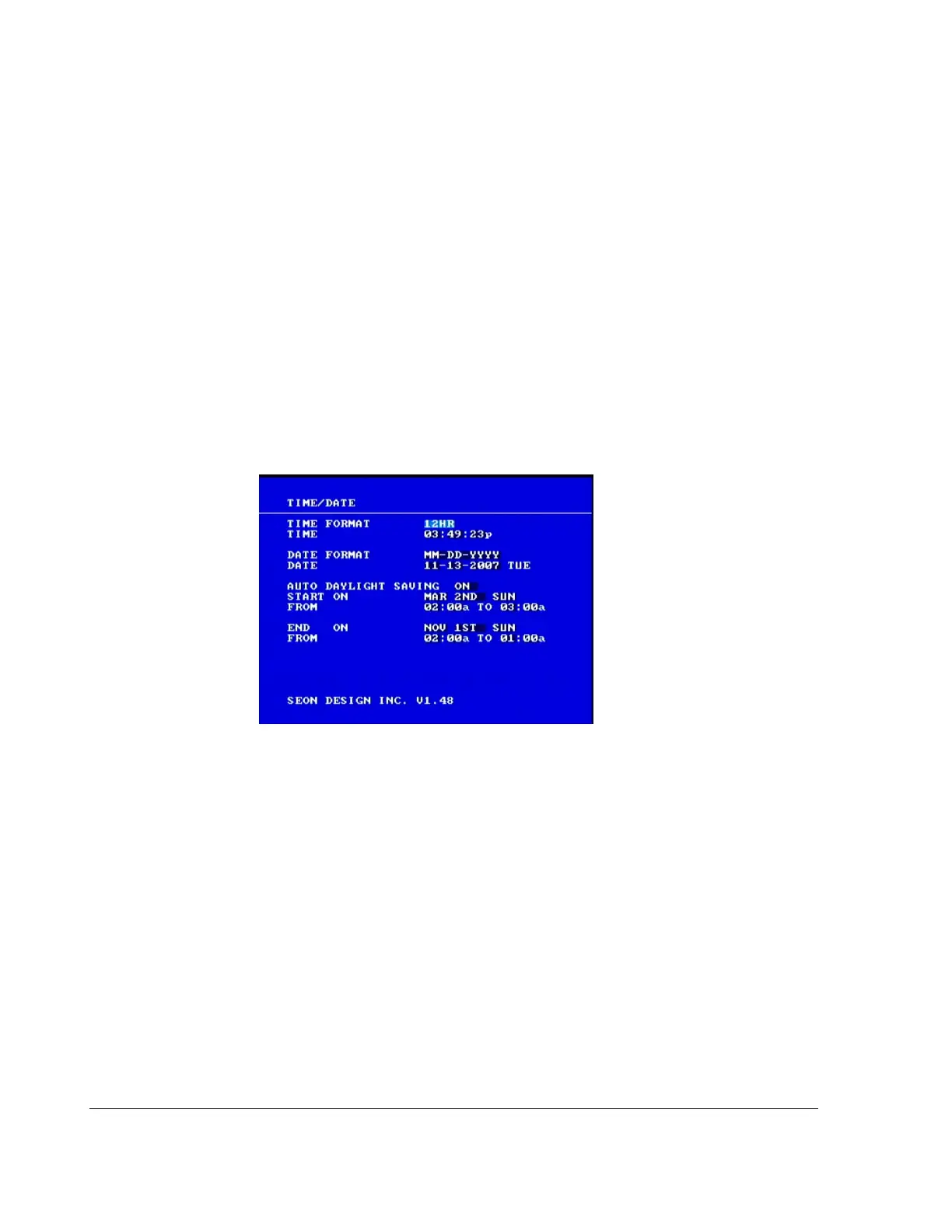
The software version in the DVR is displayed at the bottom of every menu. When
contacting Seon Design about any service or operational issues, please have the
software version available for Customer Service. In Figure 3-3, for example, the
software version is 1.48.
3.2.2. Using the Time/Date Menu
Use the Time/Date menu to set the time format, time, date format, date, and the
daylight saving time options.
To view the Time/Date menu:
1. On the main menu, turn the
JOG wheel to highlight TIME/DATE.
2. Press the
ENTER button.
The Time/Date menu appears as shown in Figure 3-3.
To change a setting on the sub-menu:
1. Turn the
JOG wheel clockwise or counter clockwise to change the value.
2. Press the
LOCK > button to advance through the fields.
3. Press the
DISPLAY < button to move back through the fields.
The selected menu item is highlighted with a pale blue background.
4. Press the
CLEAR button to reload the default value into a field.
5. To exit the menu, press the
MENU button.
6. Repeat these steps to set the Time Format, Time, Date Format, Date, Auto
Daylight Saving, Start On, From, End On, and From menu items.
See Table 3-2.
Figure 3-3
Time/Date menu



 To Next Page