Operating the DVR
700-0042 R004 4–7
6. Remove the USB drive and power the DVR off by pressing the POWER button
for 3 seconds.
OR
7. Press the
REC button to return to recording.
4.5.3. Using the Search function
The EX4 DVR includes a powerful search function that let you quickly find
recorded information by event or by time/date.
To view the Search menu:
1. If the DVR is recording, press the
STOP button on the front panel of the DVR
to stop recording.
2. Press the
SEARCH button.
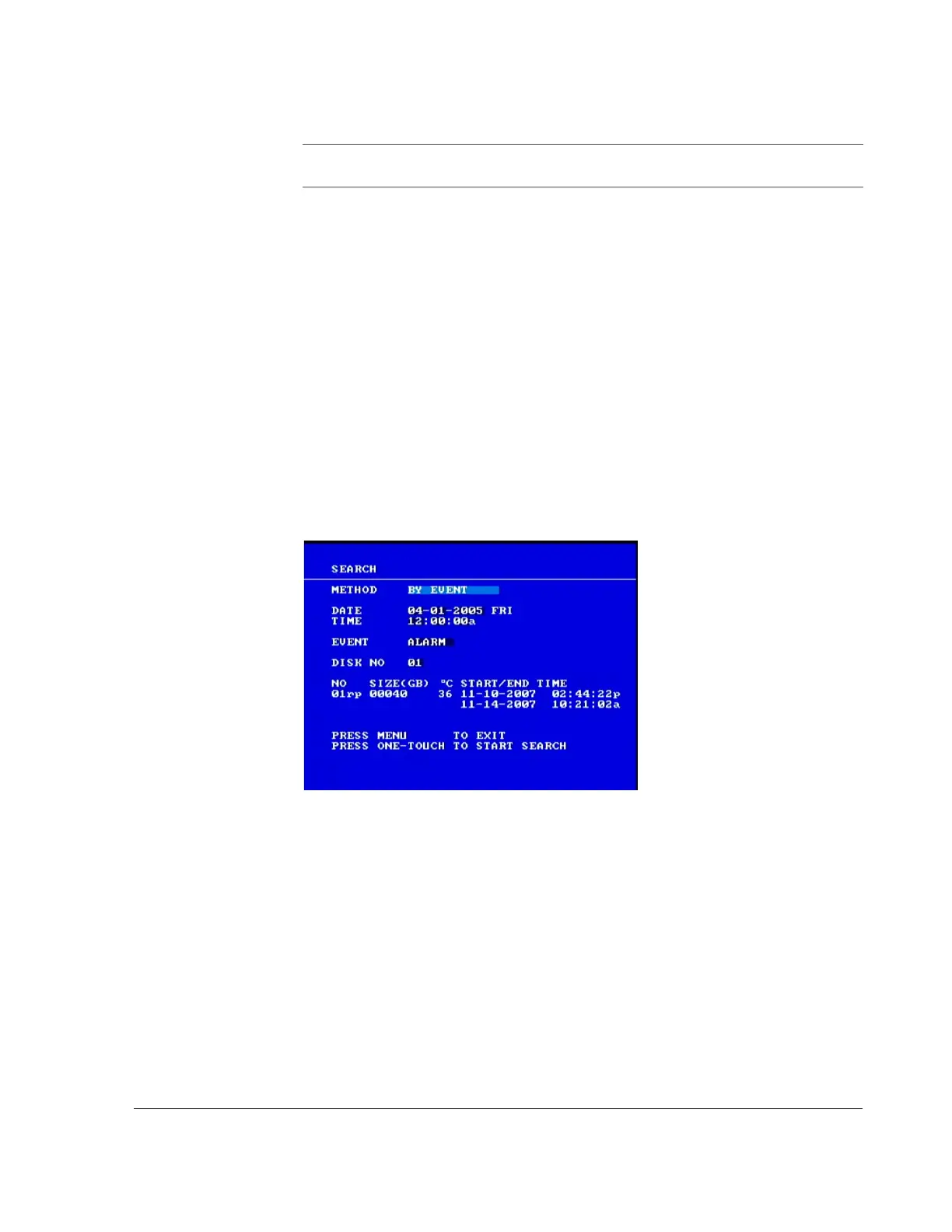
The Search menu appears as shown in Figure 4-2.
To change a setting on the menu:
1. Turn the
JOG wheel clockwise or counter clockwise to change the value.
2. Press the
LOCK > button to advance through the fields.
3. Press the
DISPLAY < button to move back through the fields.
The selected menu item is highlighted with a pale blue background.
4. Press the
ONE-TOUCH button to start search.
5. To exit the menu, press the
MENU button.
Important:
The red LED on the ENTER/ONE-TOUCH/8 button is illuminated if there is
an error, such as a bad
USB drive or if the USB drive is full.
Figure 4-2
Search menu



 To Next Page