Configuring the DVR
3–24 700-0042 R004
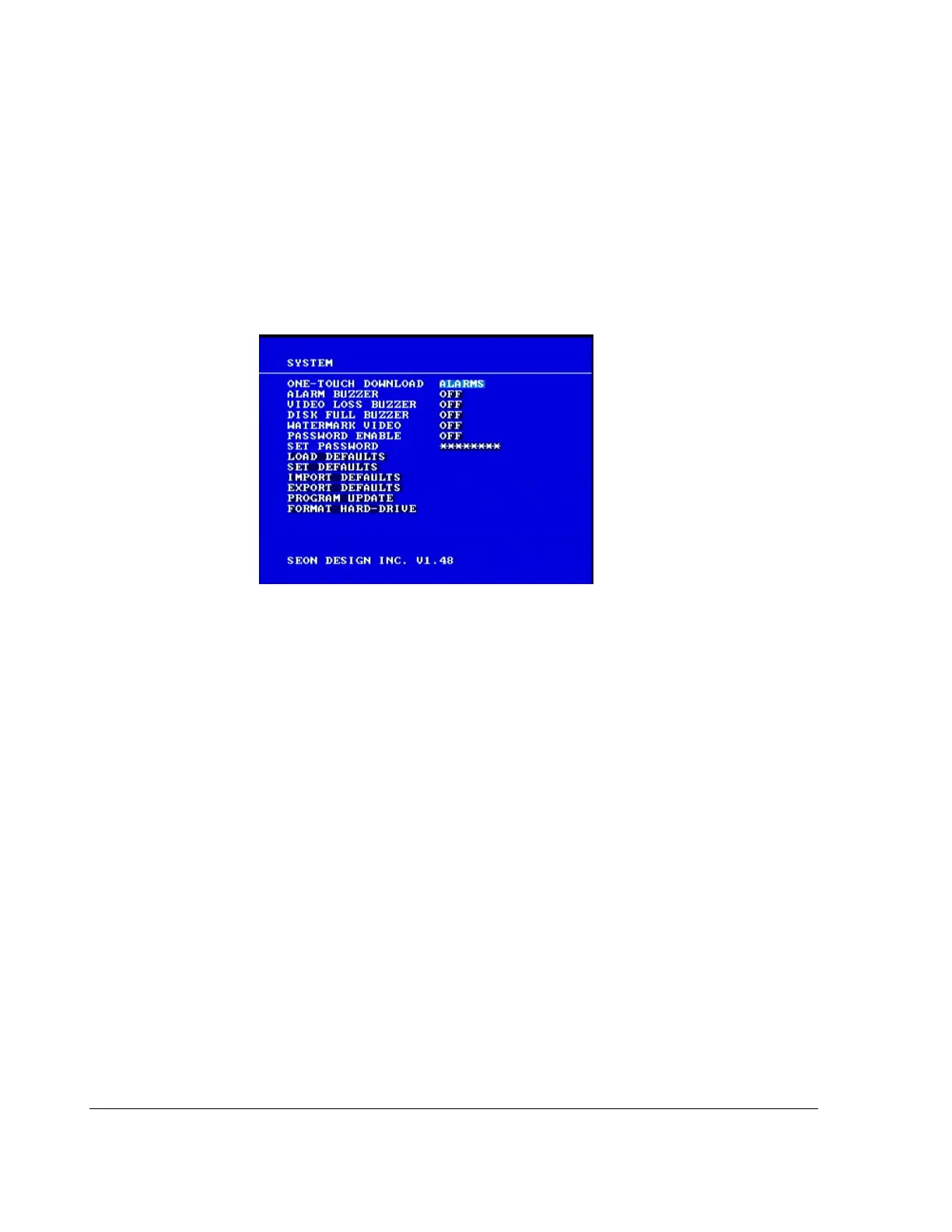
3.2.10. Using the System Menu
The System menu allows controls of system level settings and functions that
should only be accessed by authorized individuals.
To view the System menu:
1. On the main menu, turn the
JOG wheel to highlight SYSTEM.
2. Press the
ENTER button.
The
SYSTEM menu appears as shown in Figure 3-12.
To change a setting on the sub-menu:
1. Turn the
JOG wheel clockwise or counter clockwise to change the value.
2. Press the
LOCK > button to advance through the fields.
3. Press the
DISPLAY < button to move back through the fields.
The selected menu item is highlighted with a pale blue background.
4. Press the
CLEAR button to reload the default value into a field.
5. To exit the menu, press the
MENU button.
6. Repeat these steps to set the sub-menu items. See Table 3-16.
Figure 3-12
System menu



 To Next Page