Configuring the DVR
3–28 700-0042 R004
3.2.11.3. Running the Program Update
This step loads the new software onto the EX4 DVR.
To run the program update:
1. Select Program Update in the System menu and press the
ENTER button.
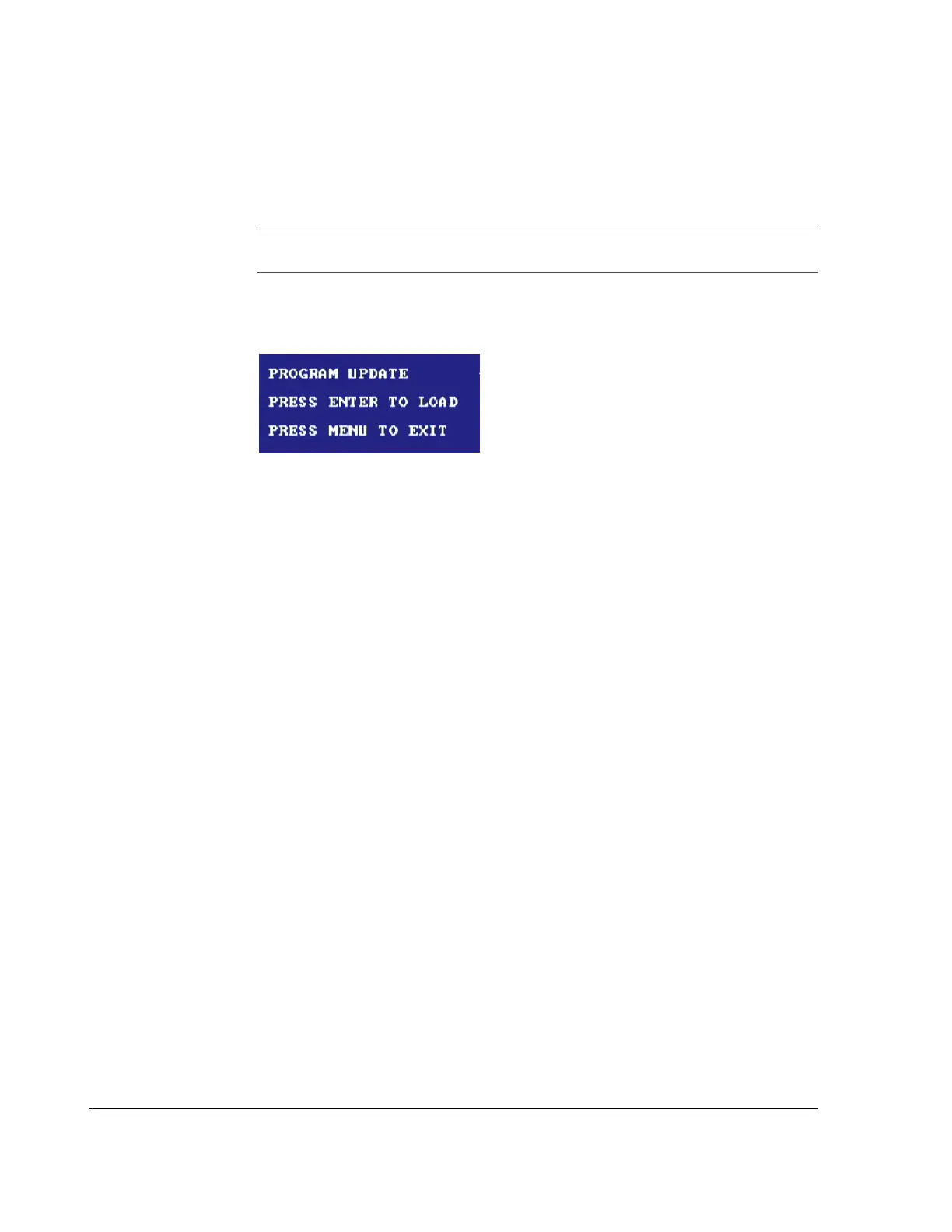
The Program Update popup menu appears, as shown in Figure 3-14.
2. Press the
ENTER button.
The screen displays “
PHASE1/3…” for approximately 20 seconds as it reads
the information from the USB memory device.
The screen displays “
PHASE2/3…” for approximately 15 seconds as the new
program is verified.
The DVR reprograms itself and displays “
PHASE3/3…” for approximately 90
seconds.
After the DVR has reprogrammed itself, the menu goes back to the
SYSTEM
menu, and “
SUCCESS PLEASE REBOOT” is displayed at the bottom of the
screen.
3. Remove the USB memory device.
4. Power the DVR off and restart it to finish loading the new software.
3.2.11.4. Loading the Default Settings
This step loads the default settings for the DVR to ensure that all of the new
functions have been completely initialized.
To load the default settings:
1. Once the DVR powers up, press the
MENU button.
2. Turn the
JOG wheel to highlight SYSTEM and press the ENTER button.
3. In the
LOAD DEFAULTS menu, press the ENTER button.
The Load Defaults popup menu appears, as shown in Figure 3-15.
Important:
Ensure the vehicle ignition is turned on. If power goes away in PHASE3,
the DVR will be corrupt.
Figure 3-14
Program update popup menu



 To Next Page