I2773-4.4 en
19
Somat eDAQ
lite
1.3 Setting Up the System
Setting up the eDAQ
lite
data acquisition system involves installing TCE on the
support PC and setting up the eDAQ
lite
hardware.
1.3.1 Installing Somat Test Control Environment (TCE)
To install TCE:
1. Run the TCE installer found on the TCE/eDAQ
lite
distribution CD or downloaded
from the www.hbm.com/somat. Follow the instructions on screen.
2. When prompted, enter the desired destination folder for the installation. By default,
the TCE installation program places each new software release in a unique folder.
3. If updating to a new version of TCE, copy or move the file “TceMS.ini” from
the
working directory of the previous TCE installation folder to the working directory of
the new TCE installation folder. This process transfers the current TCE preference
settings into the new version of TCE.
Notes on the Installation and Working Directories
•
Using a Common Installation Folder: Previous versions of the TCE installer used a common destination folder for all
releases. To continue using a common folder, uninstall the previous TCE version before starting the new installation.
Change the installation program default folder name to the common folder name (previously, “C:\Program
Files\Somat\Tce_eDAQ”) during the installation process. To keep TCE preference settings, be sure to save the
“TceMS.ini” file before uninstalling the previous version of TCE.
•
Default Working Directory: Effective starting with TCE 3.15, the TCE working directory now defaults to a subfolder in
the “Documents” or “My Documents” directory named “Somat\TCE vX.XX.X build XXX”. This working directory
includes all database files and the TCE preferences files. New user database files must be added to this working
directory.
•
Modifying the Working Directory: To change the working directory, open the TCE application shortcut properties by right
clicking the application shortcut or the entry in the Windows Start menu and select Properties. In the Target field, delete
the second string, which starts with
“-d
, leaving only
“C:\Program Files\Somat\TCE vX.XX.X build
XXX\TceMs.exe”
. Then type the desired working directory in the Start In field. Note that the folder must already exist.
For Windows XP or earlier, the Start In folder can reside in Program Files. Select Apply to save the new settings.
1.3.2 Getting Familiar with the eDAQ
lite
System
eDAQ
lite
Front Panel
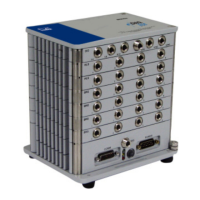
All of the connectors, the power switch and the status LEDs needed to set up the
eDAQ
lite
are on the ELCPU front panel as shown in the following diagram.
HBM: public


 To Next Page