Somat eDAQ
lite
48
I2773-4.4 en
3.1.3 Toolbar
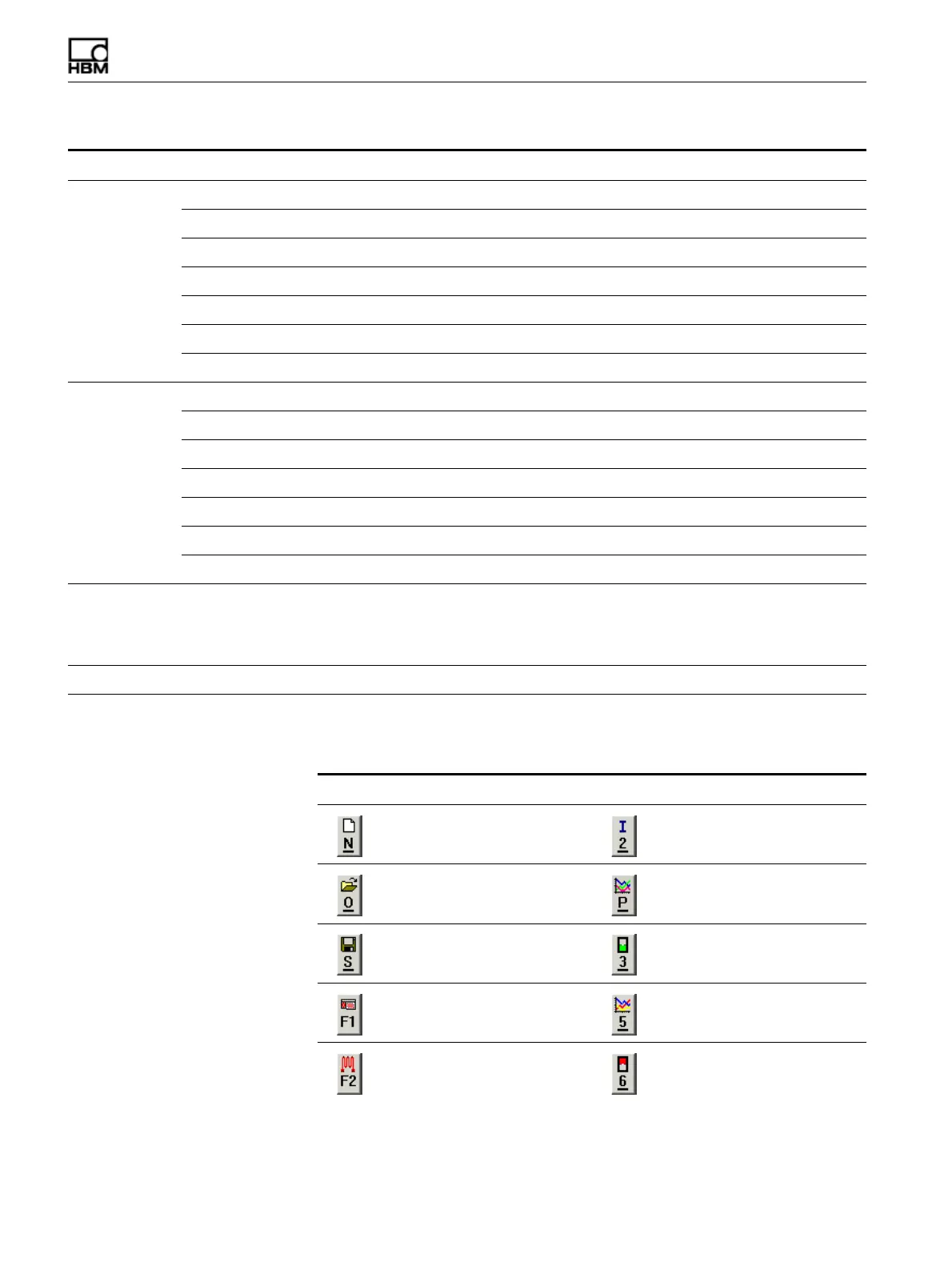
The TCE toolbar provides quick access to commonly used TCE functions. Each button
also provides a guide to commonly used keyboard shortcuts.
View Toolbar Show/hide the TCE toolbar. 3.1.3
Status Bar Show/hide the TCE status bar. 3.1.4
Test ID/Network Setup Show/hide the test ID/network setup window. 3.1.1
Hardware Setup Show/hide the hardware setup window. 3.1.1
Transducer Channels Setup Show/hide the transducer channels setup window. 3.1.1
Computed Channels Setup Show/hide the computed channels setup window. 3.1.1
DataMode Setup Show/hide the DataMode setup window. 3.1.1
Window Cascade Cascade all open windows.
Tile Tile all open windows.
Arrange Icons Arrange all minimized windows at the bottom of TCE.
Close All Close all windows.
Next Window Activate next window.
Previous Window Activate previous window.
Toggle Maximized Maximize or restore active window.
Help Contents [Ctrl+H] Open the table of contents for the contextual help system. This help
can also be accessed from various TCE windows. Note that if using
Windows 7 or Windows Vista, this help requires the WinHlp32.exe
application available from Microsoft.
eDAQ Manual Open the HTML version of the eDAQ and eDAQ
lite
manuals.
Menu Menu Option Description Section
Button Command Button Command
New setup. [CTRL+N] Initialize test. [CTRL+I]
Open setup. [CTRL+O] Start preview run. [CTRL+P]
Save setup. [CTRL+S] Start test run. [CTRL+3]
Open hardware setup window. [F1] View run-time data. [CTRL+5]
Open transducer channel setup
window. [F2]
Stop test run. [CTRL+6]
HBM: public


 To Next Page