Dubbing a tape
if your VCR is a monaural type
Connect the yellow plug of the A/V connecting cable to the video input jack and the
white or the red plug to the audio input jack on the VCR or the TV. When the white
plug is connected, the left channel audio is output, and when the red plug is connected,
the right channel audio is output.
If your VCR has an S videojack
Pictures can be reproduced more faithfully by using an S video cable (optional).
With this connection, you do not need to connect the yellow (video) plug of the A/V
connecting cable.
Connect an Svideo cable (optional) to the S video jacks of both your camcorder and the
VCR.
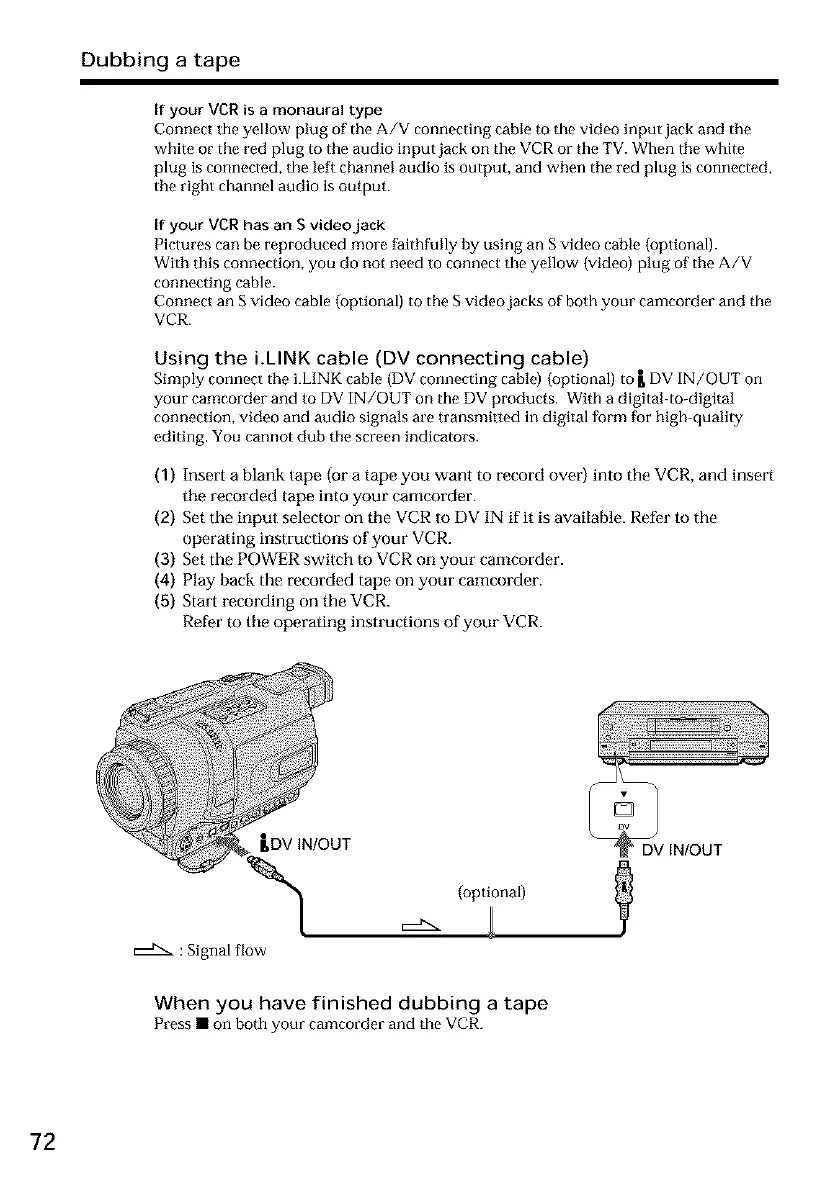
Using the i.LINK cable (DV connecting cable)
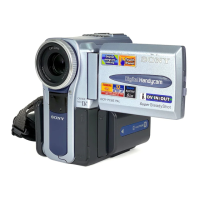
Simply connect the i.LINK cable (DV connecting cable) (optional) to L DV IN/OUT on
your camcorder and to DV IN/OUT on the DV products. With a digital4o-digital
connection, video and audio signals are transmittod in digital form for high-quality
editing. You cannot dub the screen indicators.
(1) Insert a blank tape (or a tape you want to record over) into the VCR, and insert
tile recorded tape into your camcorder.
(2) Set the input selector on tile VCR to DV IN if it is available. Refer to the
operating instructions of your VCR.
(3) Set the POWER switch to VCR on your cameorder.
(4) Play back the recorded tape on your camcorder.
(5) Start recording on the VCR.
Refer to tile operating instructions of your VCR.
LDV IN/OUT
:Signal flow
(optional)
DV IN/OUT
When you have finished dubbing a tape
Press• on both your eamcorder and the VCR.
72





 To Next Page