Viewing images recorded on" Memory Stick" s on your computer
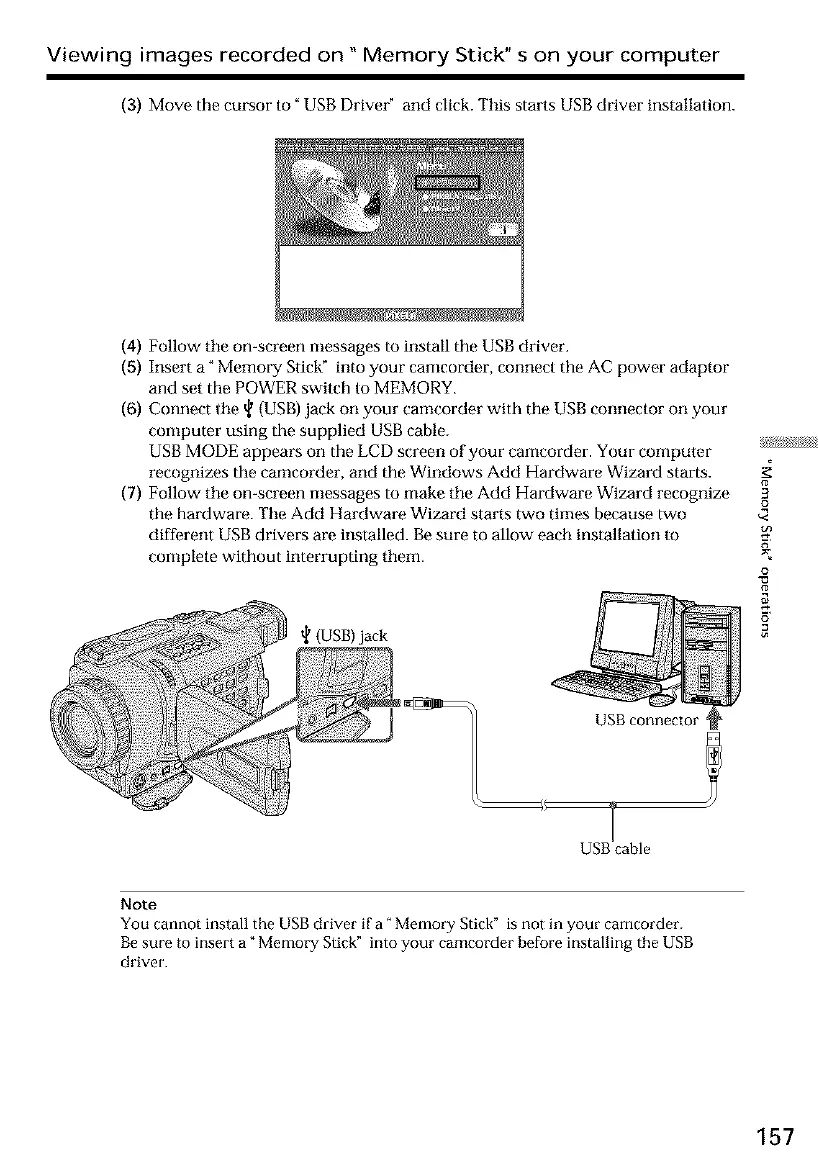
(3) Move the cursor to" USB Driver" and click. This starts USB driver installation.
(4) Follow tile on-screen messages to install the USB driver.
(5) Insert a" Memory Stick" into your camcorder, connect the AC power adaptor
and set the POWER switch to MEMORY.
(6) Connect tile _ (USB) jack on your camcorder with the USB connector on your
computer using the supplied USB cable.
USB MODE appears on the LCD screen of your camcorder. Your computer
recognizes the camcorder, and the Windows Add Hardware Wizard starts.
(7) Follow tile on-screen messages to make tile Add Hardware Wizard recognize
the hardware. Tile Add Hardware Wizard starts two times because two
different USB drivers are installed. Be sure to allow each installation to
complete without interrupting them.
t_ (USB) jack
3
£
¢<
o
USB cable
Note
You cannot install the USB driver if a" Memory Stick" is not in your camcorder.
Be sure to insert a" Memory Stick" into your camcorder before installing the USB
driver.
157





 To Next Page