Recording video or TV programs
Using the i.LINK cable (DV connecting cable)
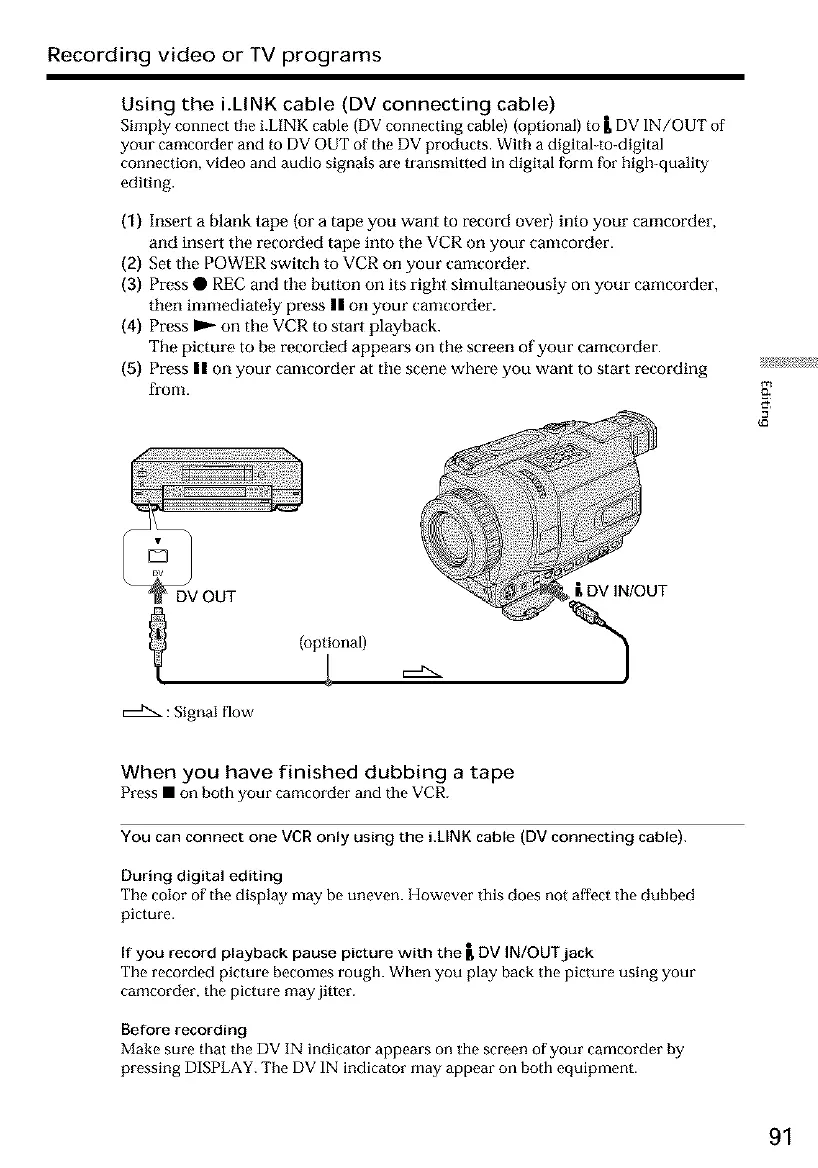
Simply connect the i.LINK cable (DV connecting cable) (optional) to L DV IN/OUT of
your camcorder and to DV OUT of the DV products. With a digital to-digital
connection, video and audio signals are transmitted in digital form fur high-quality
editing.
(1) Insert a blank tape (or a tape you want to record over) into your camcorder,
and inseri the recorded tape into the VCR on your camcorder.
(2) Set tile POWER switch to VCR on your camcorder.
(3) Press • REC and tile button on its rigilt simultaneously on your camcorder,
tilen inmlediately press n on your camcorder.
(4) Press _ on the VCR to start playback.
The picture to be recorded appears on the screen of your camcorder.
(5) Press II on your camcorder at tile scene where you want to start recording
from.
DV OUT
(optional)
: Signal flow
i. DV IN/OUT
When you have finished dubbing a tape
Press• on bothyour eamcorder and the VCR.
You can connect one VCR only using the i.LINK cable (DV connecting cable).
During digital editing
The color of the display may be uneven. However this does not affect the dubbed
picture.
If you record playback pause picture with the _, DV IN/OUT jack
The recorded picture becomes rough. When you play back tile picture using your
camcorder, the picture may jitter.
Before recording
Make sure that the DV IN indicator appears on the screen of your camcorder by
pressing DISPLAY. The DV IN indicator may appear on both equipment.
91





 To Next Page