- Editing -
Dubbing a tape
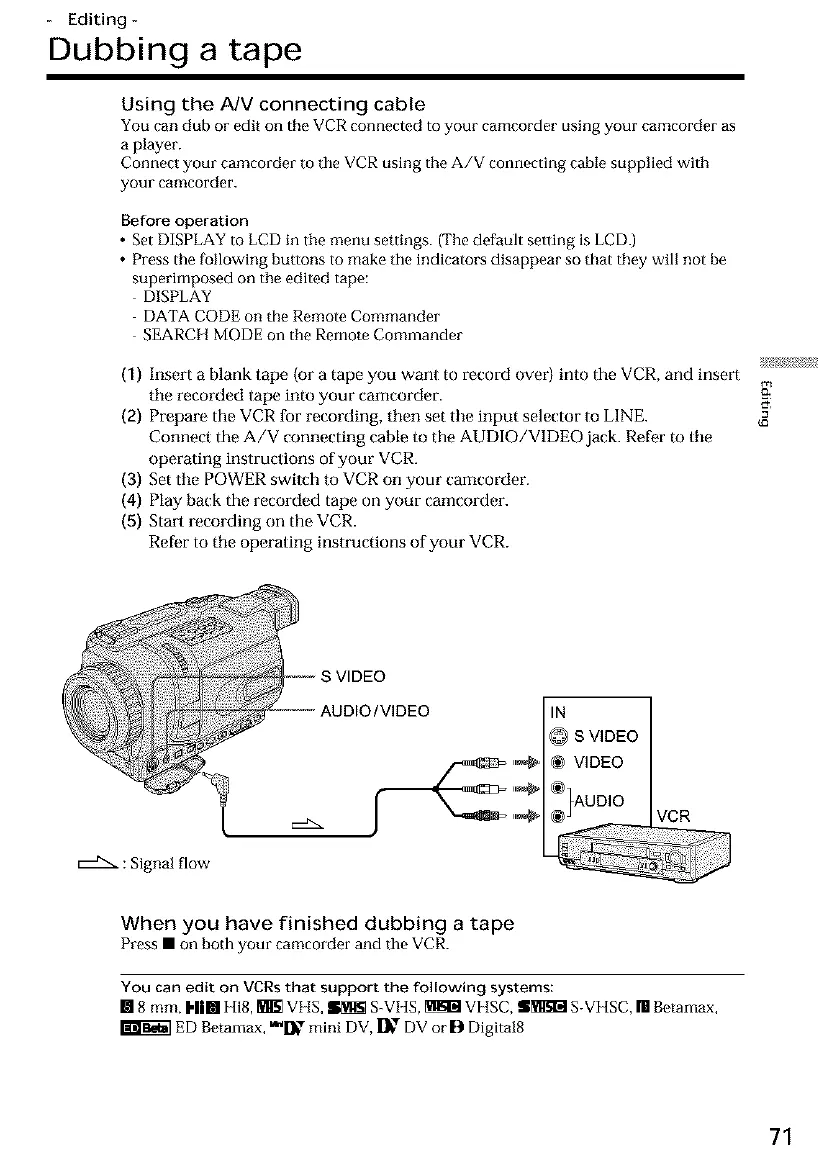
Using the NV connecting cable
You can dub or edit on the VCR connected to your camcorder using your camcorder as
a player.
Connect your camcorder to the VCR using the A/V connecting cable supplied with
your camcorder.
Before operation
• Set DISPLAY to LCD in the menu settings. (The default setting is LCD.)
• Press the fonowing buttons to make the indicators disappear so that they will not be
superimposed on the edited tape:
DISPLAY
DATA CODE on the Remote Commander
SEARCH MODE on the Remote Commander
(1) Insert a blank tape (or a tape you want to record over) into tile VCR, and insert
tile recorded tape into your camcorder.
(2) Prepare the VCR for recording, then set tile input selector to LINE.
Connect the A/V connecting cable to the AUDIO/VIDEO jack. Refer m tile
operating instructions of your VCR.
(3) Set tile POWER switch to VCR on your camcorder.
(4) Play back the recorded tape on your camcorder.
(5) Start recording on the VCR.
Refer to tile operating instructions of your VCR.
: Signal flow
IN
@ S VIDEO
,_ _ VIDEO
VCR
When you have finished dubbing a tape
Press• on bothyour camcorder and the VCR.
You can edit on VCRs that support the following systems:
[] 8 ram, I,Ii111lIi8, Im_ Vii& _ SVHS, _ VI-tSC, !S_ S-VI lSC, [] Betamax,
ED Betamax, _[]1_"r mini DV, I_ "r DV or B Digital8
71





 To Next Page