Capturing images from an analog video unit
on your computer - Signal convert function
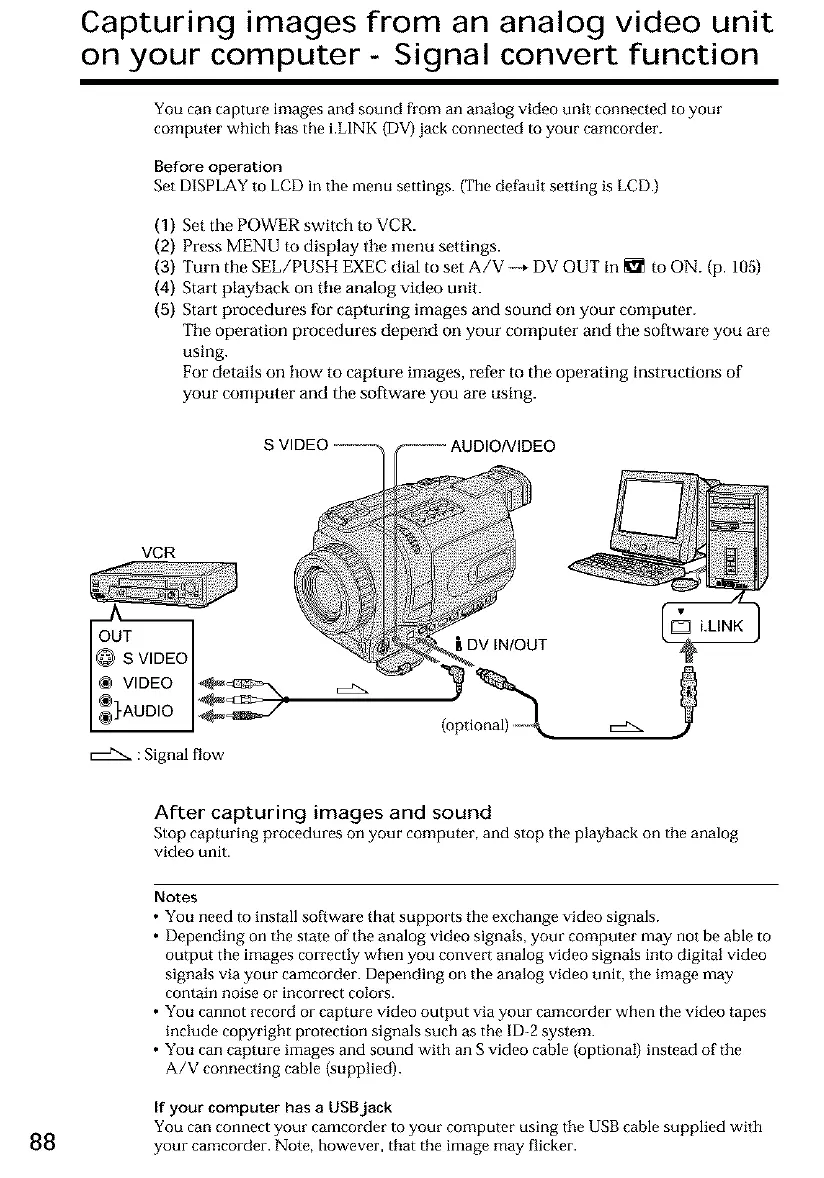
You can capture images and sound from an analog video unit connected to your
computer which has the i.LINK (DV) jack connected to your camcorder.
Before operation
Set DISPLAY to LCD in the menu settings. (The default setting is LCD.)
(1) Set the POWER switch to VCR.
(2) Press MENU m display tile menu settings.
(3) Turn the SEE/PUSH EXEC dial to set A/V _ DV OUT in _ to ON. (p. 105)
(4) Start playback on tile analog video unit.
(5) Start procedures for capturing images and sound on your computer.
Tile operation procedures depend on your computer and the software you are
using.
For details on how to capture images, refer to the operating instructions of
your computer and the software you are using.
VCR
^
out
@ S VIDEO
VIDEO
#AUD,O9'
: Signal flow
[LDV IN/OUT
After capturing images and sound
Stop capturing procedures on your computer, and stop the playback on the analog
video unit.
Notes
• You need to install software that supports the exchange video signals.
• Depending on the state of the analog video signals, your computer may not be able to
output the images correctly when you convert analog video signals into digital video
signals via your camcorder. Depending on the analog video unit, the image may
contain noise or incorrect colors.
• You cannot record or capture video output via your camcorder when the video tapes
include copyright protection signals such as the ID-2 system.
• You can capture images and sound with an S video cable (optional) instead of the
A/V connecting cable (supplied).
If your computer has a uSgjack
You can connect your camcorder to your computer using the USB cable supplied with
88 your camcorder. Note, however, that the image may flicker.





 To Next Page