inserting a scene from a VCR - Insert Editing
(1) Set tile POWER switch to VCR on your camcorder.
(2) On tile connected VCR, locate just before tile insert start point [a], then press n
to set tile VCR to the playback pause mode.
(3) On your camcorder, locate tile insert end point [c] by pressing _1_ or INI_.
Then press II to set your camcorder to tile playback pause mode.
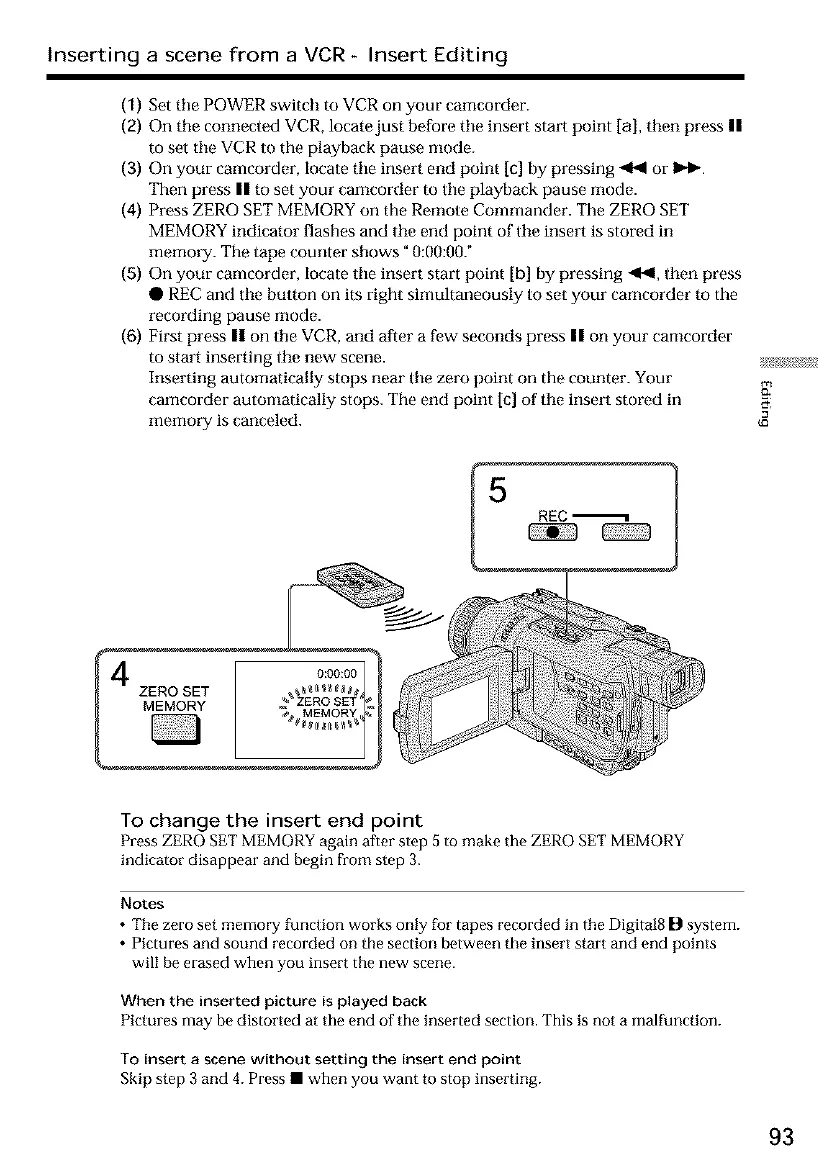
(4) Press ZERO SET MEMORY on the Remote Commander. The ZERO SET
MEMORY indicator flashes and tile end point of tile insert is stored in
memory. The tape counter shows" 0:00:007
(5) On your camcorder, locate tile insert start point [b] by pressing _1_1, fllen press
• REC and tile button on its right simultaneously to set your camcorder to the
recording pause mode.
(6) First press II on tile VCR, and after a few seconds press II on your camcorder
to start inserting tile new scene.
Inserting automatically stops [lear tile zero point on the counter. Your
camcorder automatically stops. The end point [c] of tile insert stored in
memory is canceled.
_ REC_ 1
g
To change the insert end point
Press ZERO SET MEMORY again after step 5 to make the ZERO SET MEMORY
indicator disappear and begin from step 3.
Notes
• The zero set memol T function works only fur tapes recorded in the Digital8 D system.
• Pictures and sound recorded on the section between the insert start and end points
will be erased when you insert the new scene.
When the inserted picture is played back
Pictures may be distorted at the end of the inserted section. This is not a malfunction.
To insert a scene without setting the insert end point
Skip step 3 and 4. Press • when you want to stop inserting.
93





 To Next Page