1-44
DSR-70/70P
Chapter 5 Special Editing and Recording/Playback
86
Chapter 5 Special Editing and Recording/Playback
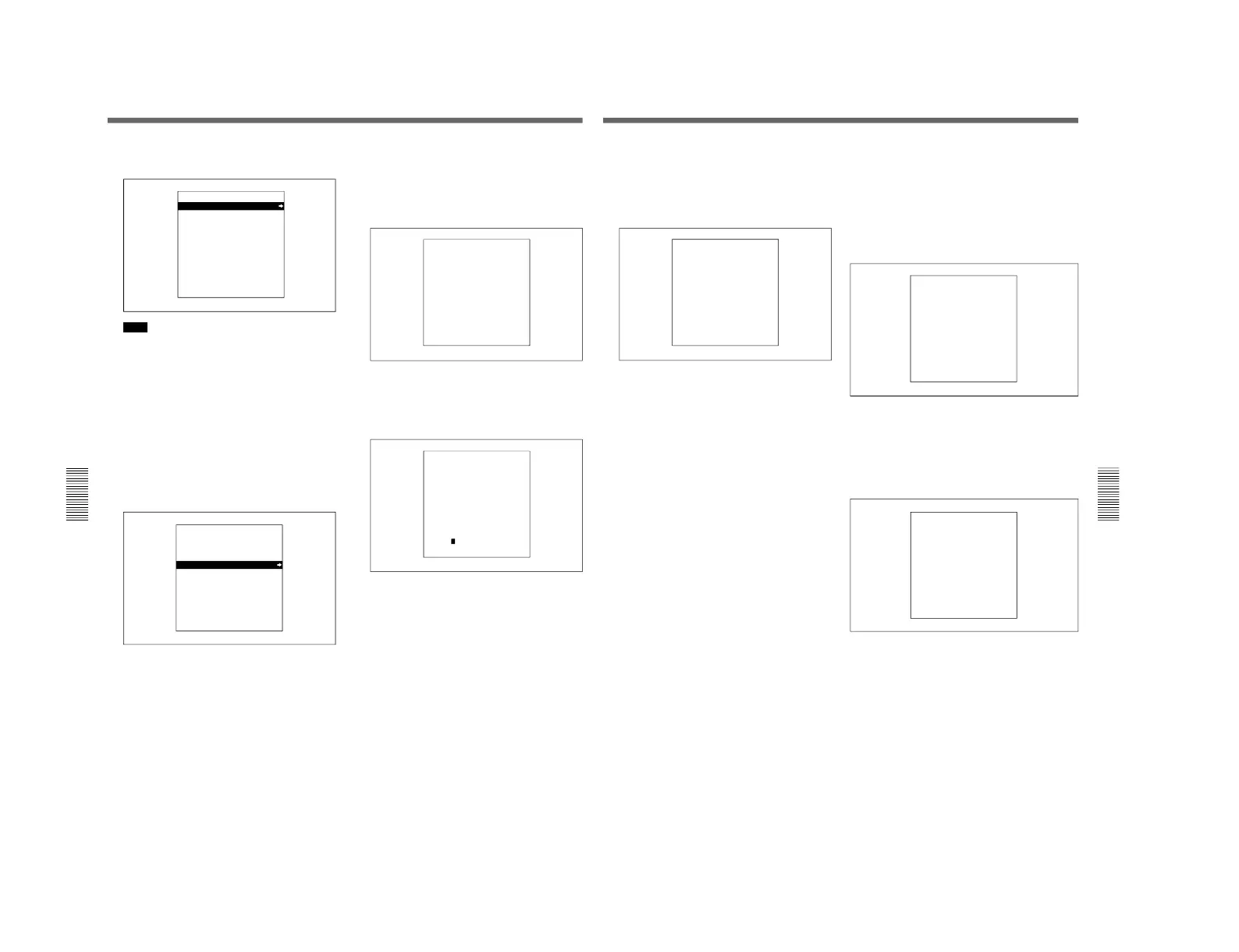
•SYSTEM MENU screen displayed when using
the SDTI(QSDI) interface (DSBK-150)
Note
When neither the DSBK-140 nor the DSBK-150 is
installed in the unit, the setup menu appears
instead of the system menu.
In explaining the subsequent steps of this operating
procedure, illustrations of screens shown when
using the i.LINK interface are used. You can apply
the same operating procedure also when using the
SDTI(QSDI) interface.
2
Press the SET button.
The screen changes as follows, allowing you to
select a desired group of items for dubbing.
•A/V: Audio and video
•A/V/TC: Audio, video and timecode
•A/V/TC/CM: Audio, video, timecode, and
cassette memroy (ClipLink log data)
Digitally Dubbing Signals in DVCAM Format (Optional DSBK-140 or DSBK-
150 Required)
SYSTEM MENU
i.LINK DUBBING
A/V
A/V/TC
A/V/TC/CM
3
Using the jog/shuttle dial, select a desired group of
items for dubbing, then press the SET button.
The menu screen changes as follows.
(Example: The screen displayed when A/V/TC/
CM is selected.)
4
Insert the source tape in the player and the
recording tape in this unit.
A message to make sure dubbing may be started
appears.
If the cassette memory capacity of the recording
tape is not sufficient
A message urging you to replace the recording tape
by a tape with a larger cassette memory capacity
appears.
For more information about this, see the next section “If
the cassette memory of the recording tape is not large
enough”.
To cancel the dubbing operation
Press the MENU button.
i.LINK DUBBING
(A/V/TC/CM)
INSERT RECORD TAPE IN
THIS VTR AND SOURCE
TAPE IN THE PLAYER VTR.
ABORT:MENU KEY
Chapter 5 Special Editing and Recording/Playback
Chapter 5 Special Editing and Recording/Playback
87
5
Press the SET button.
The recording tape and source tape are both
automatically wound back to the beginning, and
dubbing starts. At the same time, the screen
changes as follows.
To end the dubbing operation while it is in
progress
Press the STOP button.
The dubbing operation stops and a message asking
whether to copy the contents of the cassette
memory appears.
For more information about this, see the subsequent
section “If you end dubbing while it is in progress” on
this page.
When dubbing is completed
1 A message “COMPLETED” appears on the
LCD monitor.
2 The source tape and recording tape are both
automatically rewound to the beginning, and
the cassettes ejected.
3 The unit returns to the state in step 3.
6
To continue by dubbing another tape, repeat steps
4 and 5.
7
To end the dubbing operation and exit from the
menu, press the MENU button.
i.LINK DUBBING
(A/V/TC/CM)
EXECUTING.
TCR 00:00:00:00
UBR 00:00:00:00
ABORT:MENU KEY
If the cassette memory of the recording tape
is not large enough
When you insert the recording tape and source tape in
this unit and the player, respectively, whereas A/V/TC/
CM has been selected as the items for dubbing, their
cassette memory contents are checked automatically.
If, as a result, the cassette memory capacity of the
recording tape is found inadequate, the following
message appears.
If this message appears, replace the recording tape by a
tape with a larger cassette memory capacity.
If you end dubbing while it is in progress
If you end dubbing while it is in progress with A/V/
TC/CM selected as the items for dubbing, the
following message appears.
To copy the contents of the cassette memory, press the
SET button.
If you do not wish to copy the contents of the cassette
memory, press the RESET button. If you press the
RESET button, however, the contents of the cassette
memory may not agree with the material recorded on
the tape.
i.LINK DUBBING
(A/V/TC/CM)
CM MEMORY STORAGE
CAPACITY OF THE RECORD
TAPE IS TOO SMALL.
ABORT:MENU KEY
i.LINK DUBBING
(A/V/TC/CM)
QSDI DUBBING IS ABORTED.
EXECUTE CM COPY?
COPY :SET KEY
NOT COPY:RESET KEY



 To Next Page