083730300A DCN8101 Maintenance and Service 107
5.4 SOFTWARE/FIRMWARE UPDATES
There are two ways to check for and acquire updates: either remotely or manually.
5.4.1 REMOTE UPDATES
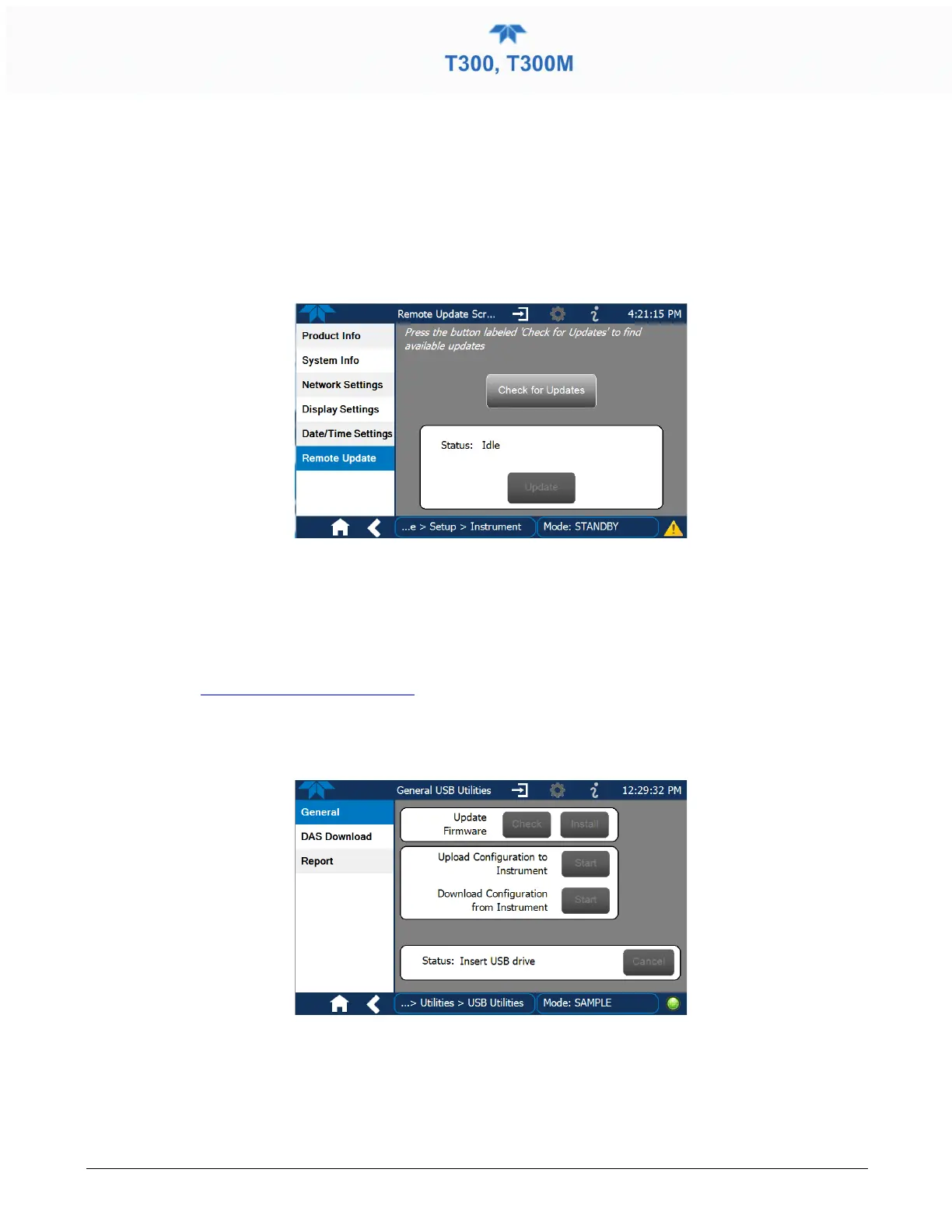
The instrument must be connected to a network that is connected to the Internet. In the
Setup>Instrument menu, select the Remote Update menu and press the Check for
Updates button. If an update is available, it can be downloaded through this page.
Figure 5-2. Remote Update Page
5.4.2 MANUAL RELOAD/UPDATE PROCEDURES
To reload or update firmware, first contact Technical Support to obtain the applicable
file(s):
api-techsupport@teledyne.com
(email), +1 800-324-5190 (toll free), +1 858-657-9800 (phone).
1. Follow Technical Support’s instructions for copying the firmware files to a
flash drive.
2. Go to the Utilities>USB Utilities>General menu.
Figure 5-3. Manual Update Page (and other utilities)
3. Insert a flash drive into a front panel USB port and wait for the Status field to
indicate that the drive has been detected.
4. In the Update Firmware field, press the Check button for the instrument to
determine whether the firmware on the flash drive is more recent than what is



 To Next Page