6-Printer Operation Epic Edge™ OEM Integration Manual
100-14444 Rev B August 2018 Page 53
Firmware Update
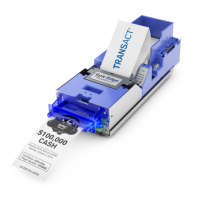
The Epic Edge™ printer supports two methods for updating the printer firmware.
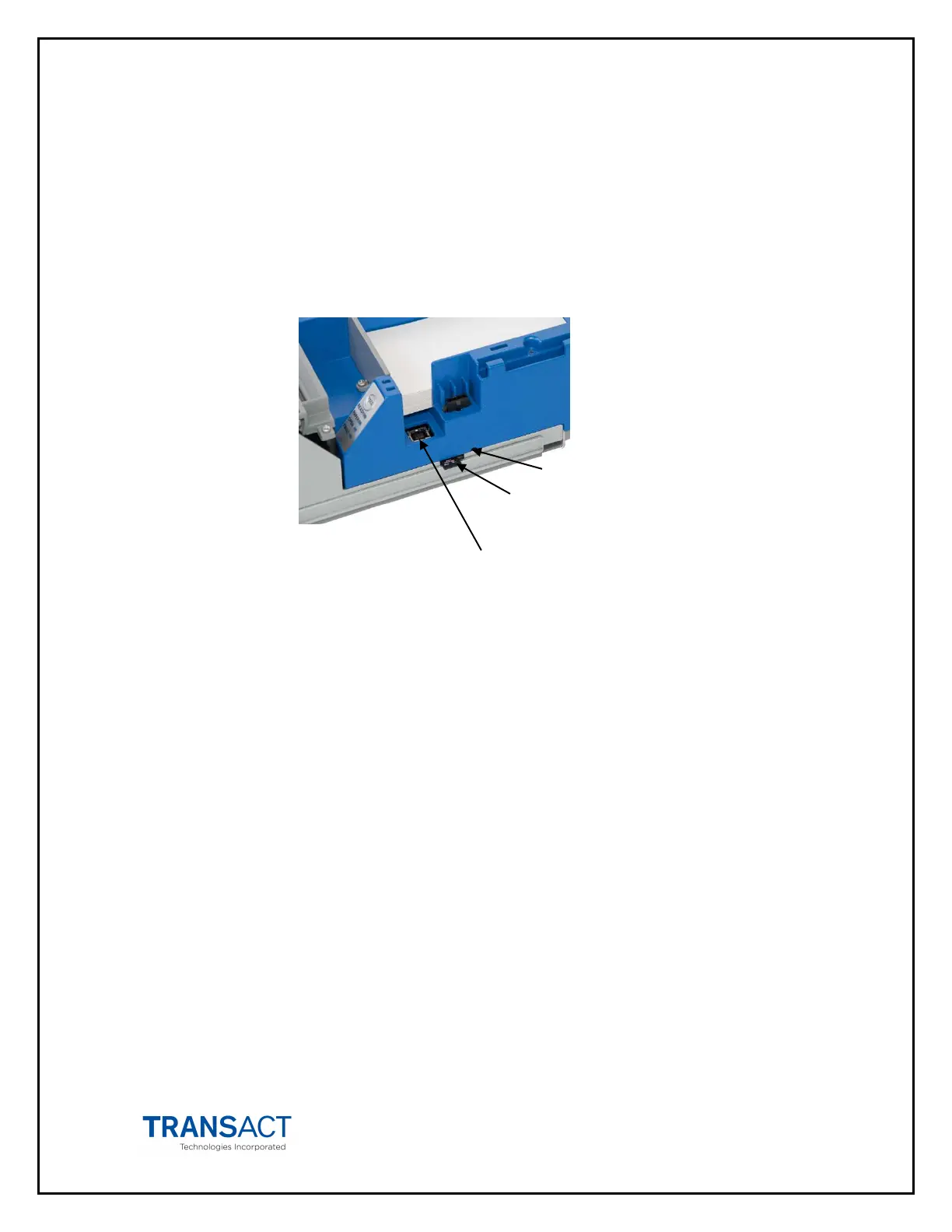
Firmware may be updated either through the dedicated USB maintenance port or using
a micro SD card. The firmware update process is automatically initiated by the detection
of either a valid SD card insertion or a USB connection on the download port. The printer
also provides a recessed reset pushbutton near the SD connector to allow the printer to
be reinitialized without the removal of power. .
USB Port Update
The process for updating the printer firmware using the USB maintenance port is similar
to the process used on the Epic 950 printer except the Epic Edge™ uses a USB
connection while the Epic 950 updates are performed using an RS232 connection. In
both cases the printer must be connected to a host running the Epic Printer Update tool.
Unlike the Epic 950 Printer, the Epic Edge will automatically recognize the presence of a
USB connection on the maintenance port and automatically switched to maintenance
mode
NOTE: EGM communication will be suspended during the firmware update process.
Both the USB cable and the SD card must be removed at the conclusion of the update to
reestablish the EGM communications.
USB Update Procedure
• Connect a USB cable from the host to the download port on the printer.
o The printer will reset and will enumerate as a virtual serial port on the host
PC.
Note: several resets may occur before the enumeration is completed
o When communications have been established, the printer LEDs will flash
sequentially in an up and down pattern to indicate the printer is in update
mode.
o While enumerated, the printer will block all game communications until
updates are completed and the download USB cable is removed.
Micro SD card
Reset Pushbutton


 To Next Page