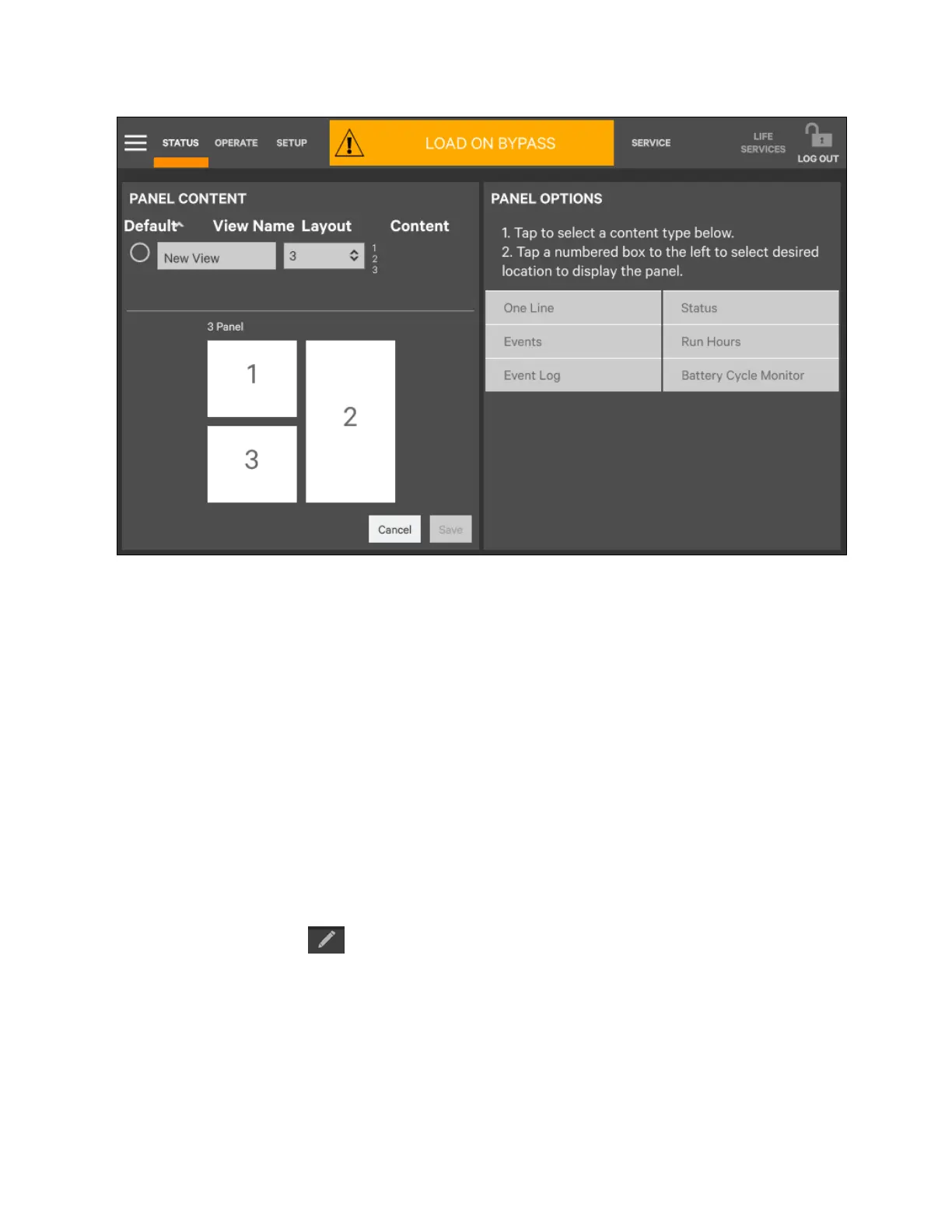
10. When the window returns to two screens Panel content and Panel options, touch the radio button beside the
new view to activate it (this puts a dot inside the circle).
11. Touch Save.
12. Touch the STATUS menu icon to see the new appearance.
To choose an existing layout, navigate to the Panel content screen and touch the radio button beside the layout, then touch
the STATUS menu icon.
Remove a Layout
To delete a layout, Log in with Administrator or Service access.
Using the Edit Icon to Customize Layout
The Vertiv™ Liebert® APM2 touchscreen control panel layout can also be changed with the Edit icons on the screen for a user
logged in as Operator, Administrator or Service. The Edit icon can be used to add or remove panels, resize panels, rearrange
panels and change monitored parameters.
To use the Edit icon:
1. Touch the Edit icon on the panel to be edited and hold it until a Change content button appears on the
panel (about 1 second).
2. Touch an icon to choose the data to be displayed in the panel. See Figure 5.13 on the next page. Choices are:
• One Line Run Hours
• Status Event Log
• Alarms Battery Cycle Monitor Summary
• Change UNIT STATUS Panel Content
5 Operator Control and Display
Panel
Proprietary and Confidential ©2023 Vertiv Group Corp. 65
Vertiv™ Liebert® APM2 30 to 120 kVA Modular UPS User Manual


 To Next Page