The Main Screen Interface
3. The Main Screen Interface
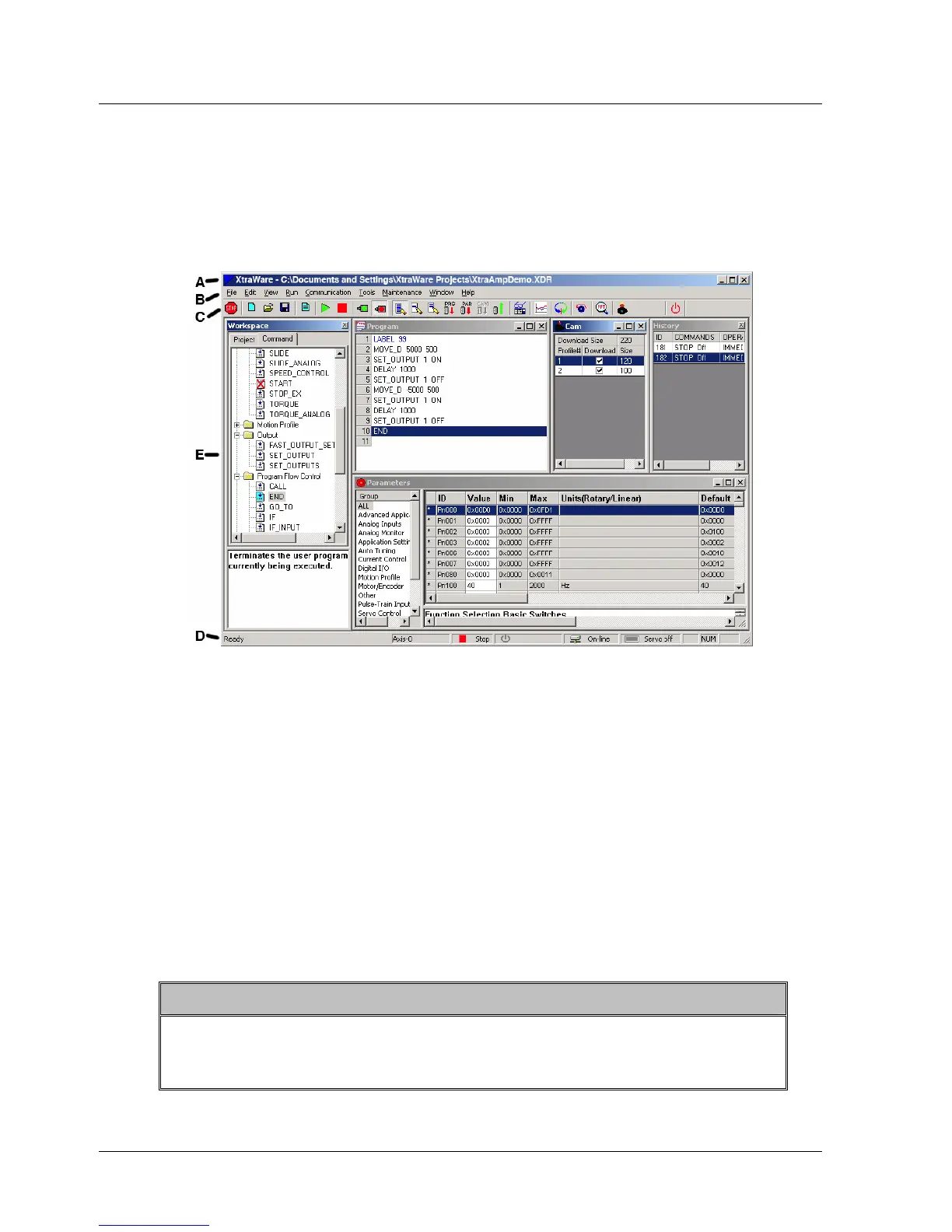
This chapter describes the XtraWare main screen. The main screen
comprises a main toolbar, menus and several windows. A sample main
screen is shown in Figure 1 below. For clarity, the screen has been divided
into separate elements.
Figure 1: Sample Main Screen
3.1. Title Bar (A)
The XtraWare title bar displays the name of the currently opened project
file.
3.2. Menu Bar (B)/Toolbar (C)
The XtraWare menu bar provides access to the XtraWare menus: File, Edit,
View, Run, Communication, Tools, Maintenance, Window and Help.
The toolbar is located immediately beneath the menu bar. It comprises
shortcut icons to the most commonly used XtraWare options. In the
following descriptions of the menu options, the appropriate icon (where
applicable) is listed next to each option.
Note:
Some menu options are not available in all modes and will appear as
disabled (grayed) when unavailable. Similarly, disabled icons indicate
that communication is offline.
XtraWare User Manual 5



 To Next Page