174
Accutome A-Scan Plus Connect User’s Guide
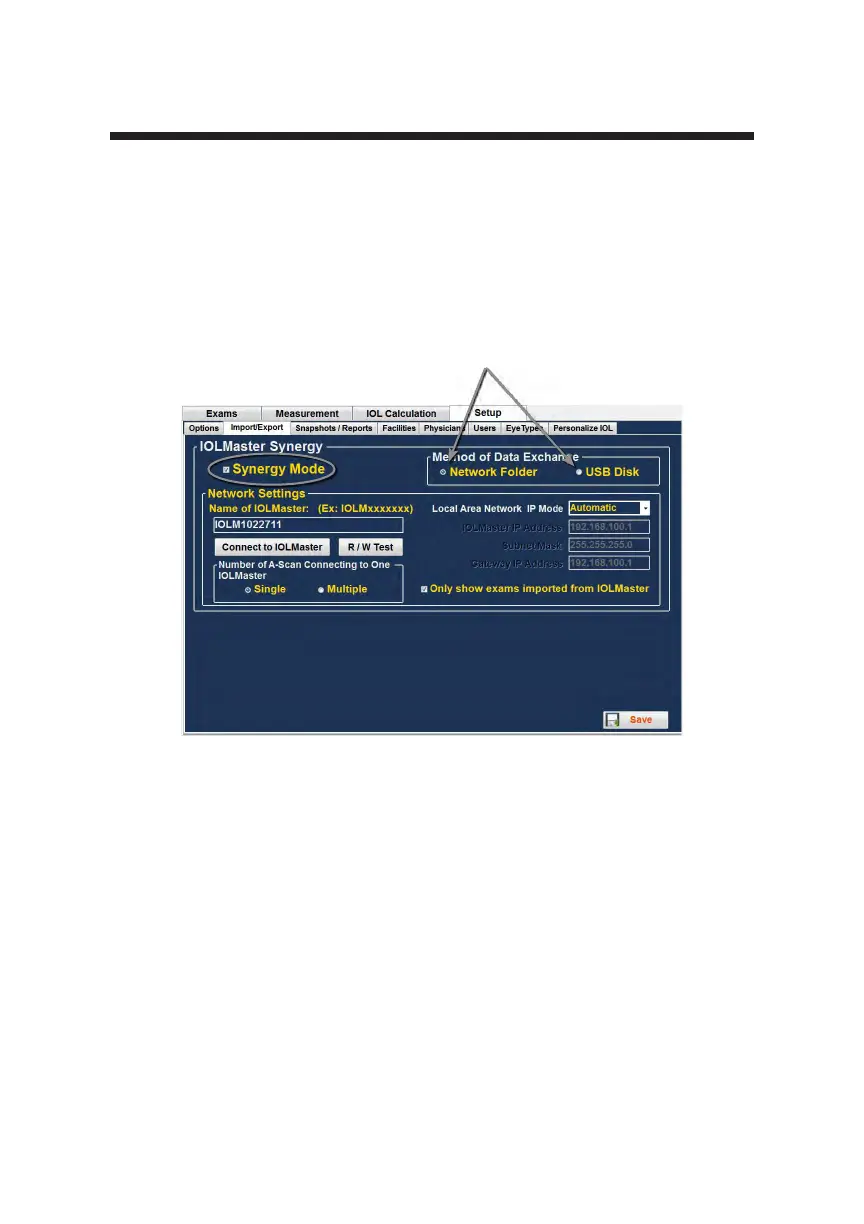
Once within the setup screen, select the second tab from the left labeled
“Import/Export”. This screen allows you to turn the Synergy function on or
off of the Accutome A-Scan Plus Connect software. At the top of the screen in
large yellow writing is a label “Synergy Mode”, with a small grey check box
at its left. Click inside the box and a check mark should appear. This indicates
Synergy mode is now active. You should notice that the previously greyed out
or locked portions of the screen are now active.
Network Folder or USB Disk Mode
The Accutome A-Scan Plus Connect has the ability to transfer data to and from
the IOL Master 500, but the transfer method differs depending on what version
of the IOL Master you may have.
IOLMaster 500 version 7.7
If you have the IOL Master 500 version 7.7, the data transfer between the two
units is via LAN/network. The proper set up and operation is listed step by step
below.
Figure 9-3 Import/Export Screen
Network Folder or USB Disk



 To Next Page