69
Accutome A-Scan Plus Connect User’s Guide
Personal Preferences
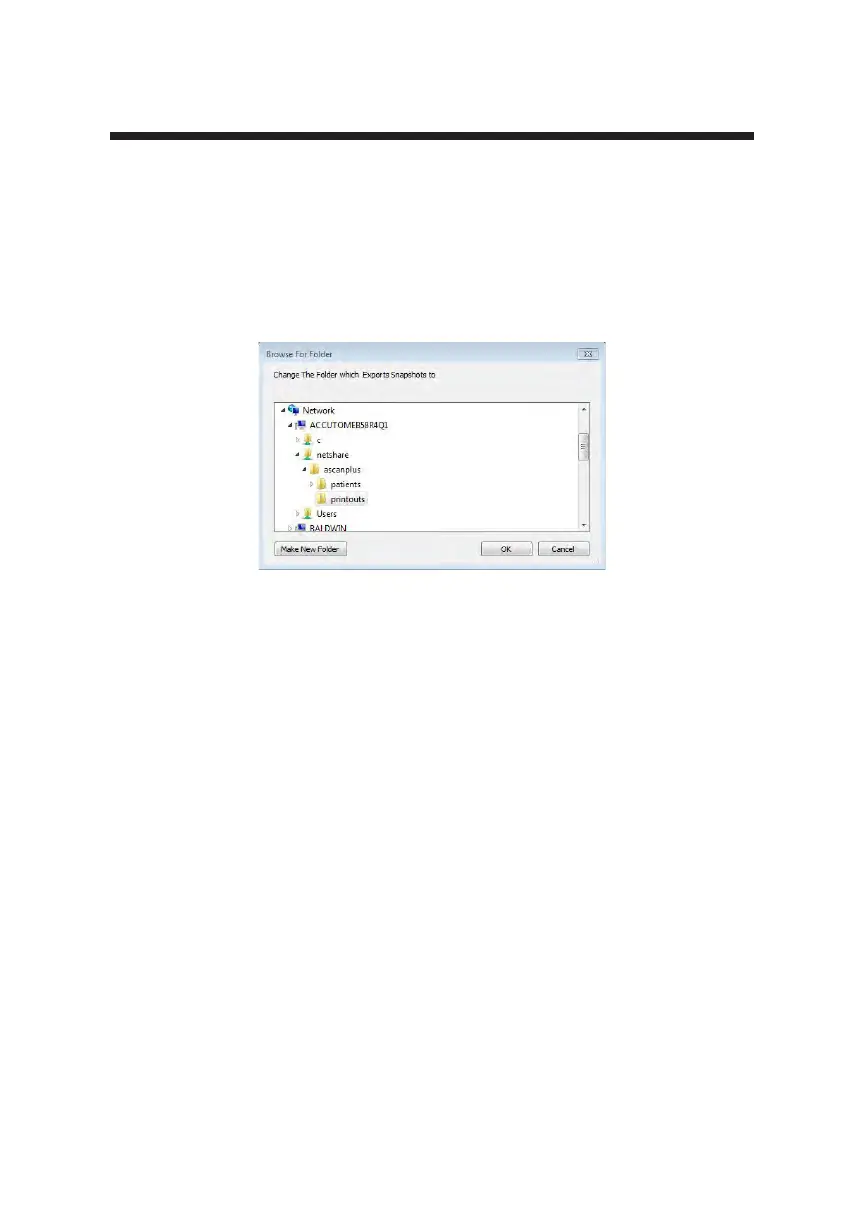
Select Folder to Export the Snapshot
1. Position the mouse cursor over the select folder button and left click.
2. This opens the browse for folder window.
3. Using the mouse, position the cursor over the drive and network location
requested and left click.
4. You will see the network and folders to export snapshot.
5. Select the locations and folder to export the the snapshots to by using the
mouse and left clicking until the correct path is established.
6. Clicking on OK will conrm selection and enter it in to the Folder to
export location.
Default Folder
The Default button allows the folder to export the snapshots to reset to the
factory default setting of C:\Accutome\Ascan\ExportedSnapshots\.
The default value is not saved or implemented until the save
button is clicked.
Figure 5-25 Selecting Network Location



 To Next Page