70
Accutome A-Scan Plus Connect User’s Guide
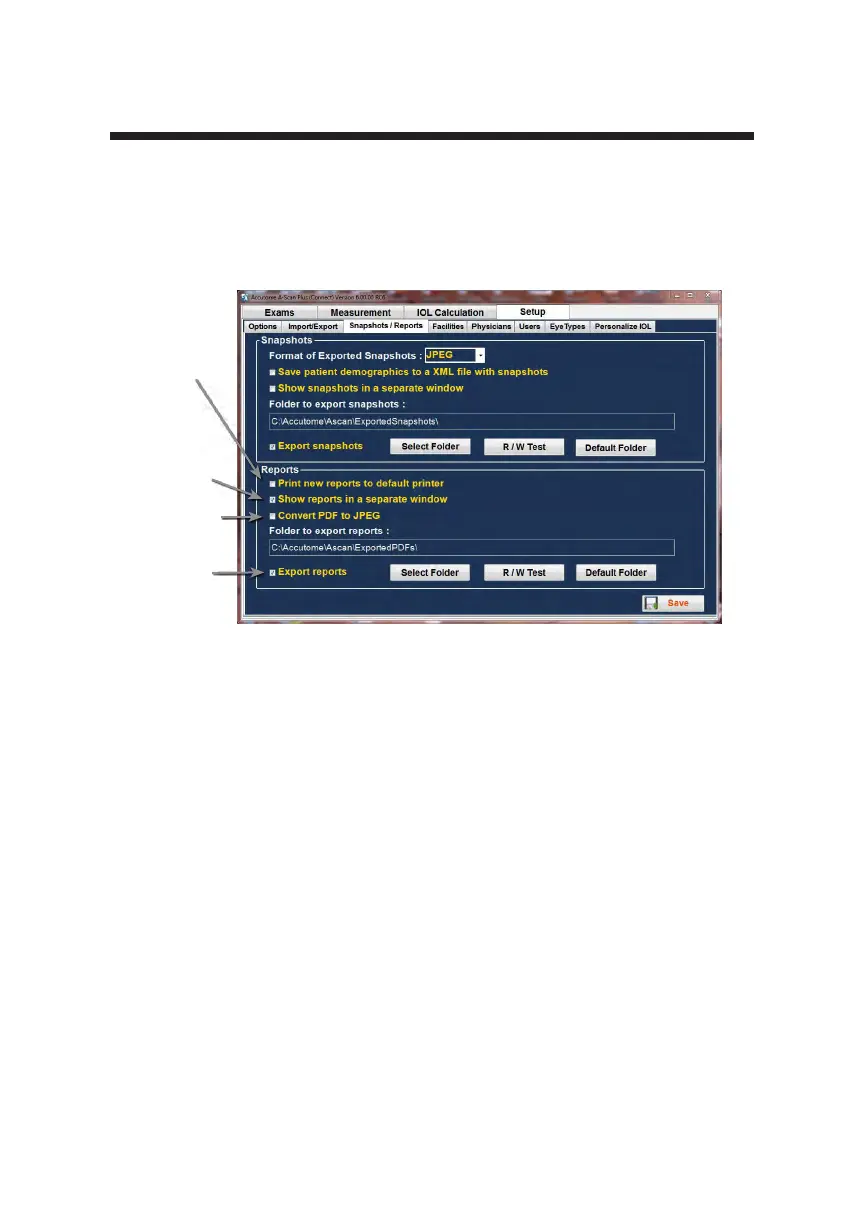
Print New Report to Default Printer
The Accutome software also allows the automatic printout of the report every
time the print button is pressed. This feature gives the user a hard copy for
review automatically. It may also be used as an indication of the report being
exported to a network or drive location.
1. To activate the “Print report to default printer”, position the mouse cursor
over the selection box and left click. A check mark in this box indicates a
report will be automatically printed every time the print button is selected.
Show Report in Separate Window
Some users like to have conrmation when a report has been exported and or
remotely printed. Selection of the Show Report in separate window feature will
display the exported, remotely printed report on a separate screen. This ensures
the user that the report has been transferred.
1. To activate the Show Reports in a separate window, position the mouse
cursor over the selection box and left click. When a check mark is in this
box, a report will appear on the screen as an indication that the report has
been exported.
How To Activate the Export Reports
1. Position the mouse cursor over the “export report” activation box. A check
in this box will assure that a patient report will be exported to the selected
location every time the print button is selected.
Figure 5-26 Activating Export Report
Print
Report
Show Separate
Window
Convert PDF to
JPEG
Export
Report



 To Next Page