25
Accutome A-Scan Plus Connect User’s Guide
3. The Patient Info must be entered to proceed to the next screen. Select the
First Name eld and enter the Patient First Name.
4. Use the Tab key, or select the Last Name eld and enter the Patient Last
Name.
5. Continue entering all relevant patient information.
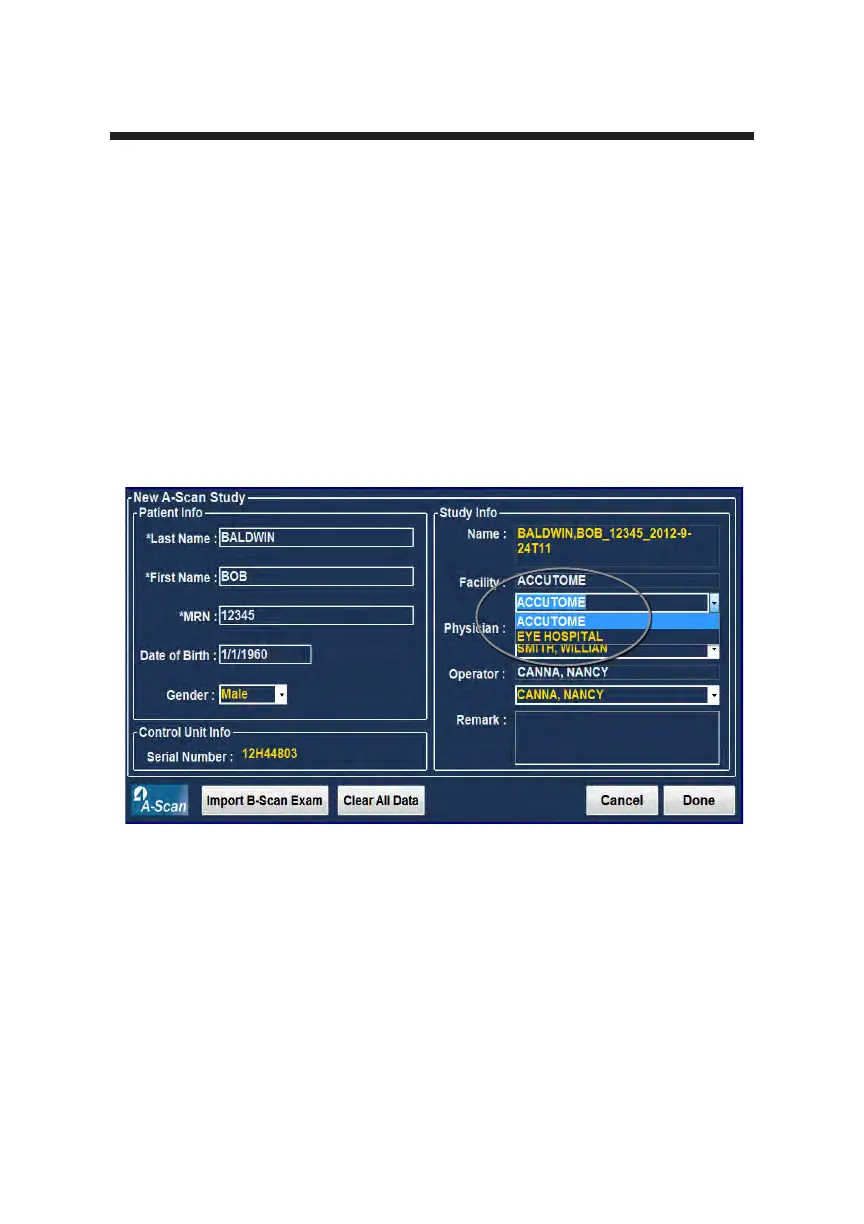
6. If you wish to select a Facility, select one from the predened (in A-Scan
Plus Connect Setup) facility drop down list. Position the cursor on the
small arrow at the right of the facility eld. Left click to open the drop
down list. Position the mouse over the up/down arrows at the right of the
drop down list Click the mouse to move through stored facilities. Once
you see the facility you want to select, position the mouse cursor over the
facility and left click. The selected facility will ll in the facility eld.
Figure 3-14 Selection Facility
7. Continue to select Physician and Operator from the drop down lists
located at the right side of the each eld. Position the cursor on the small
arrow at the right of the physician and operators elds. Left click to open
the drop down list. Position the mouse over the up/down arrows at the
right of the drop down list. Click the mouse to move through stored
physicians and operators. Once you see the Physician and Operators
you want to select, position the mouse cursor over the Physician and
Operator and left click. The selected Physician and Operator will ll in the
Physician and Operator eld.
Getting Started



 To Next Page