82
Accutome A-Scan Plus Connect User’s Guide
Set Selected User as Default
To set a user as the default A-Scan Plus Connect operator:
1. Select the user you would like to become the default from the “Available
Users” list.
2. Click on “Set Selected as Default.”
3. The user will become the default operator to appear when you power up
the Accutome A-Scan Plus Connect.
Save
To save all user information:
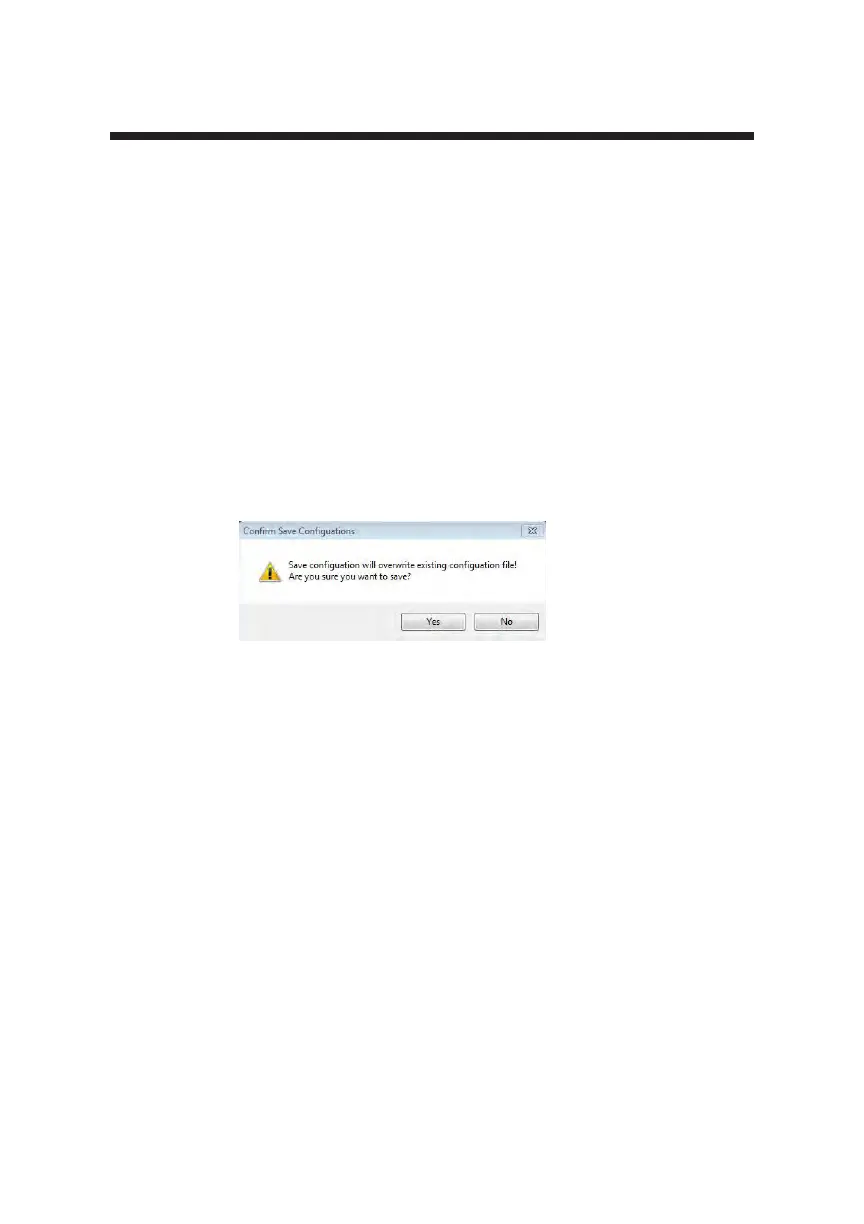
1. Click on “Save.”
2. A “Conrm Save Conguration” dialog will launch. If you would like to
save all changes click “Yes”. Click No and the changes will not be saved.
Figure 5-41 Are You Sure
Eye Types
Overview
The Accutome A-Scan Plus Connect provides the customer with the ability to
create unique eye types that adapt the A-scan measurement for use with new
material being created for ocular surgery.
When you select the Eye Type tab, the screen will display the factory installed
eye types and will show the velocities of sound used in them.
When in this screen the user may create new eye types that reect the changes
in ophthalmic materials. Prior to creating a new eye type, the velocities of
sound for each material used must be entered.
CAUTION: Changing eye type and velocity information does not effect the eye type
information for current and saved patients. The changes will be in effect the next time
the changed eye type is selected or a new patient is started. Current patient eye types that
do not match the settings on the eye types screen are indicated with * on the measure and
calculate screen.



 To Next Page