71
Accutome A-Scan Plus Connect User’s Guide
Personal Preferences
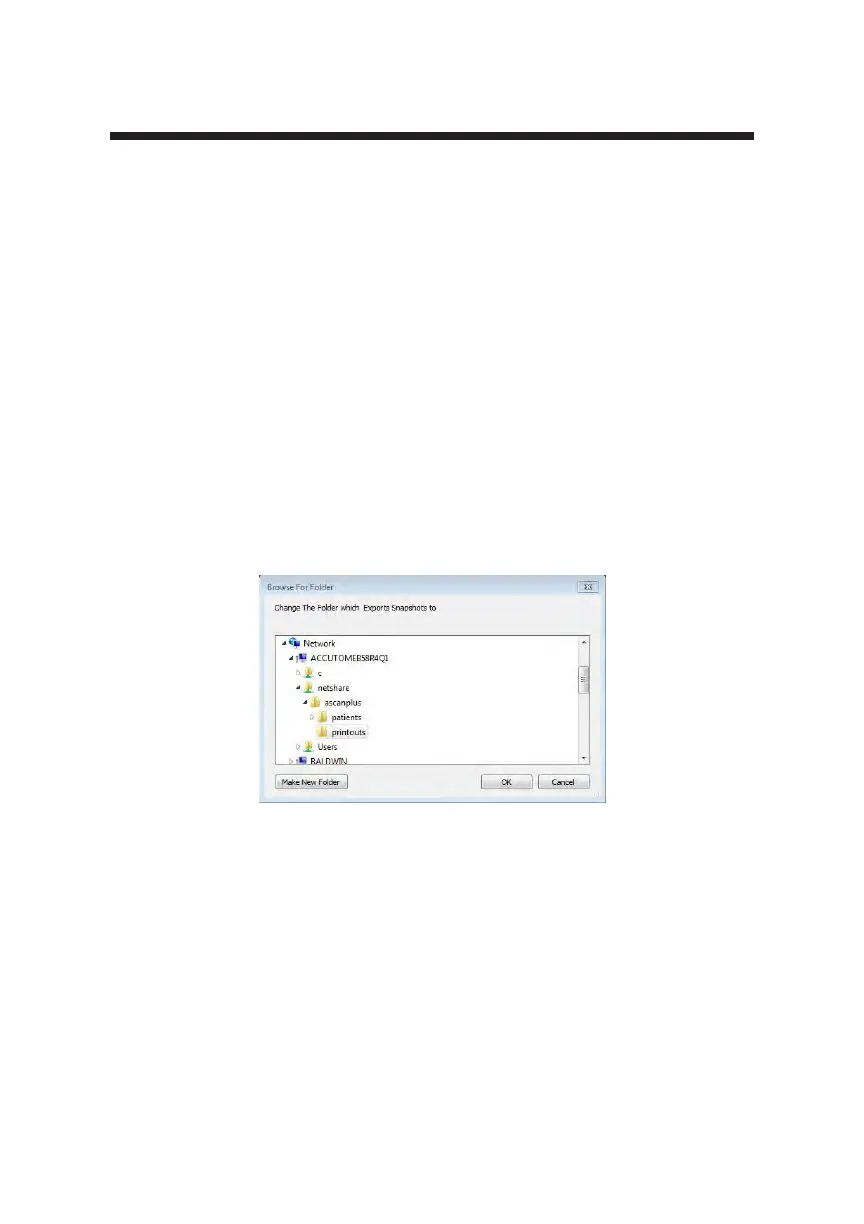
Select the Folder and Drive to Export Report
1. Position the mouse cursor over the select folder button and left click.
2. This opens the browse for folder window.
3. Using the mouse, position the cursor over the drive, network location
requested and left click.
4. You will see the network and folders to export report.
Convert PDF to JPEG
This function allows automatic converting reports to JPEG format. Some EMR
systems only take reports in JPEG format. Selection of “Convert to JEPG”
feature will automatically convert newly created reports to JPEG format.
1. To activate the Convert PDF to JPEG feature position the mouse cursor
over the selection box and left click. When a check mark is in this box, all
the new reports will be converted automatically.
5. Select the locations and folder to export the reports by using the mouse
and left clicking until the correct path is established.
6. Clicking on OK will conrm selection and enter it in to the Folder to
export location.
Figure 5-27 Selecting Network Location



 To Next Page