Calendar adjustment
To adjust the calendar (time), operate as follows.
You can adjust calendar in the Menu mode in the same way as LCD adjustment.
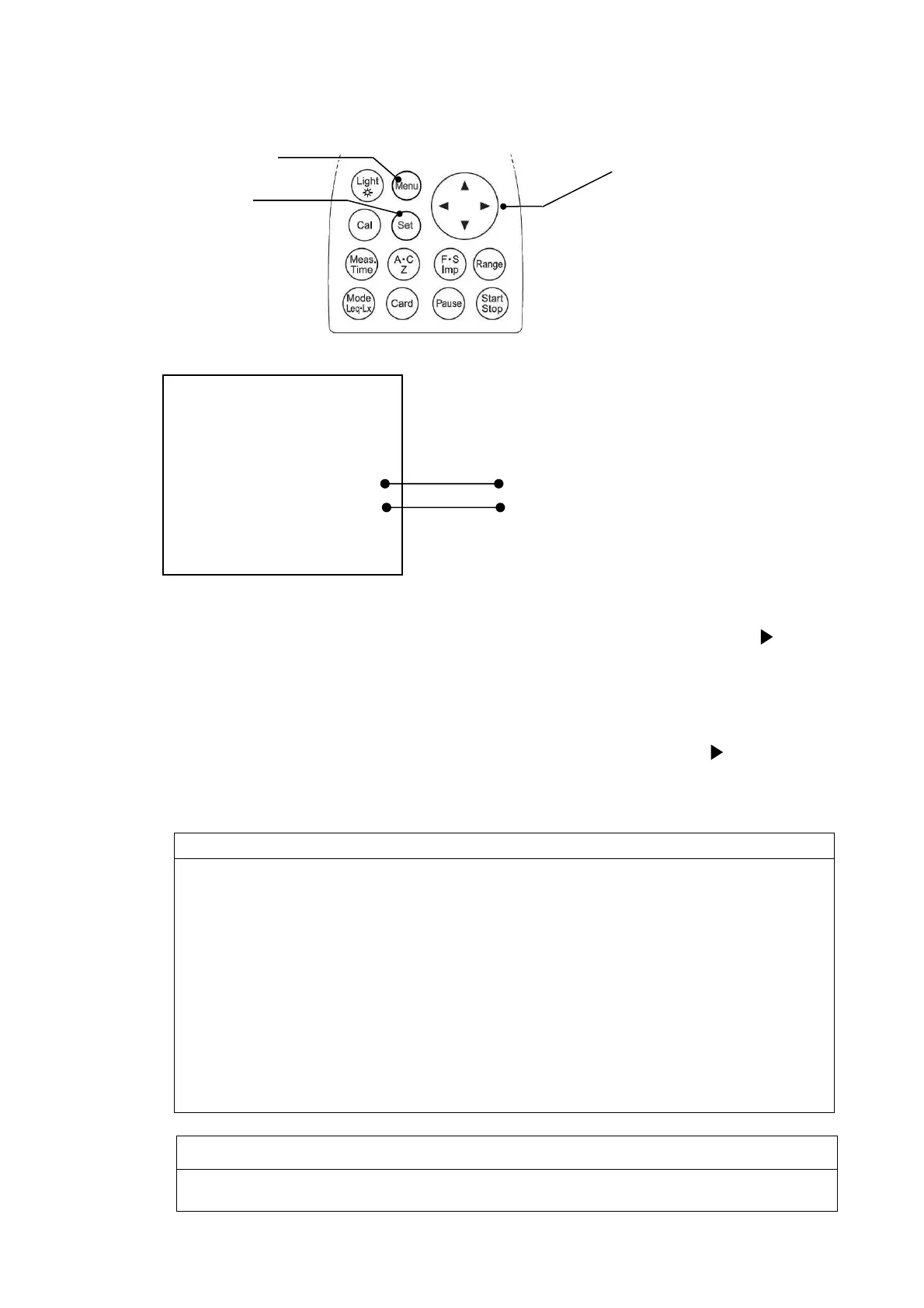
When you press the
[Menu]
key, the following screen appears
【Calendar adjustment】
(1) Select date y/m/d with Cursor key ▼, then move the cursor rightward with key.
(2) Set the year/month/day with ▲▼ key, then press
[Set]
key to save the setting.
After pressing
[Set]
key, the cursor moves to leftward.
(3) If you want to go back to the measurement mode, press
[Set]
key.
【Time adjustment】
(1) Select
time
with Cursor key ▼, then move the cursor rightward with key.
(2) Set the hour:minute:second with ▲▼ key, then press
[Set]
key to save the setting.
After pressing
[Set]
key, the cursor moves leftward.
(3) If you want to go back to the measurement mode, press
[Set]
key.
NOTE
Be sure to enter the date (date y/m/d) in the order of “year → month → day.”
Input any figure of: y(year): 00 – 99, m(month):01 – 12, and d(day): 01 – 31.
Ex.) For November 30, 2003
Correct) 03/11/30
Incorrect) 11/30/03 30 has been entered for m(month). Input any figure of
01 through 12.
Be sure to enter the time in the order of “hour → minute → second.”
Input any figure of: h(hour): 00 – 24, m(minute): 00 – 59, s (second) 00 – 59.
Ex.) For 23:58:32
Correct) 23/58/32
Incorrect) 32/58/23 32 has been entered for h(hour). Input any figure of
NOTE
You are recommended to set the built-
in IC timer right before measurement, since
it could show the wrong time.
[Menu]
key
Cursor
key
[Set]
key
Date adjustment
Time adjustment
<System> 1/3
Mode :Normal
Data delete:off
LCD cont :***
Date y/m/d :00/00/00
Time h/m/s :00:00:00
Printer(PC)set:9600
USB out :OFF


 To Next Page