34 - How to Use SmarTach
®
- Advanced Functions - Copyright
©
2005 ACTIA
English
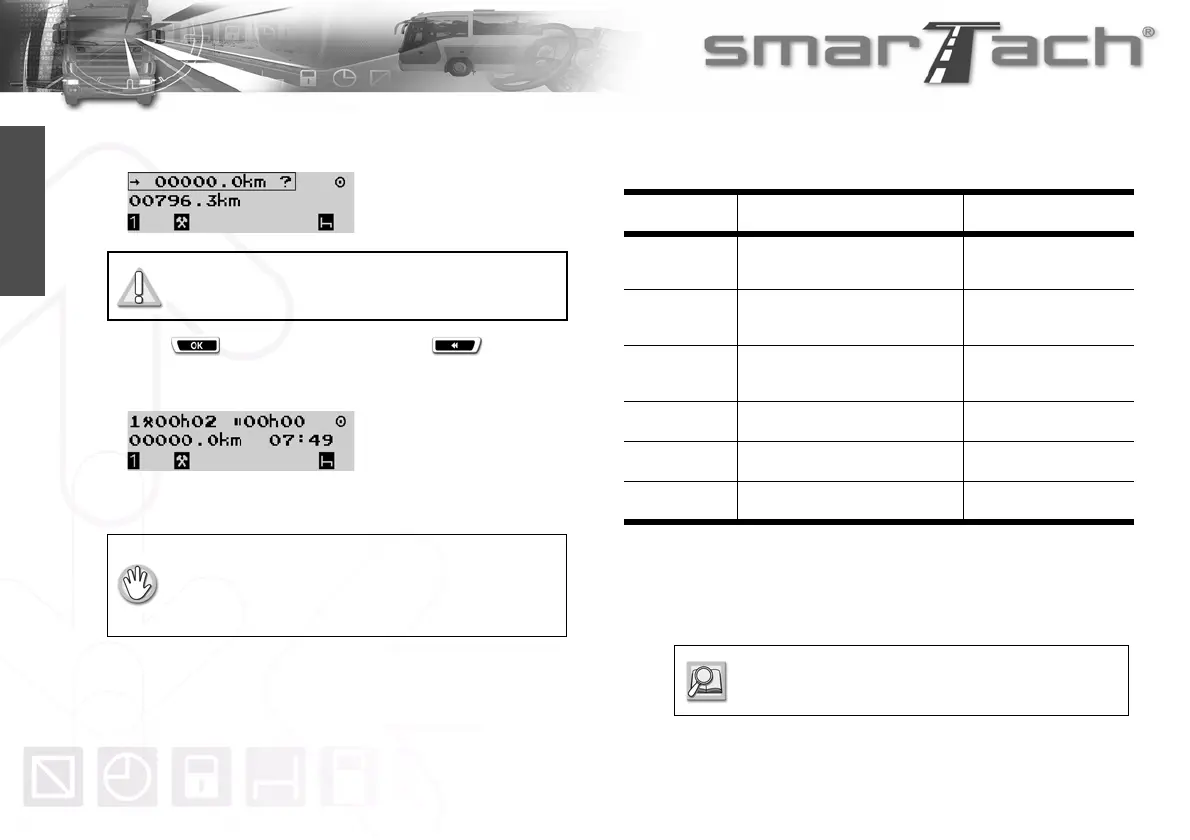
The tripmeter is displayed. SmarTach
®
prompts you to
confirm the reset.
3. Press to confirm tripmeter reset or to exit
without change.
4. SmarTach
®
resets the tripmeter.
4.3 How to Get Paper Printouts
The following table describes the different types of tickets
(printouts) you can print, as defined in Annex 1B.
Tickets can be printed using UTC time or local time.
UTC time is required for tickets that can be provided to
authorities for control.
This display only appears if the workshop has
activated this function.
• The vehicle must be stationary.
• The ignition switch must be turned on
(the engine does not need to be started).
• No downloading operation must be in progress.
Pictogram To print From
24h©®
Driver and co-driver daily
activities
Driver’s or co-driver’s
cards
24h°®
Driver and co-driver daily
activities
SmarTach
®
!x©®
Events and faults
Driver’s or co-driver’s
cards
!x°®
Events and faults
SmarTach
®
£ª®
Technical data
SmarTach
®
>>®
Over-speeding
SmarTach
®
Table 20
Refer to Section 4.1.1 Printouts Time
Reference.


 To Next Page