Copyright
©
2005 ACTIA - How to Use SmarTach
®
- Advanced Functions - 39
English
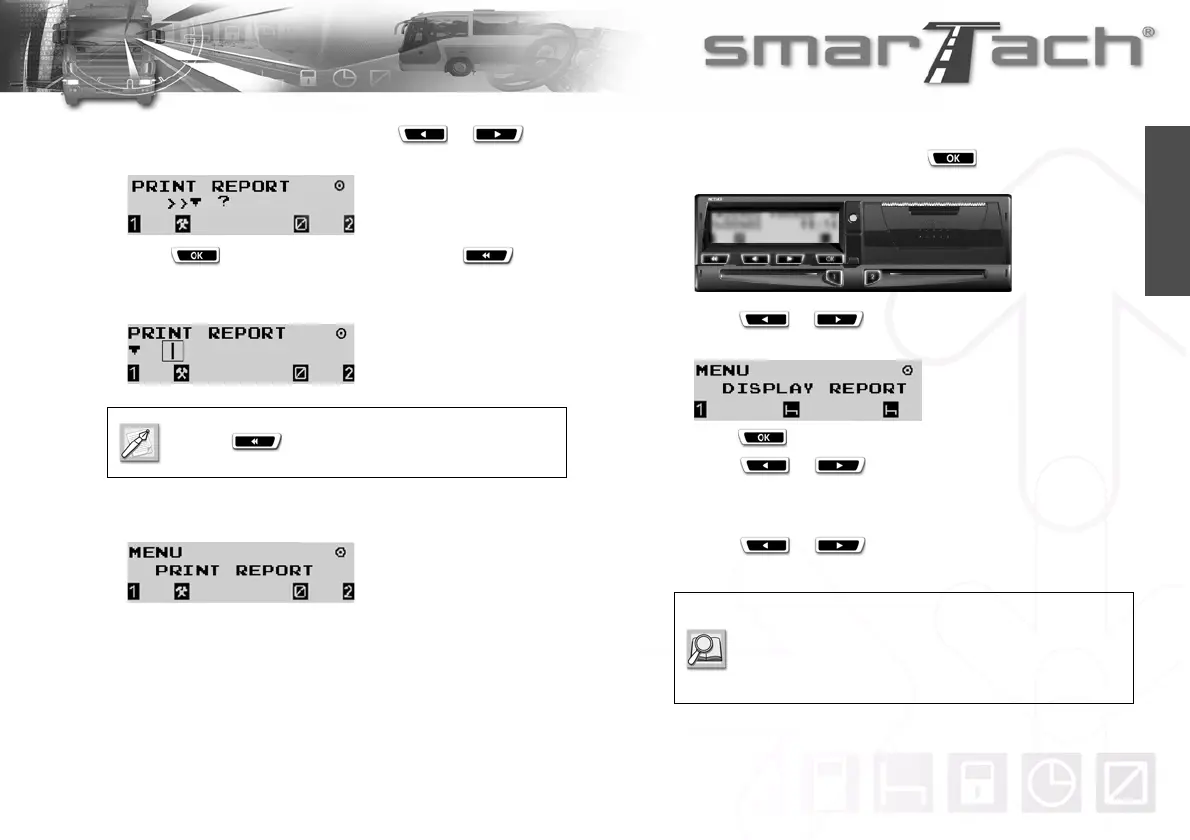
5. To print driver over-speedings, press or as
many times as necessary to select
>>®.
6. Press to validate and print the ticket or to
change your selection.
7. During the printing operation, the following display appears:
8. Once the printing operation has finished, the following display
appears:
4.4 How to Display Printouts
You can see your printouts on the display instead of having them
on tickets.
To display printouts, proceed as follows:
1. In the first level of menus, press to go to the second
level.
2. Press or as many times as necessary to go to
DISPLAY REPORT.
3. Press to select DISPLAY REPORT.
4. Press or to select the relevant type of
printout.
5. Follow the appropriate procedure.
6. Press or to scroll through the different
displays.
Press to stop printing.
Refer to Sections:
4.3.1 Driver and Co-Driver Activities,
4.3.2 Events and Faults,
4.3.3. Technical Data and Over-speeding.


 To Next Page