58 - How to Use SmarTach
®
- Advanced Functions - Copyright
©
2005 ACTIA
English
4.8.2 How to Place a Lock when a Lock has already been
Placed
To place a company lock, proceed as follows:
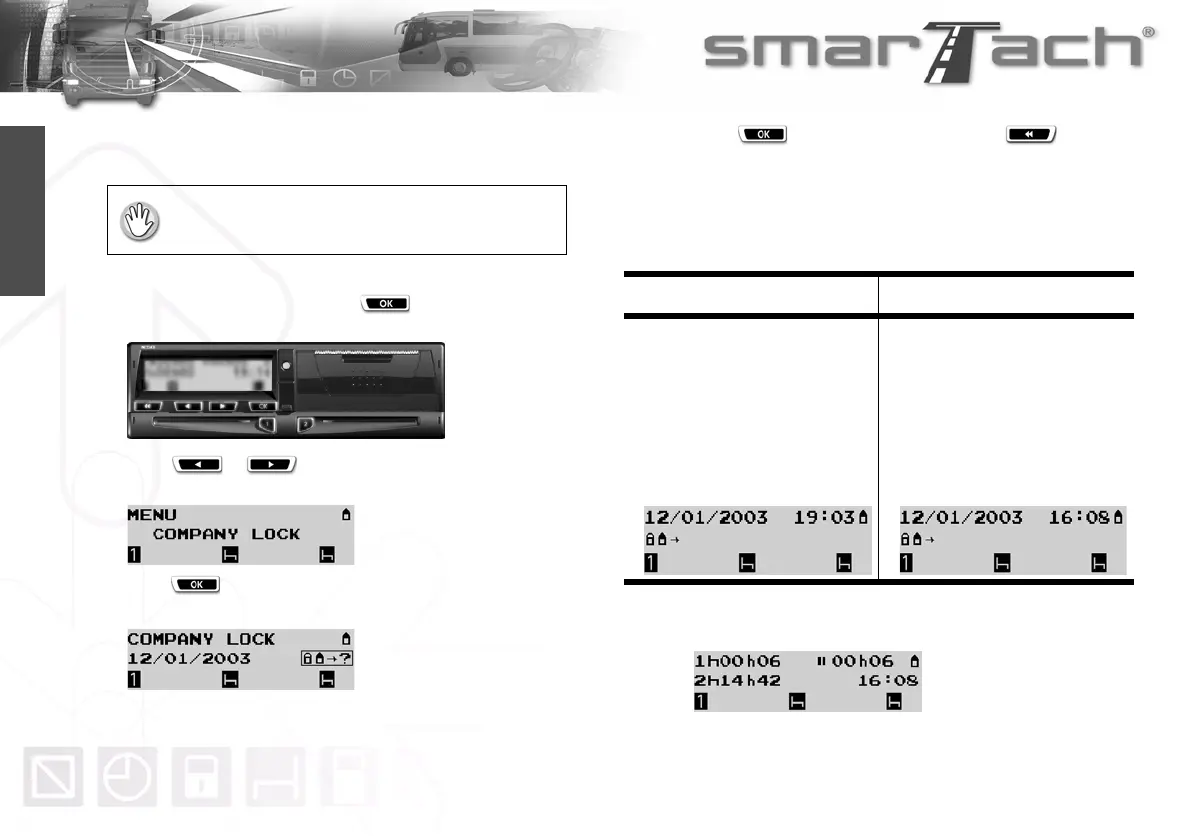
1. In the first level of menus, press to go to the second
level.
2. Press or as many times as necessary to go to
COMPANY LOCK.
3. Press to select COMPANY LOCK.
4. SmarTach
®
notifies you that a lock has already been placed.
The displayed date corresponds to the date at which the
marker for the start of the existing lock was placed.
5. Press to place the company lock or to exit
without a change.
6. The following table describes the two possible cases:
• the active lock has been placed by your company,
• the active lock has been placed by another company.
7. The last selected main display appears.
• The vehicle must be stationary.
• A company card must be inserted.
By your company By another company
No new lock will be generated.
The lock start marker remains active.
The date and time at which the lock
start marker was placed is displayed
for a few seconds.
SmarTach
®
places a marker for the
end of the lock for this company.
SmarTach
®
places a marker for the
start of the lock for your company.
The date and time at which the new
lock start marker was placed is
displayed for a few seconds.
Table 33


 To Next Page