Copyright
©
2005 ACTIA - How to Use SmarTach
®
- Advanced Functions - 53
English
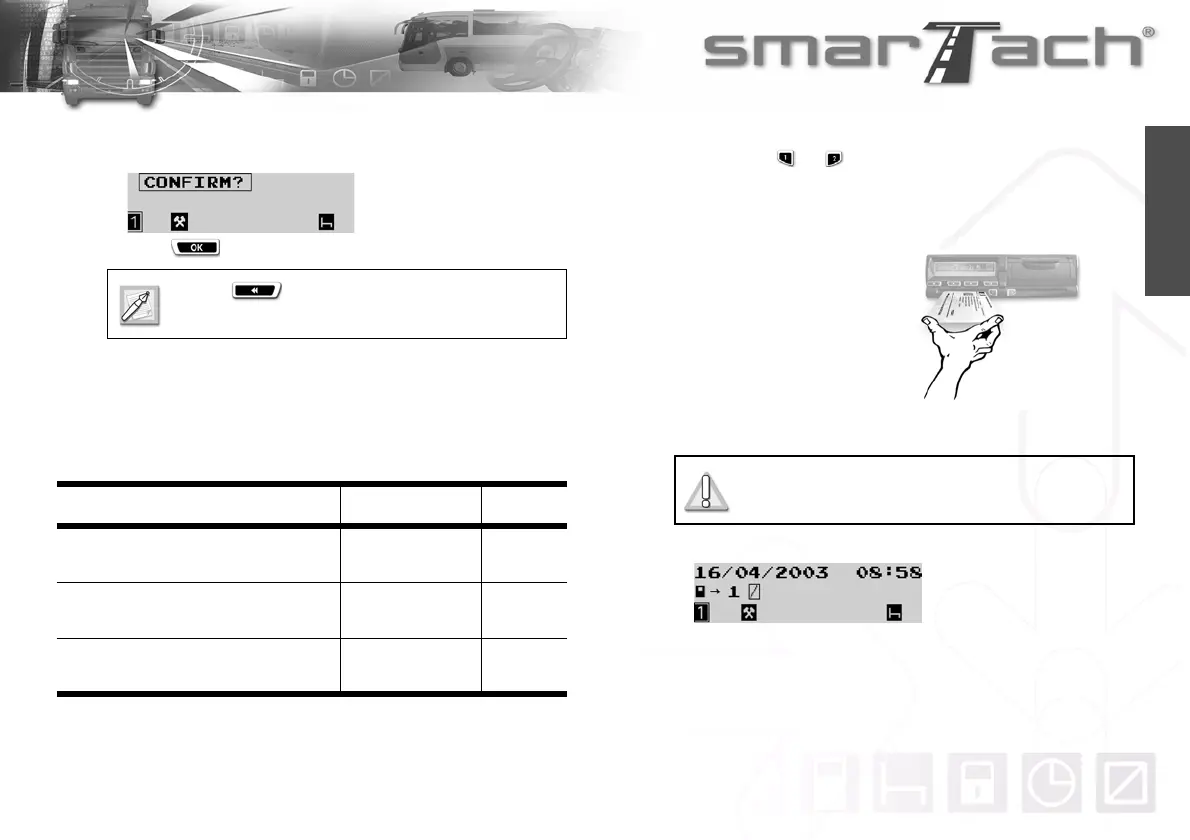
19. Once the corresponding location is entered and confirmed,
SmarTach
®
prompts you to confirm all data entered.
Press to confirm all data entered.
20. The entered activities are confirmed. They are stored in your
driver card.
4.7.3 At the Beginning of the Current Daily Work Period
In this example, assume that:
You want to enter a work period from 7:00 to 8:57.
Here are the steps to follow.
1. Hold down or to open the flap before inserting your
smart card.
2. When the slot is ready for card insertion, the corresponding
pictogramm 1 or 2 flashes.
3. Insert your card, with
the chip facing up and
the arrow towards
SmarTach
®
, into the
appropriate slot:
• left slot: driver
• right slot: co-driver
4. Slide it in gently up to the stop.
5. The slot closes automatically.
Press to cancel.
In this case, you have to enter your activities again.
Action Date Time
Now, you are inserting your driver card in
SmarTach
®
.
April 16th, 2003 8:58
You actually started your daily work
period the same day.
April 16th, 2003
from 7:00
to 8:58
Yesterday, you withdrew your card from a
SmarTach
®
April 15th, 2003 19:13
Table 31
Do not force. Let the mechanism draw in the
card.


 To Next Page