14 - How to Use SmarTach
®
- Basic Functions - Copyright
©
2005 ACTIA
English
3.5 How to Select your Current Activity
Driver and co-driver activities are continuously displayed on the
third line of the screen.
To select your current activity, proceed as follows:
1. Press:
• to change your activity as driver to the next one.
• to change your activity as co-driver to the next one.
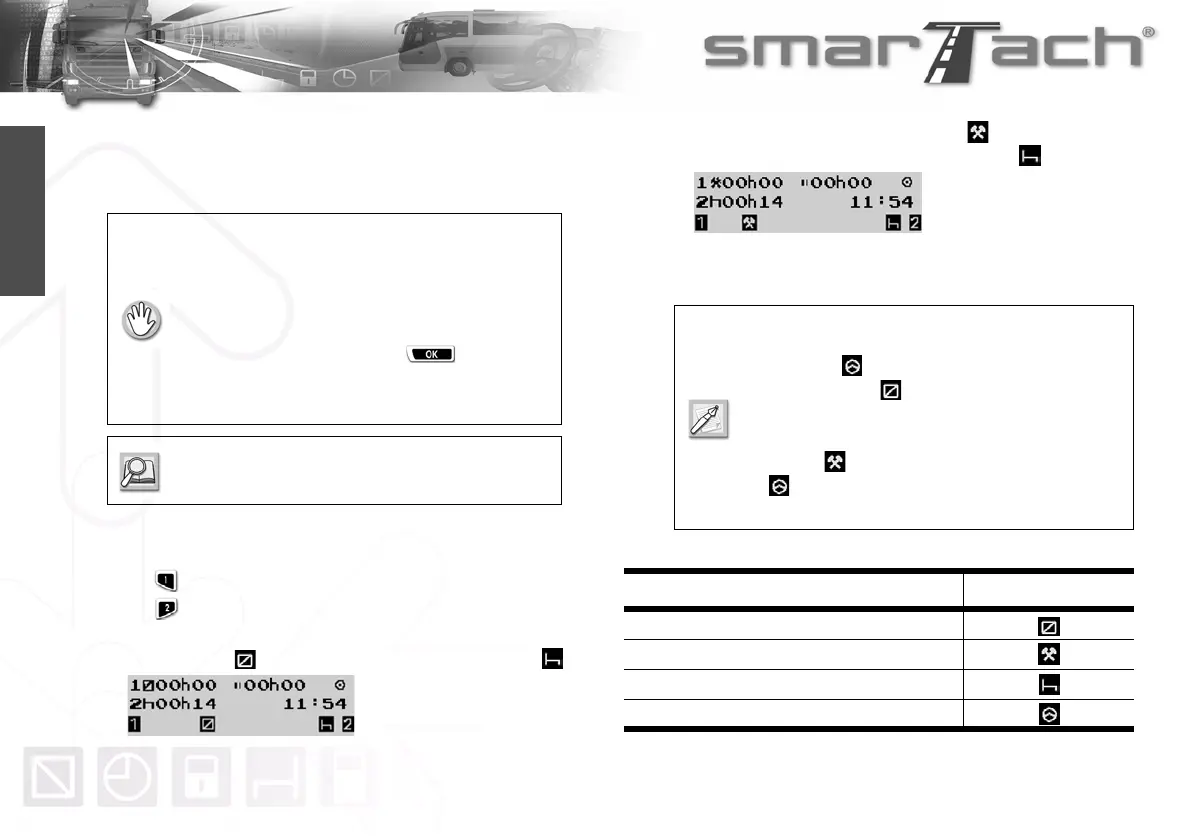
In the following example, the selected driver activity is
AVAILABILITY and co-driver activity is BREAK/REST .
The third line shows selected driver activities.
2. The driver activity switches to WORK .
The co-driver activity remains BREAK/REST .
Any declaration of activity is taken into account as soon as you
press the corresponding key.
• The vehicle must be stationary.
• No card withdrawal operation must be in
progress. Otherwise, wait until your card has
been withdrawn.
• There must be no event/fault message
displayed. Otherwise, press to
acknowledge the warning.
• No downloading operation must be in progress.
Refer to Section 3.7 How to Acknowledge
Warnings.
• When the vehicle is moving, SmarTach
®
automatically switches driver activity to
DRIVING and co-driver activity to
AVAILABILITY .
• When the vehicle stops, SmarTach
®
automatically switches driver activity to
WORK .
•
is never displayed in the right part dedicated
to the co-driver.
Activity Pictogram
AVAILABILITY
WORK
BREAK/REST
DRIVING
Table 6


 To Next Page