38 - How to Use SmarTach
®
- Advanced Functions - Copyright
©
2005 ACTIA
English
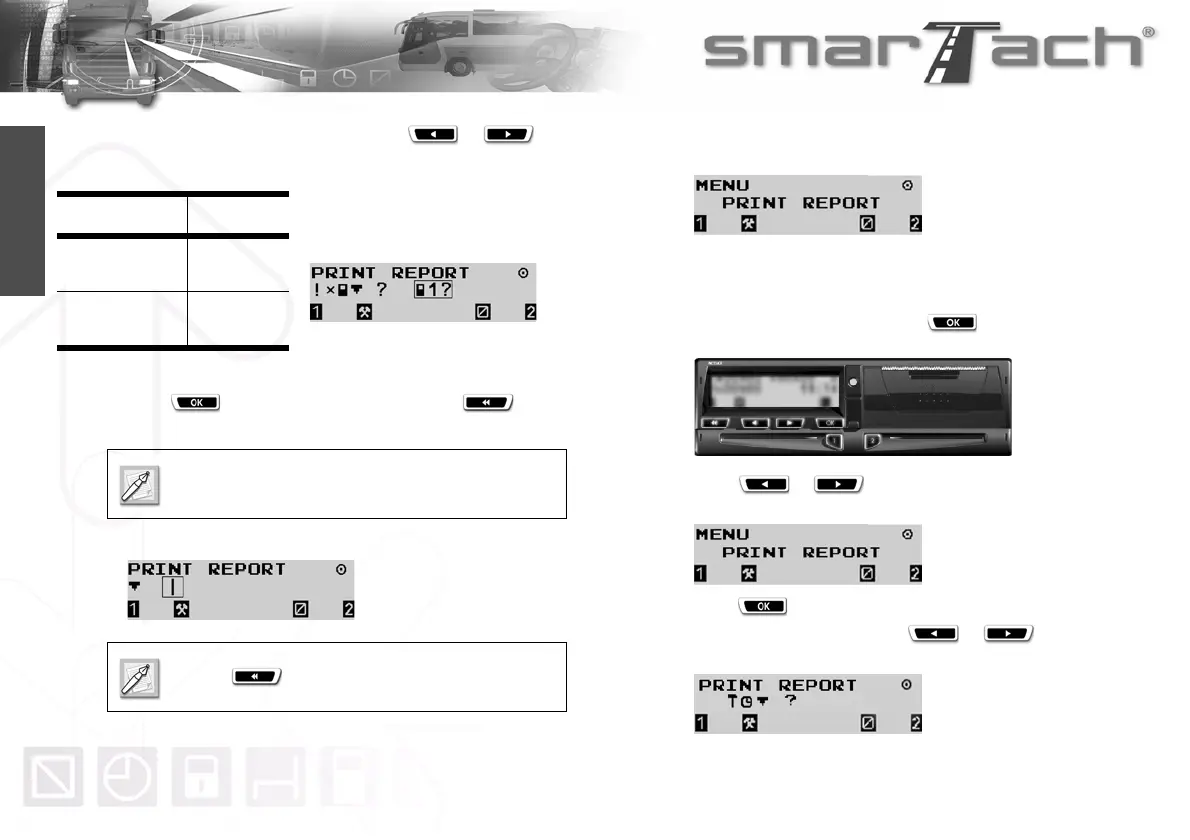
6. If two cards have been inserted, press or to
select from which card data are to be printed:
7. Press to validate and print the ticket or to
change your selection.
8. During the printing operation, the following display appears:
9. Once the printing operation has finished, the following display
appears:
4.3.3 Technical Data and Over-speeding
To print technical data and over-speeding, proceed as follows:
1. In the first level of menus, press to go to the second
level.
2. Press or as many times as necessary to go to
PRINT REPORT.
3. Press to select PRINT REPORT.
4. To print technical data, press or as many
times as necessary to select
£ª®.
Card Pictogram
Slot 1:
Driver card
©1?
Slot 2:
Co-driver card
©2?
Table 23
Operate the same way to print events from
SmarTach
®
!·°®.
Press to stop printing.


 To Next Page